Basic Operation
UR44 Operation Manual 25
Configuring Audio Driver Settings on the
DAW Software
Cubase Series Programs
1. Make sure that all applications have been
closed.
2. Make sure that the [P] switch has been
turned on (O).
3. Double-click the shortcut of Cubase series
on the desktop to start Cubase.
4. When the [ASIO Driver Setup] window
appears while the Cubase series program is
launching, confirm that the device is
selected, then click [OK].
The audio driver settings are now complete.
Programs other than Cubase Series
1. Make sure that all applications have been
closed.
2. Make sure that the [P] switch has been
turned on (O).
3. Launch the DAW software.
4. Open the audio interface settings window.
5. (Windows only) Select the ASIO Driver for
the audio driver settings.
6. Set the ASIO Driver for Windows and audio
interface for Mac as follows.
Windows
Set the [Yamaha Steinberg USB ASIO] to the ASIO
Driver settings.
Mac
Set the UR44 to the audio interface settings.
The audio driver settings are now complete.
Recording/Playback
Cubase Series Programs
1. Launch the Cubase series DAW.
The [steinberg hub] window appears.
2. Select the project template [Steinberg UR44
Vocal-Inst Recording 1-C7] in [Recording] on
the [steinberg hub] window, then click
[Create].
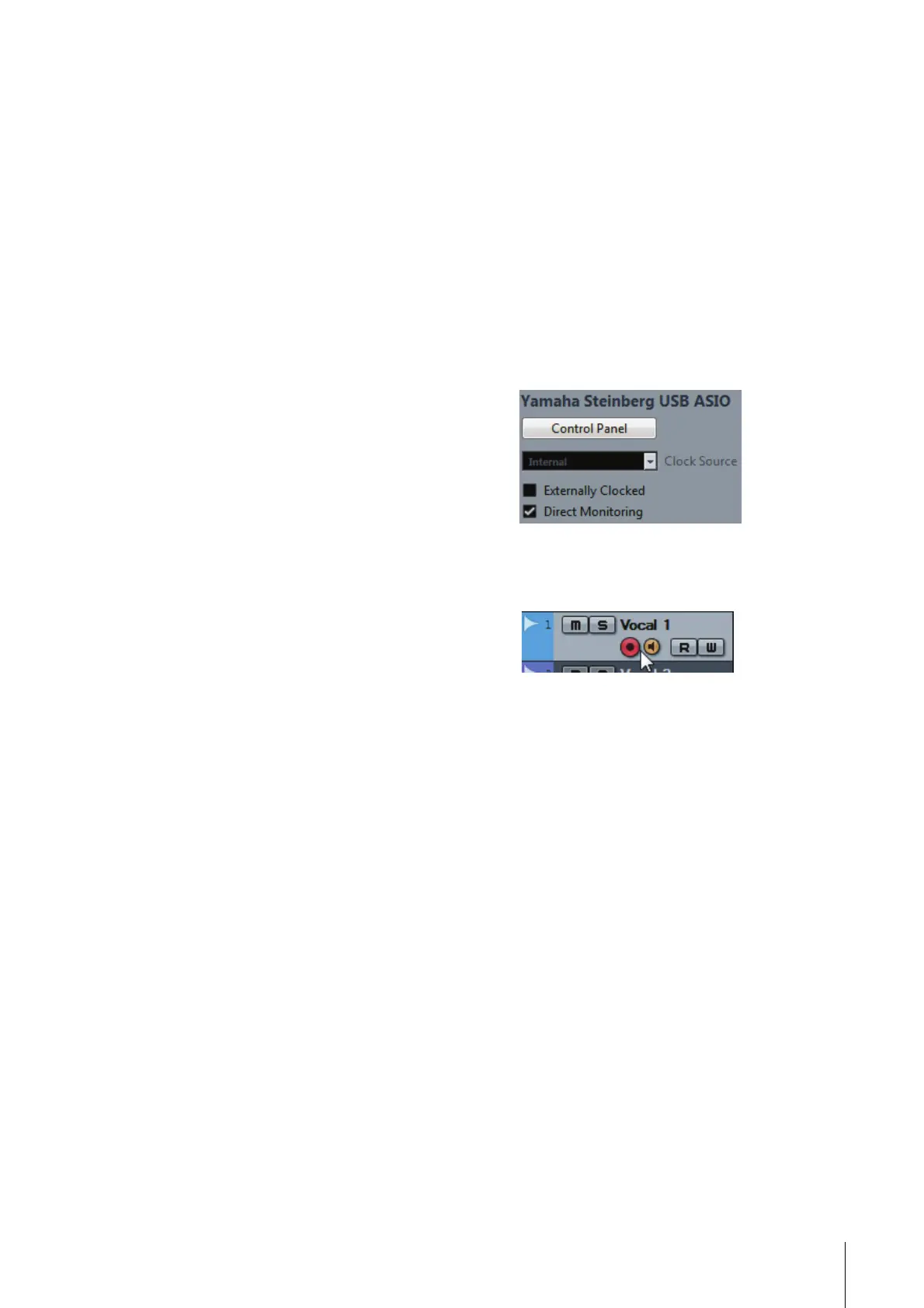
3. Turn on Direct Monitoring as follows.
[Devices] [Device Setup] [Yamaha Steinberg
USB ASIO] (Windows) or [Steinberg UR44] (Mac)
enter checkmark to [Direct Monitoring] [OK]
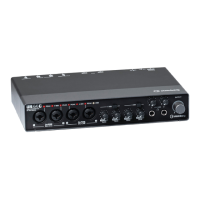
4. Confirm that the [Record Enable] and
[Monitor] indicators are turned on (lit) for the
audio track.
5.
While singing into the microphone, adjust
the input signal level of the microphone with
the [INPUT GAIN] knob on the device.
To achieve optimum recording levels, increase the
input level with the [INPUT GAIN] knob until the
[PEAK] indicator lights in red, then slowly bring the
level down until the indicator lights slightly when the
input level is maximum.
6.
Continue singing into the microphone and
adjust the output signal level of the
headphones with the [PHONES] knob on the
device.


 To Next Page