SatLink VSAT User Guide
Publication no. 101557
Copyright © 2009 – STM Group, Inc.
Page 107 (160)
Appendix A. Accessing the Command Line Interface via
Serial Console Port
In some special situations the Command Line Interface via Telnet may not be accessible or will not
output the required amount of debug information. Typical examples of such situations are:
• The STM SatLink VSAT is configured with an unknown IP address
• One needs to enter the boot-loader
• Detailed debugging
The Command Line Interface may then be accessed from a local PC connected to the STM SatLink
VSAT’s RS-232 interface via a serial cable. HyperTerminal or any compatible terminal emulation
program is used to access the CLI interface via RS-232. A good freeware terminal emulator is
Tera Term Pro Web 3.1.3. The software can be downloaded from Ayera home page:
http://www.ayera.com/teraterm
.
A.1 Cable Connection
To get access to the command-line interface (CLI) via the serial connection, a serial cable is connected
from the SatLink VSAT directly to a COM port on a PC:
• Plug the 9-pin connector (DB09) (male) into the rear panel of the SatLink VSAT.
• Plug the 9-pin connector (DB09) (female) into a COM port on the PC.
A.2 PC Configuration of HyperTerminal to Access the CLI via Serial Port.
In Windows, click the Start button and select All Programs > Accessories > Communications >
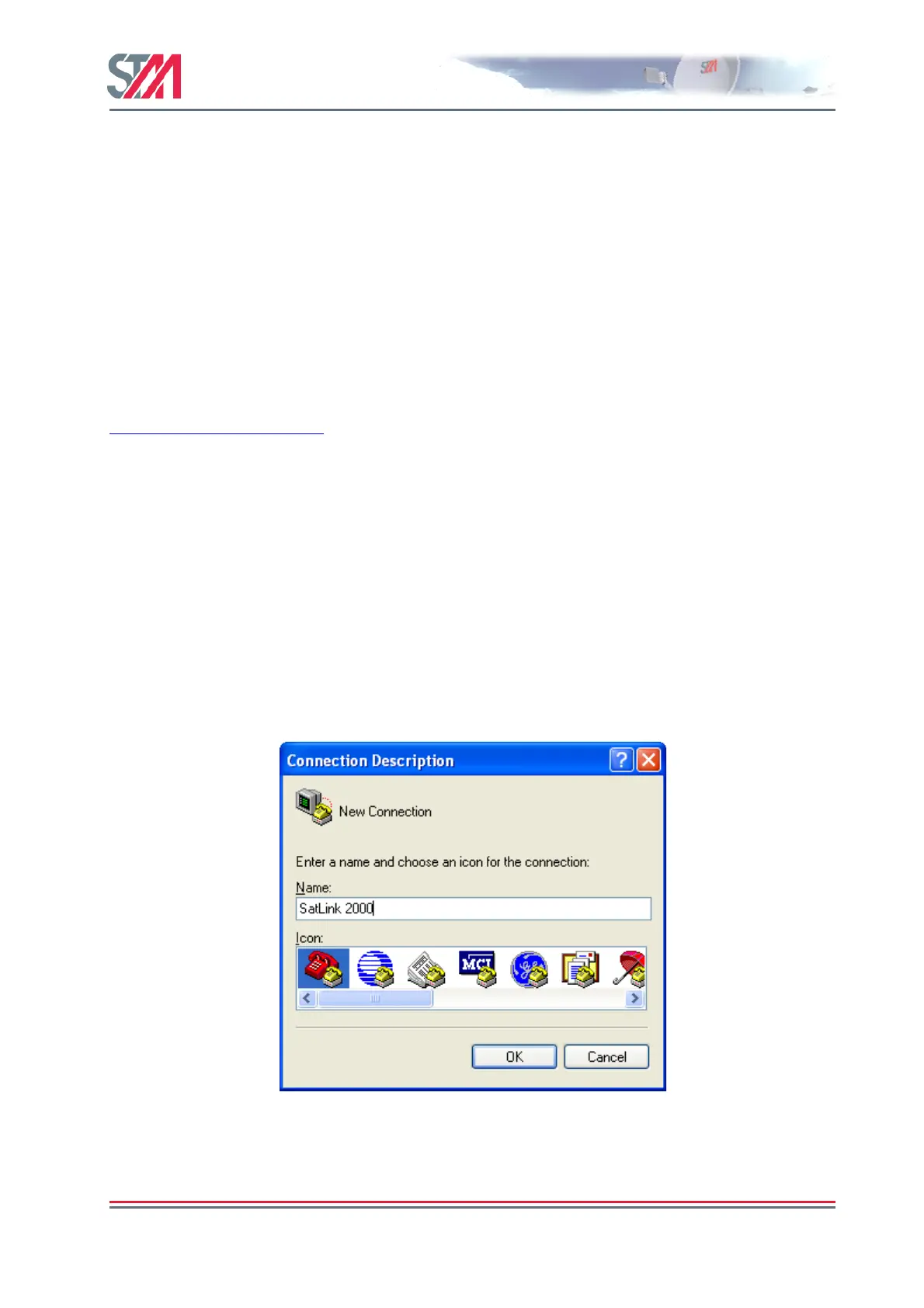
HyperTerminal. HyperTerminal will then start and the Connection Description dialogue box, shown in
Figure 35, will appear. The screen shots are from Windows XP Professional; other versions of Windows
may display differently.
Figure 35 : Hyper Terminal New Connection dialogue box
Enter a name and select an icon for the Connection, and click OK. The Connect To dialogue box, shown
in Figure 36, will appear.



 To Next Page