Objet500 User Guide 6 Operating and Maintaining the Objet500 3DPrinter
DOC-07027 Rev.E 6-16
Additional
Steps for
Printing With
Bio-
Compatible
Materials
Toensurethebio-compatibilityofprintedpartswhenchangingfrom
standardmaterialstobio-compatiblematerials,makesuretoruntheMaterial
Replacementwizardasfollows:
•IfstandardmaterialswereloadedintheM1and/orM2cartridgeslots,and
youusedHighSpeedorHighQualitymode,runtheMaterialReplacement
wizardontherelevantcartridgeslots.
•IfstandardmaterialswereloadedintheM1and/orM2cartridgeslots,and
youusedDigitalMaterialmode,runtheMaterialReplacementwizardon
both theM1andM2cartridgeslots.
Note: Ifyouareloadingthesamebio-compatiblematerialintotheM1and
M2cartridgeslots,youwillneedtomanuallyselecttheslotbeforerunningthe
MaterialReplacementwizard(see"Positioning"below).
Loadingbio-compatiblematerialintheM3cartridgeslotdoesnotrequire
additionalreplacementsteps.
Advanced
Settings
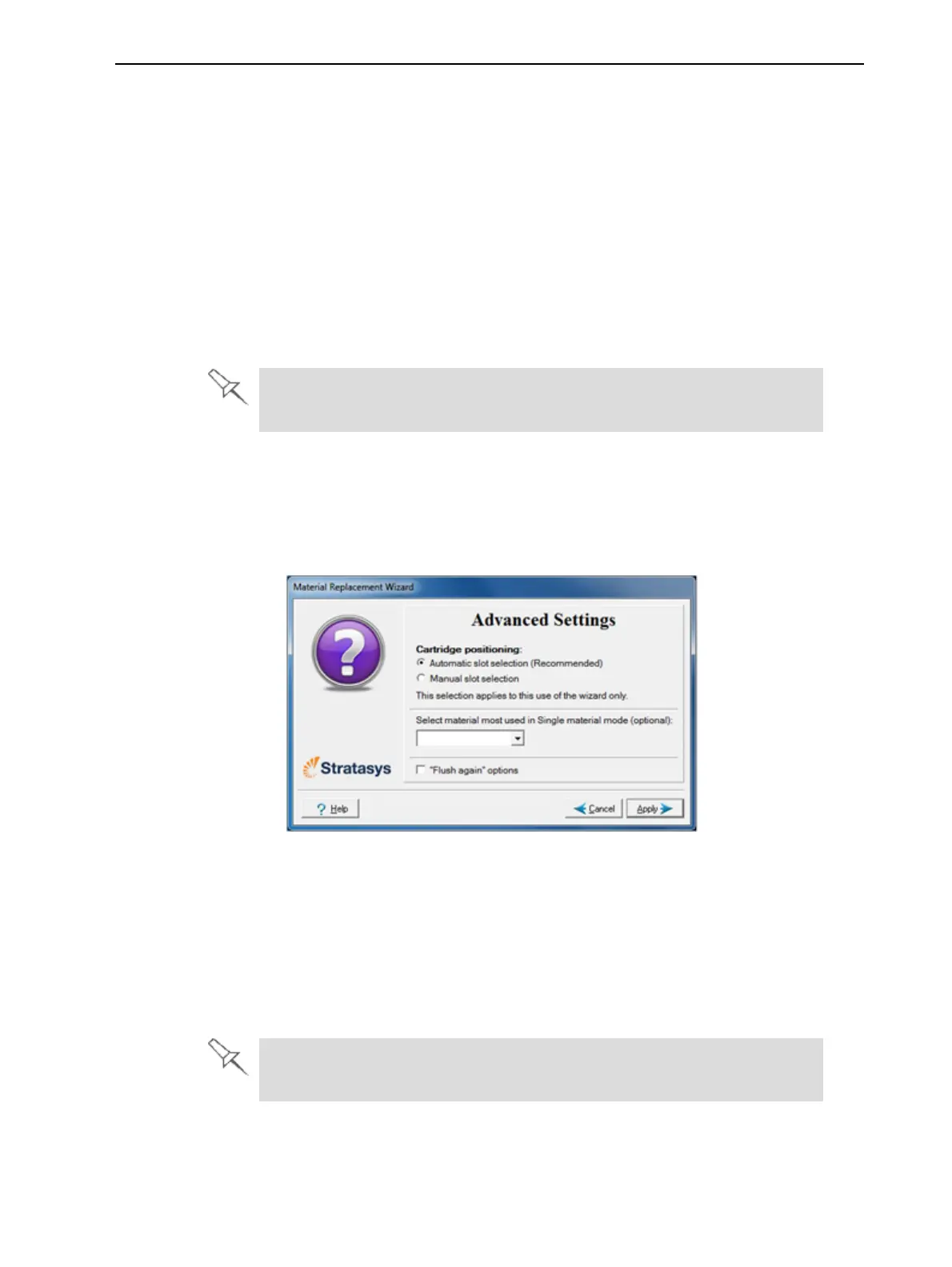
TheAdvanced SettingsdialogboxenablesyoutoconfiguretheMaterial
Replacementwizardforspecialpurposes.Ifnecessary,clickAdvanced
SettingsintheMaterial Replacement OptionsscreenbeforeclickingNext.
Figure6-12AdvancedReplacementsettings
Positioning
Bydefault,Automatic slot selectiondeterminesthebestslotlocationsforthe
cartridgesinthematerialcabinet,basedonmaterialscurrentlyinthesystem.
Thisensuresminimumflushingofmaterialscurrentlyloaded.
SelectManualslotselectionif—
•thereisaspecialneedtoloadcartridgesincertainslotlocations.
•youonlywanttochangeoneofthecartridgesincertainslotlocations.
Somematerialscannotreplacecertainothermaterials.Ifyouattemptto
doso,thewizardnotifiesyou.


 To Next Page