Objet500 User Guide 5 Using Objet Studio
DOC-07027 Rev.E 5-64
“Hollow”—
Filling Models
with Support
Material
Manyobjectsplacedonthetrayfromstlfilesare“solid.”Thismeansthat,
whenprinted,themodelwillbecompletelyfilledwithmodelmaterial.Often,
especiallywithlargeobjects,thisisunnecessary.Instead,themodelcanbe
filledwithsupportmaterial,whichislesscostly.Itisalsoadvisabletofill
modelswithsupportmaterialwhenpreparingthemforinvestmentcasting,
sincethismaterialburnsoffmorequicklyduringtheprocessofmakingthe
cast.
ObjetStudioenablesyoutoprintobjectsonthetraywithanoutershellof
modelmaterialandacenterfilledwithsupportmaterial.Whenusingthis
feature,called“Hollow,”thethicknessoftheshellshouldbenolessthan0.5
millimeters.
TousetheHollowfeature:
1. Selectamodelonthetray.
or—
❒ OntheModelToolbar,click .
or—
❒ Fromtheright-clickcontextmenu,selectAdvancedProperties.
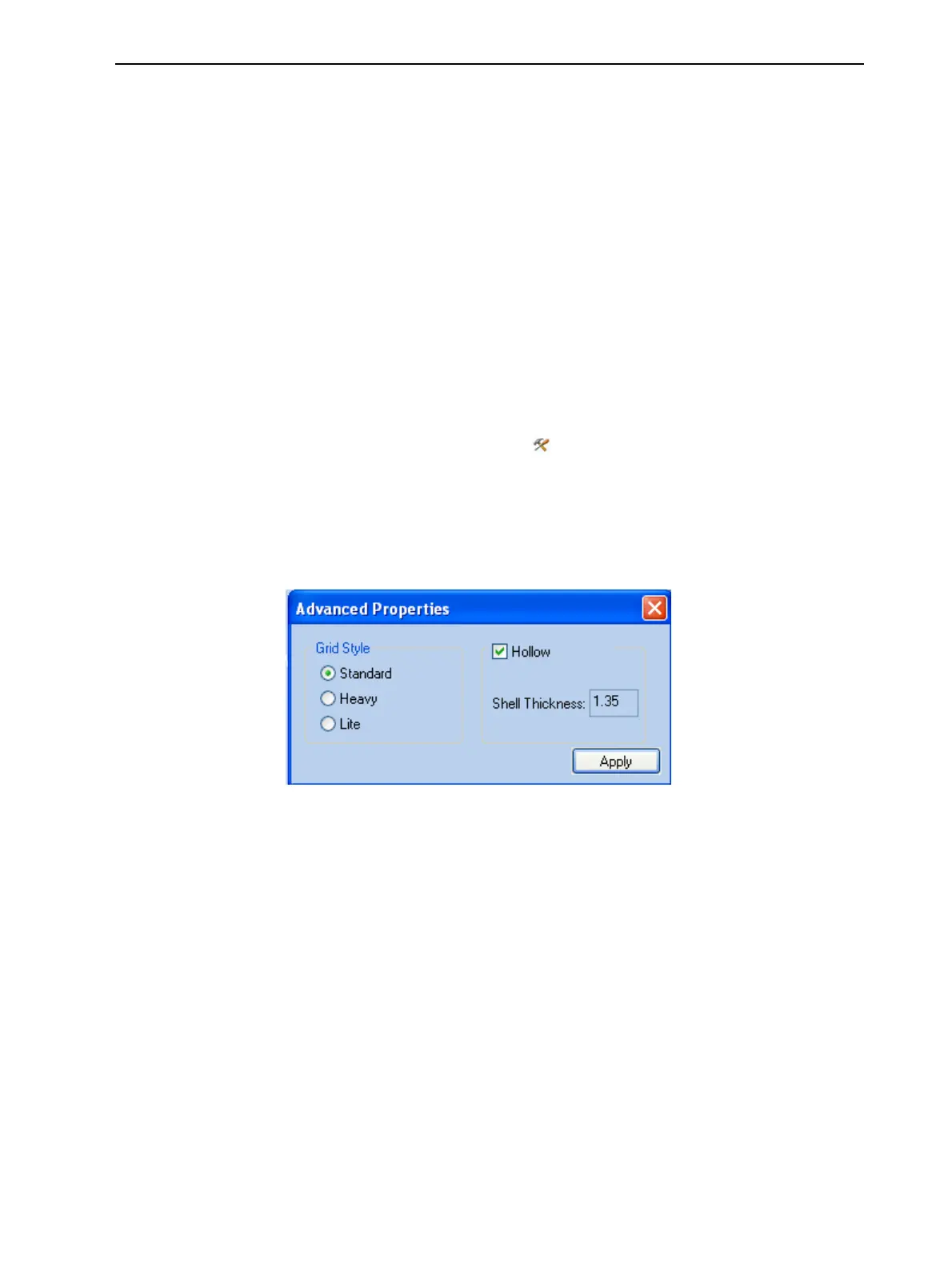
TheAdvanced Propertiesdialogboxopens.
2. SelectHollow.
Figure5-79Advanced Properties dialogbox
3. Settheshellthickness,inmillimeters.
4. ClickApply.
Note: ThereisnochangeinthedisplayofobjectsinObjetStudiowhen
Hollowisselected.
Toinspect,changeorcanceltheHollowsetting:
1. Selectamodelonthetray.
2. AccesstheAdvanced Propertiesdialogbox,asabove.
3. IfyouchangeorcanceltheHollowsetting,clickApply.


 To Next Page