16
You gain access to some of your set-top box’s
features, particularly those which you use only
occasionally, by means of the Main menu.
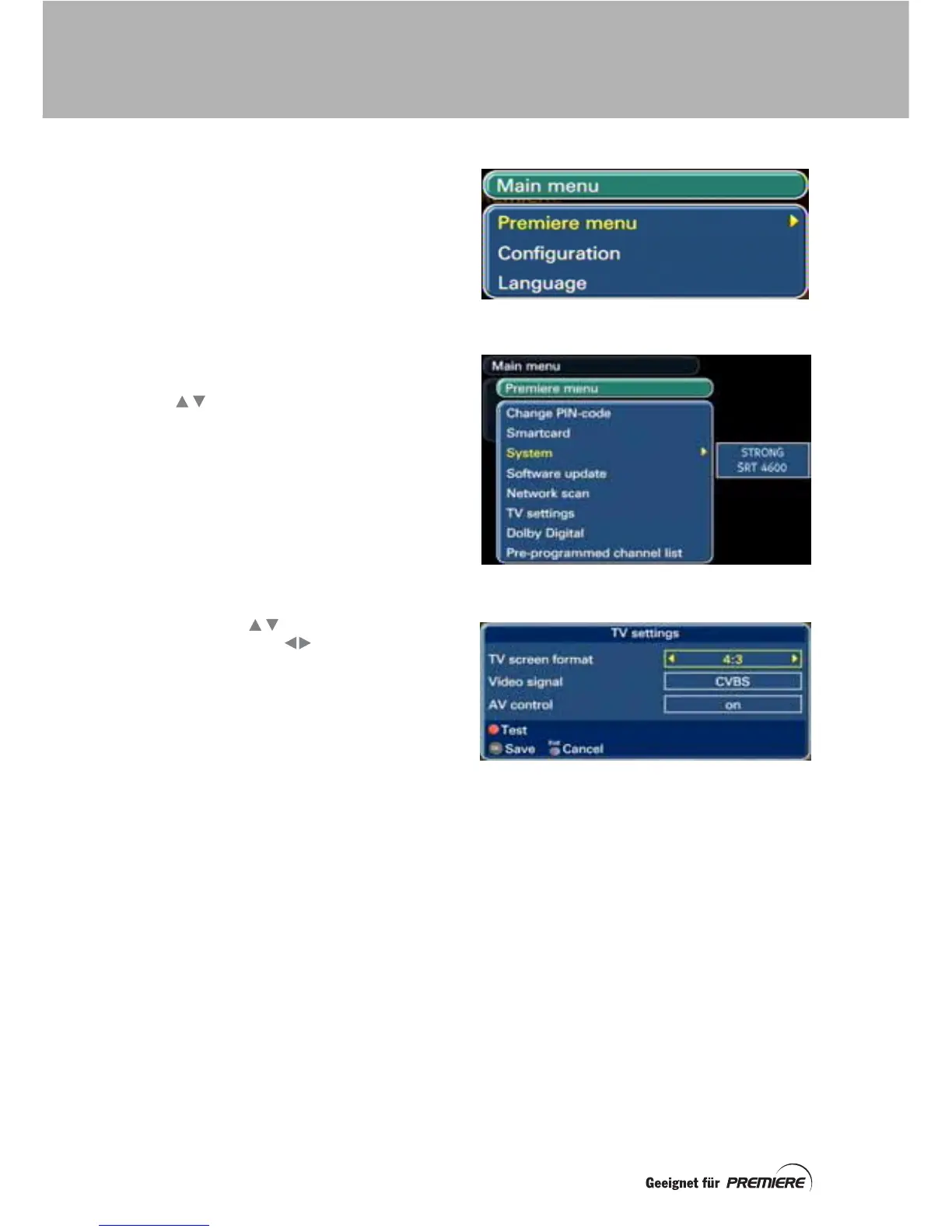
To display the Main menu, press the Menü
button. Several sub-menus (such as the
Premiere menu) and screens are available
from the Main menu. In any menu, an arrow
on the right-hand side of the menu shows you
that a sub-menu or screen is available.
When the Main menu first appears, the first
item on the list is highlighted in yellow (see
right).
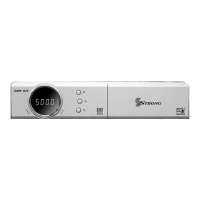
Press the buttons to move the
highlighting up or down menus and screens.
Press the OK button to display the next menu
or screen. When a sub-menu is displayed, you
will still see the titles of the preceding menu(s)
behind it.
You use menus and their sub-menus to finally
display screens, where you can make and
save settings that are appropriate for your
digital TV system and viewing habits.
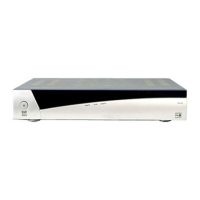
On a screen where you can change the setting
for an item, use the buttons to highlight
the setting, then use the buttons to
change the setting until the one you want is
displayed. The TV settings screen is shown
right, as an example.
Screens have information at the bottom of
them showing you which remote-control
buttons you can use to carry out particular
actions. In the example right, you can use the
red button to test the TV settings, before you
save them.
On most screens, you use the OK button to
save any changes you have made to the
settings, but sometimes a different button is
used for saving.
You use the Exit button to return to the
previous menu/screen without saving any
changes you may have made.
You use the Exit button on the Main menu to
remove the menu and redisplay the channel
you were watching.
The following sections describe all the
available menus in more detail.
MENUS AND SCREENS


 To Next Page