23
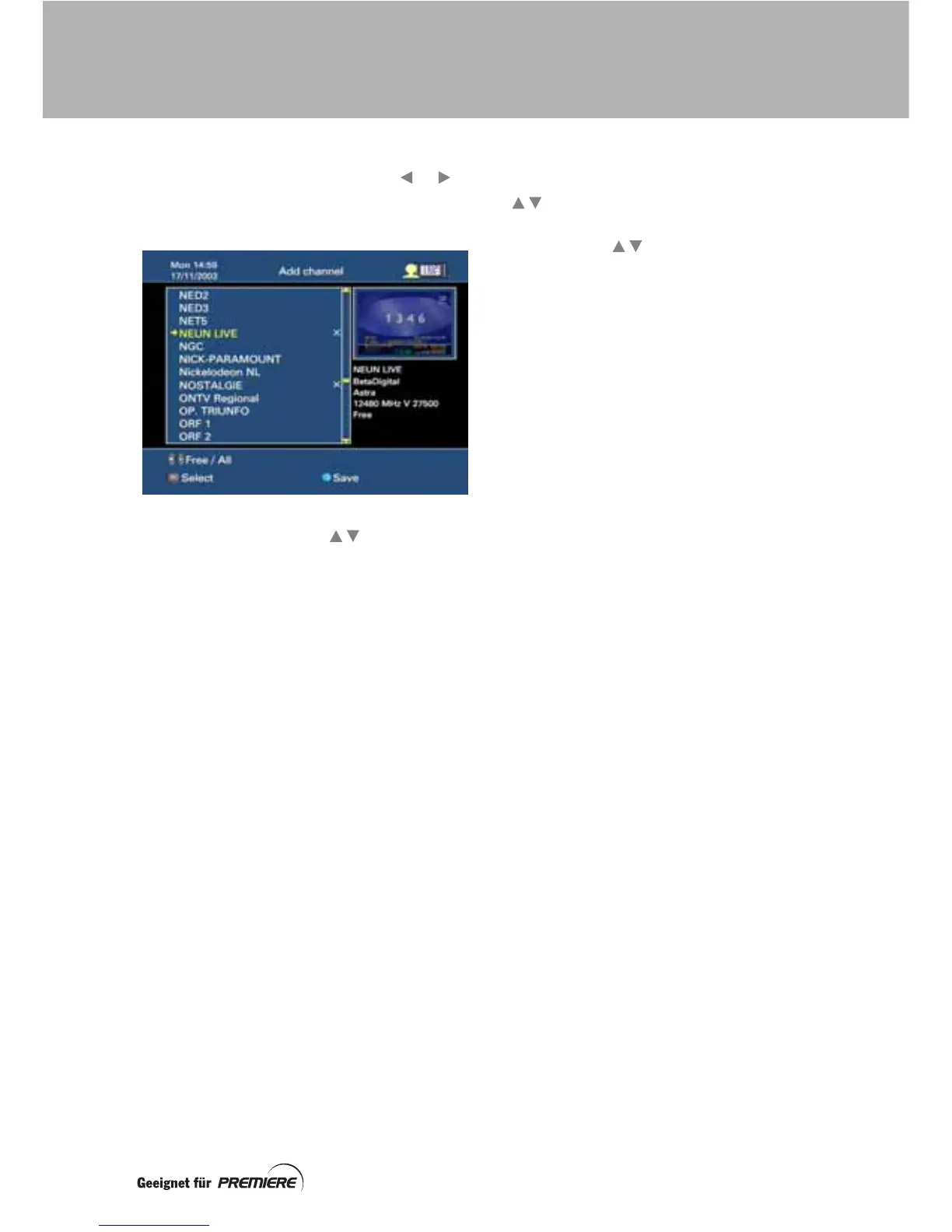
If you wish to choose your channels from a list
of only the free channels, press the or
button to display the Add free channel
screen.
Use the P+/P– buttons or buttons to
highlight the previous/next channel on the list.
(If you use the P+/P– buttons, the information
to the right of the screen is about the
highlighted channel.)
Use the page (Seite) + and – buttons to
display the previous/next page of the list.
To select a channel to add to your TV user list,
highlight it, then press OK. A cross ( X )
appears next to the name of the channel. You
can select as many channels as you want (up
to a maximum of 100 in your user list).
If you wish to deselect (remove the cross from)
a channel, highlight it, then press OK.
To save your selected channels and redisplay
the User list: TV channels screen, press the
blue button. (To redisplay it without saving any
changes, press Exit instead.)
You will see that the added channel has been
inserted either at the highlighted channel
number (if this was empty) or at the nearest
empty channel number further down the list.
However, you can move the channels around
in your list, as described next.
Changing the channel order
To move a channel up or down the list, use the
buttons to highlight the channel, then
press the green button.
Then use the buttons to move the
channel and finally press the green button
again to place the channel in its new position.
Removing channels from the list
To remove a channel from the list, highlight the
channel then press the red button. A red line
appears through the channel’s name.
To remove the red line and keep the channel
on the list, highlight the channel then press the
red button again.
Saving all the changes you have made
When you have made all the changes you want
to make to a User list: TV channels screen,
press the OK button to save the changes.
To remove the User list: TV channels screen
without saving any changes, press Exit.
CREATING YOUR USER LISTS


 To Next Page