52
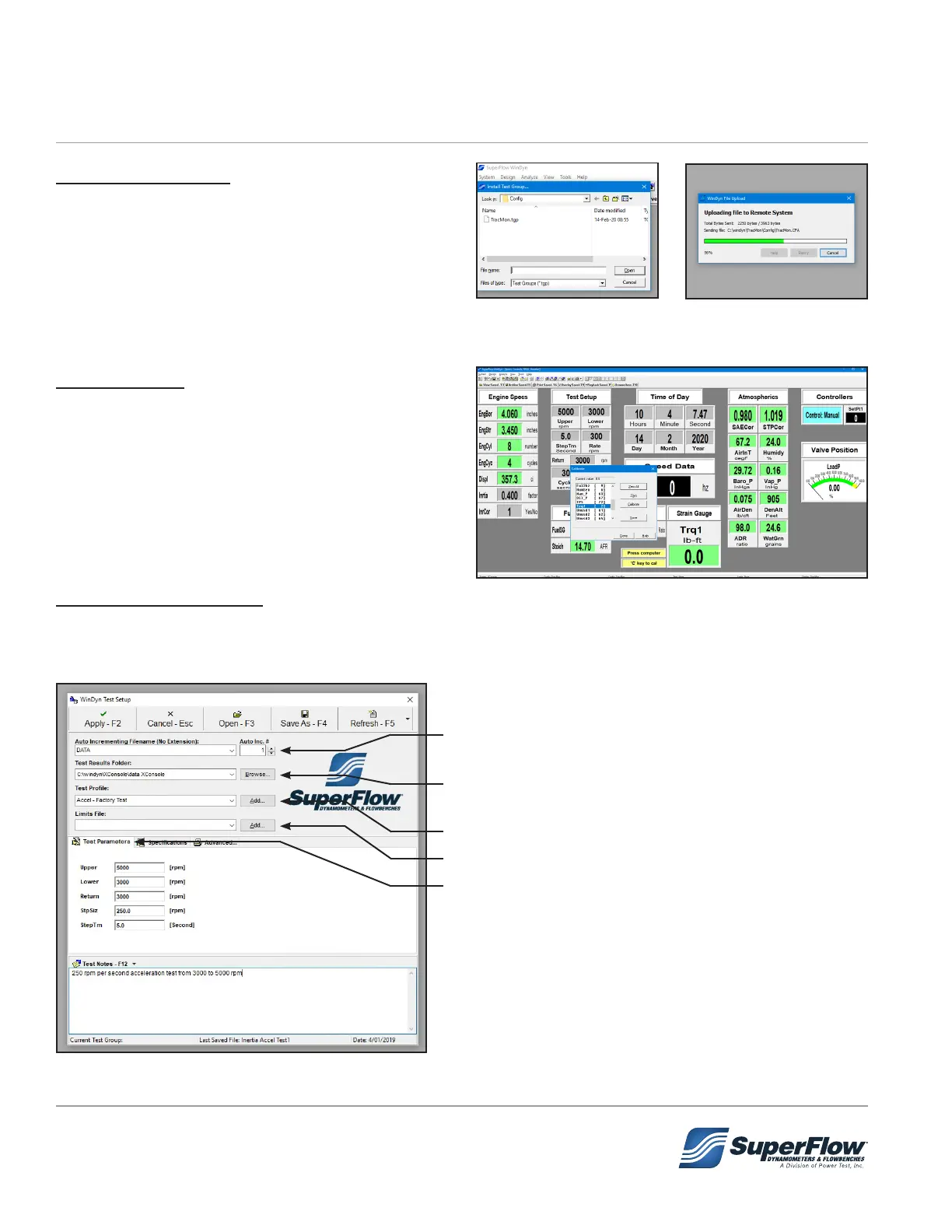
Test Group Dialog
When WinDyn is loaded, operators will be
presented with a blank WinDyn desktop. To
begin preparing the system for testing, select and
load the appropriate Test Group le. Press the
F2 function key to open the Install Test Group
window. Select the Test Group le and press Open
button to load the associated les.
WinDyn Prep
Prior to testing, press the '2' key on the dyno
computer keyboard to load screen two. Once
the screen is loaded, verify the torque system is
at or near zero (± 2) and the weather conditions
are current. It is also good practice to verify other
sensors appear to be reading correctly. See section
"6.3 Calibration" on page 63 if you feel calibration
should be performed before testing.
WinDyn Setup Dialog
WinDyn preferences can be set up to quickly prepare the system for testing. To bring up the Test Setup
window LEFT-CLICK anywhere on the main WinDyn display and then type the letter s from the computer
keyboard and enter the following information:
1. Enter a name you wish to use for the data le and
set the increment.
2. Specify the location where the data le will be
saved.
3. Select the Test Prole you want to run.
4. Specify a safety limits le if desired.
5. Set the test parameters.
Figure 5.14 Test Setup - Test Parameters
Figure 5.11: Install
Test Group Window
Figure 5.12: Test Group
Loading Dialog
Figure 5.13 Test Setup - Test Parameters
5.0 Operation


 To Next Page