Synology DiskStation User's Guide
Based on DSM 3.0
69 Chapter 7: Set Up File Sharing
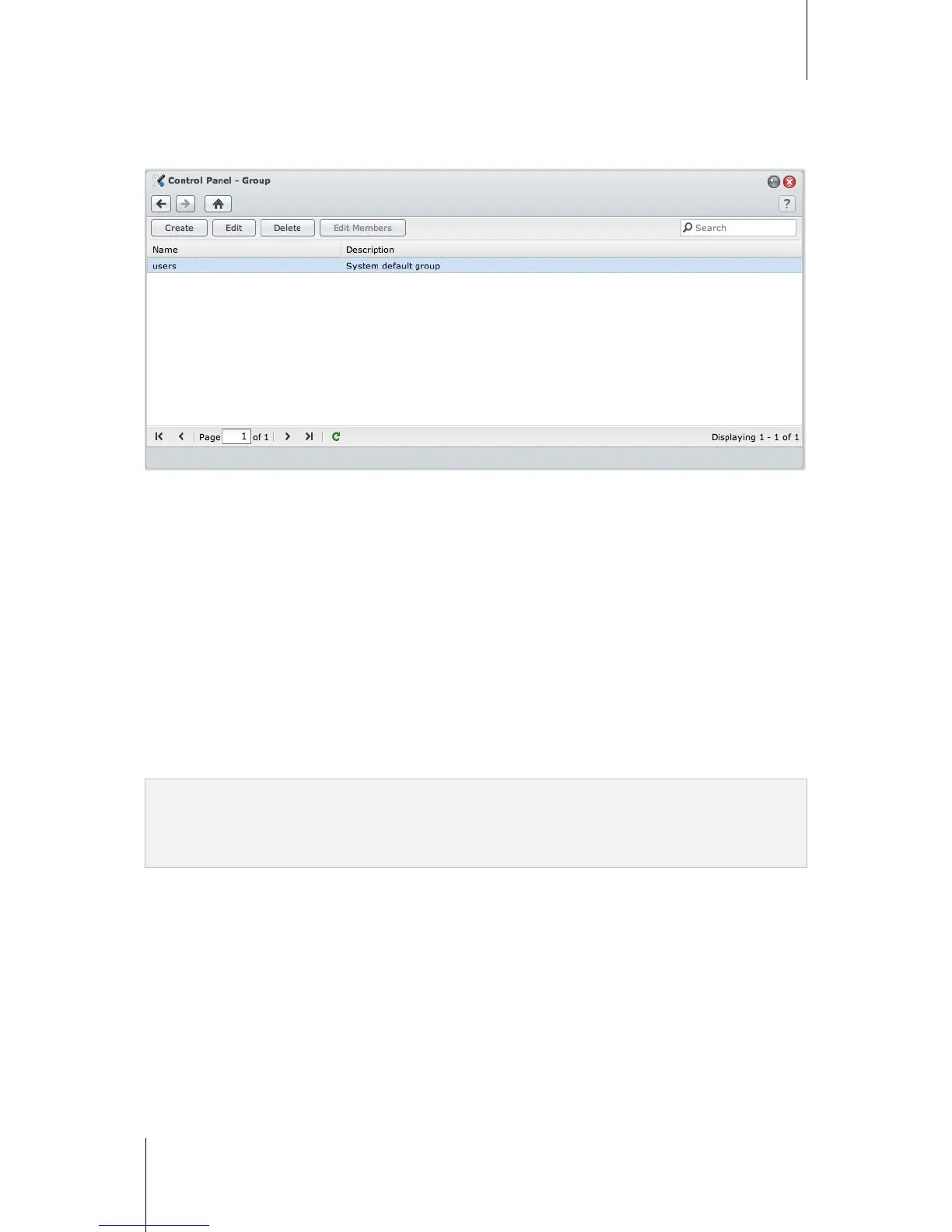
Create and Edit Groups
Go to Main Menu > Control Panel > Group to create and edit a group, add users to the group, and then edit the
group's properties, saving you the trouble of editing users one by one.
To create a new group:
1 Click Create and enter the group name and description.
2 Click OK.
To edit a group's name and description:
1 Select the group you want to edit from the groups list and click Edit or double-click the group.
2 Make changes to the settings and click OK.
To delete a group:
Select the group you want to delete from the groups list and click Delete.
To add or remove group members:
1 Select the group you want to add users to from the groups list and click Edit Members.
2 Click Add or Remove, select users from the users list, and click OK. (Press and hold Shift or Ctrl while making
multiple selections.)
3 Click Finish.
Note:
By default, all users belong to the users group
For more information about editing a group's access privileges to shared folders, see "Allow Users or Groups to
Access Shared Folders" on Page 73.





 To Next Page