ADDING IP PHONES TO TALKSWITCH 8
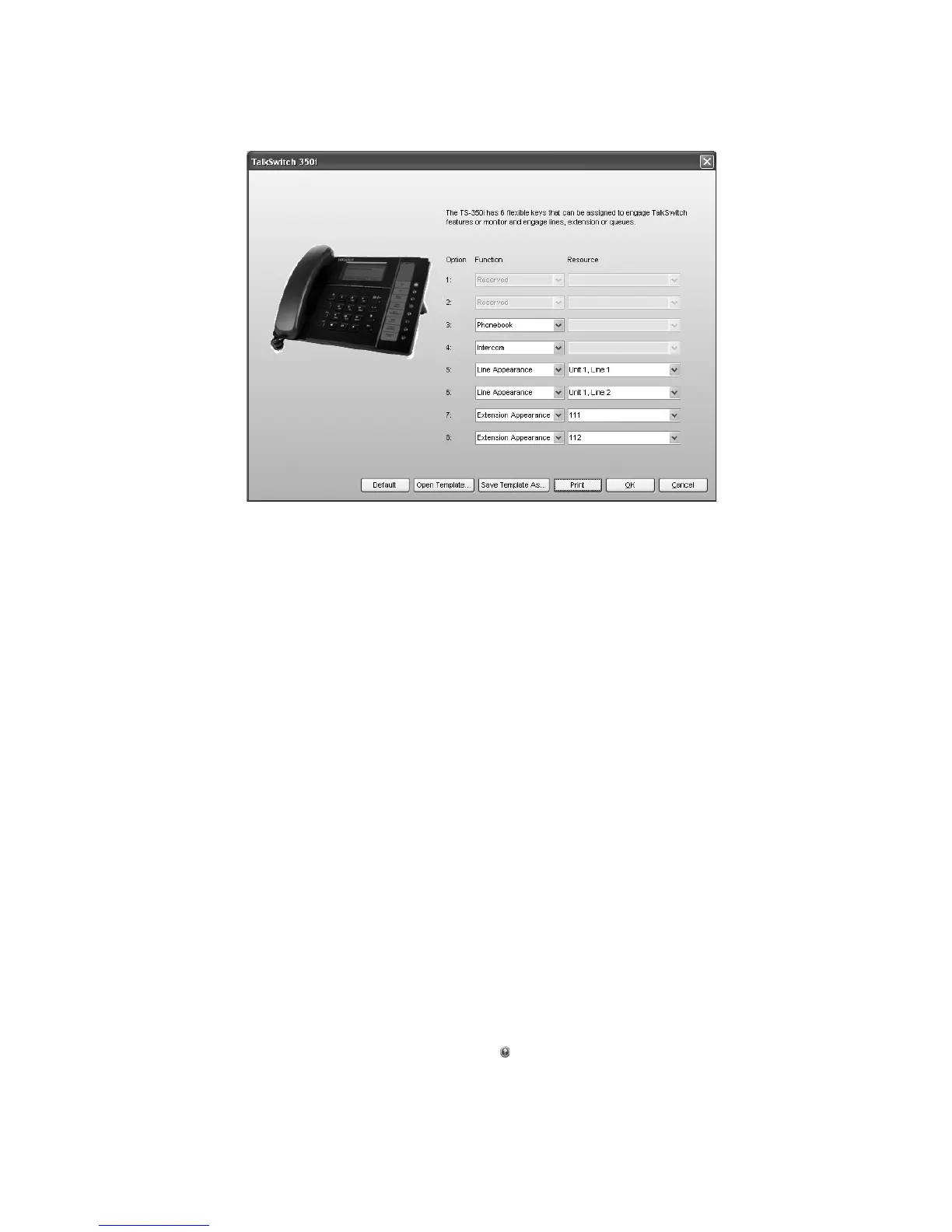
3. Optionally, you can apply predefined key assignments from a template file using the Open
Template button. See Using a key assignment template on page 8.
If necessary, use the Default button to restore the keys to their default settings.
4. Use the Print button to print a label showing the key configuration. Cut out the printed
label and insert it in the phone next to the key lights.
5. Your key assignments can be saved as a template for programming additional phones. See
Saving a key assignment template on page 8.
Saving a key assignment template
You can use the template file as a starting point for the key assignments for another extension.
After setting up the key assignments:
1. Click Save Template As to save the key assignments to a template file. The Save Template
As window appears.
2. Enter the filename of the template file, and then click Save.
Using a key assignment template
1. To display the key assignments from a template file, click Open Template. The Open
Template window appears.
2. Select the template file, and then click Open Template.
Programming TS-450i function keys
1. Click Configure Keys. This button is enabled if the IP Extension Details area is complete.
The TalkSwitch 450i window appears.
2. Select up to 10 softkey options. For each option, select the Function and the Resource (if
applicable). The function keys can be assigned for Line Appearance, Extension Appearance,
Queue Appearance, Voicemail, Do Not Disturb (DND), Phone Book access, Speed Dial, Park,
Unpark, Call Pickup (any or specific extension), Group Page, Overhead Page, or User Defined
(phone). For further details, click the Help icon in the IP Extension Details area.



 To Next Page