17
Saving Location
[
Select Folder
]
button
Click here
[
OK
]
button
【
Folder Settings
】
Assign a saving location for the data le.
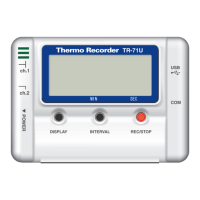
1.The TR-71U/TR-72U connected by USB cable to your computer will
appear in the list.
2.Click the name of the device and then click the [Select Folder]button.
3.The [Browse Folders] dialog box will appear where in you can select
the folder into which you wish to save the data, then click [OK].
4.A [Data Folder] will then appear under Device Properties in the Main
Window.
The default setting will create and save data to a folder with the device’s serial
number in the folder where T&D Recorder for Windows was installed.
《
Small Icon
》
《
Large Icon
》
◆ 「
View
」
Menu
:
Large Icon
/
Small Icon
Changes the icon size in the Device List between large and small.


 To Next Page