20
Auto-Negotiate: This is a setting which allows the LAN port to adjust it’s speed to the
fastest available on the network
5.3. LOGGING IN
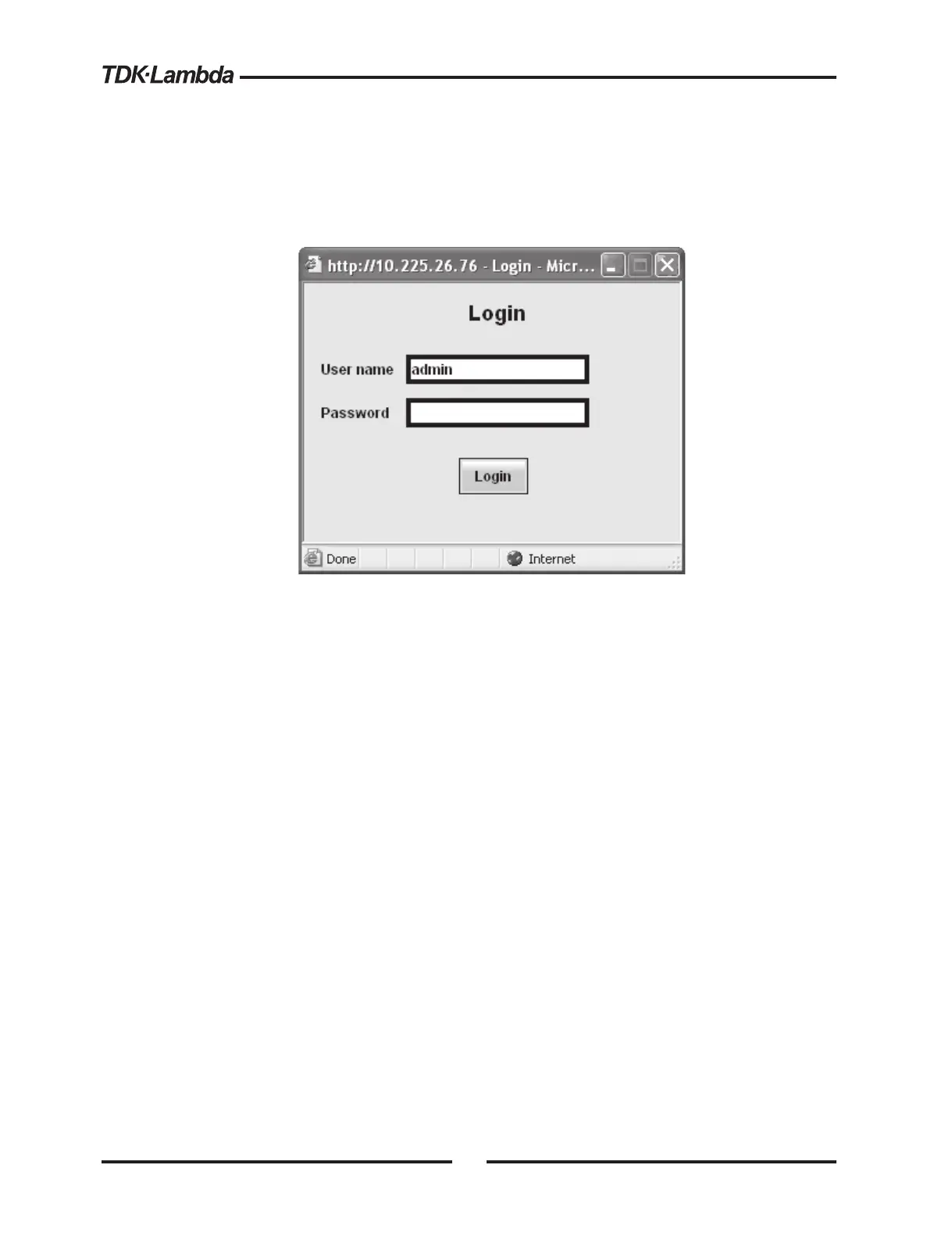
To change power supply output settings or to change the LAN settings, a user must first log in.
By clicking the “Login” button at the top-left side of the web page, a pop-up window appears (the
only acceptable user name, “admin”, is shown):
5.3.1. Login Rules
− Any number of users may view the web pages of one power supply at the same time.
However, the update rate becomes slower as more web pages are opened.
− Only one user at a time may be logged-in to modify the power supply settings
− If an automation program with VISA drivers is running, then settings may be viewed by
the web pages but you cannot login to change any settings
− If a user is logged in, then a VISA connection cannot be opened by a program
− A user may logout by clicking the “Logout” button, by closing the web browser or by
leaving the web browser idle for “LAN Keep-alive” seconds (see section 5.5.3)
5.3.2. User Name
Only one user account name is available and it cannot be changed. This field must be
entered even if no password is required
The user name is always admin
5.3.3. Password
By default, no password is required and the field must be left blank
A password may be set in the “LAN ‡ Users” page (see section 5.5.5)
To change or remove the password, or if you forget the password, perform the “LAN Reset”
operation from the power supply’s front panel (described in section 4.2)



 To Next Page