95
9SUPPORT
DMS-CTC-20130613-0011 v1.0
9.5 Reset to factory defaults
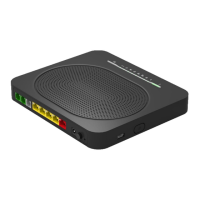
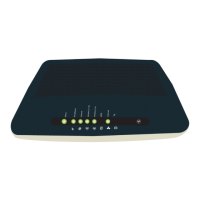
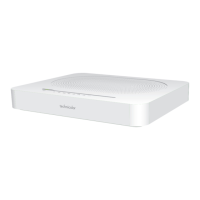
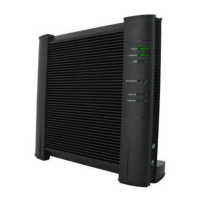
Resetting your MediaAccess Gateway
If at some point you can no longer connect to the MediaAccess Gateway or you want to make a fresh install, it may be useful
to perform a reset to factory defaults.
Methods
You can choose between:
Resetting the MediaAccess Gateway via the MediaAccess Gateway GUI
Reset the MediaAccess Gateway via the Reset button
Resetting the MediaAccess Gateway via the MediaAccess Gateway GUI
Proceed as follows:
1 Browse to the MediaAccess Gateway GUI.
For more information, see “Accessing the MediaAccess Gateway GUI” on page 31.
2 On the MediaAccess Gateway menu, click Configuration.
3 In the Pick a task list, click Reset my MediaAccess Gateway.
4 The MediaAccess Gateway restores the initial configuration and restarts.
5 The MediaAccess Gateway returns to the MediaAccess Gateway home page (unless the IP address of your computer is
fixed and not in the same subnet as the default IP address of the MediaAccess Gateway, being 192.168.1.254).
Reset the MediaAccess Gateway via the Reset button
Proceed as follows:
1 Make sure the MediaAccess Gateway is turned on.
2 Push the Reset button for 7 seconds and then release it.
3 The MediaAccess Gateway restarts.
A reset to factory default settings deletes all configuration changes you made. Therefore, after the reset a
reconfiguration of your MediaAccess Gateway will be needed.
Also your wireless clients will have to be re-associated, as described in “4 Wireless networking” on page 37.
Your system administrator may have disabled the physical reset button of the MediaAccess Gateway. In this case, a
hardware reset to defaults is not possible.


 To Next Page
 Loading...