38
4 WIRELESS NETW
ORKING
DMS-CTC-20130613-0011 v1.0
4.1 Connecting your wireless client via WPS
WPS
Wi-Fi Protected Setup (WPS) allows you to add new wireless clients to your local network in a swift and easy way, without
the need to enter any of your wireless settings (network name, wireless key, encryption type).
Requirements
Your wireless client must support WPS. Check the documentation of your wireless client for this.
Your MediaAccess Gateway must use WPA(2)-PSK encryption (default encryption) or no encryption. WPS with WEP
encryption is not possible.
WPS Methods
The following WPS methods are supported by your MediaAccess Gateway:
Push Button Configuration (PBC):
You have to put both your wireless client and the MediaAccess Gateway’s wireless access point in registration mode. See
“Procedure for WPS PBC” on page 38.
PIN code entry:
You have to enter a PIN code on the configuration utility of your wireless client. See “Procedure for WPS PIN code entry”
on page 39.
Procedure for WPS PBC
Proceed as follows:
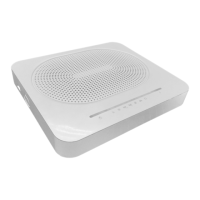
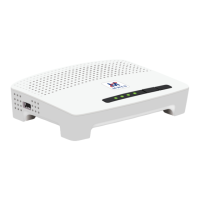
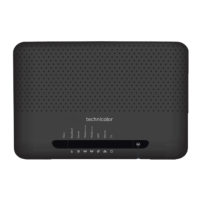
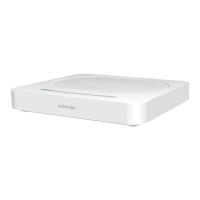
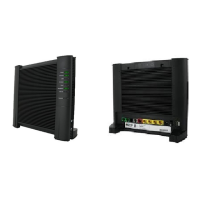
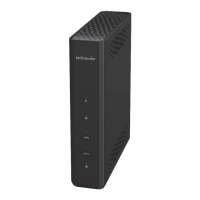
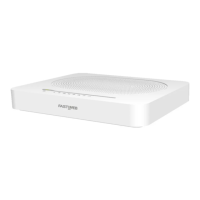
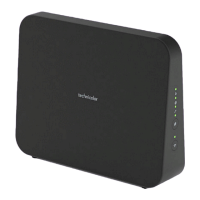
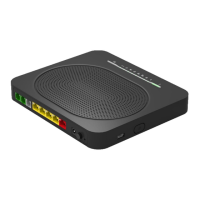
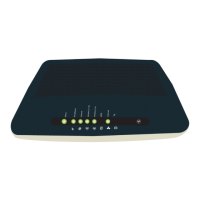
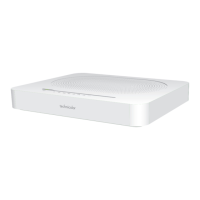
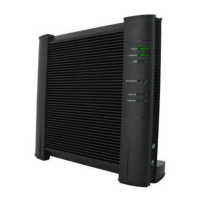
1 Shortly press the WPS button on the MediaAccess Gateway:
2 The WPS LED starts blinking orange. This indicates that the MediaAccess Gateway is now searching for wireless clients
that are in registration mode. You now have two minutes to start WPS on your wireless client.
3 Start WPS PBC on your wireless client.
4 The MediaAccess Gateway is now exchanging all wireless settings.
5 At the end of the procedure the status of the WPS LED on your MediaAccess Gateway will change to either of the
following:
Windows 8, Windows 7 and Windows Vista Service Pack 1 have native WPS support.
USB
WPS


 To Next Page
 Loading...