5 – Operating Software
DPN 402196 Issue 4.1 © Teledyne TSS 5- 13
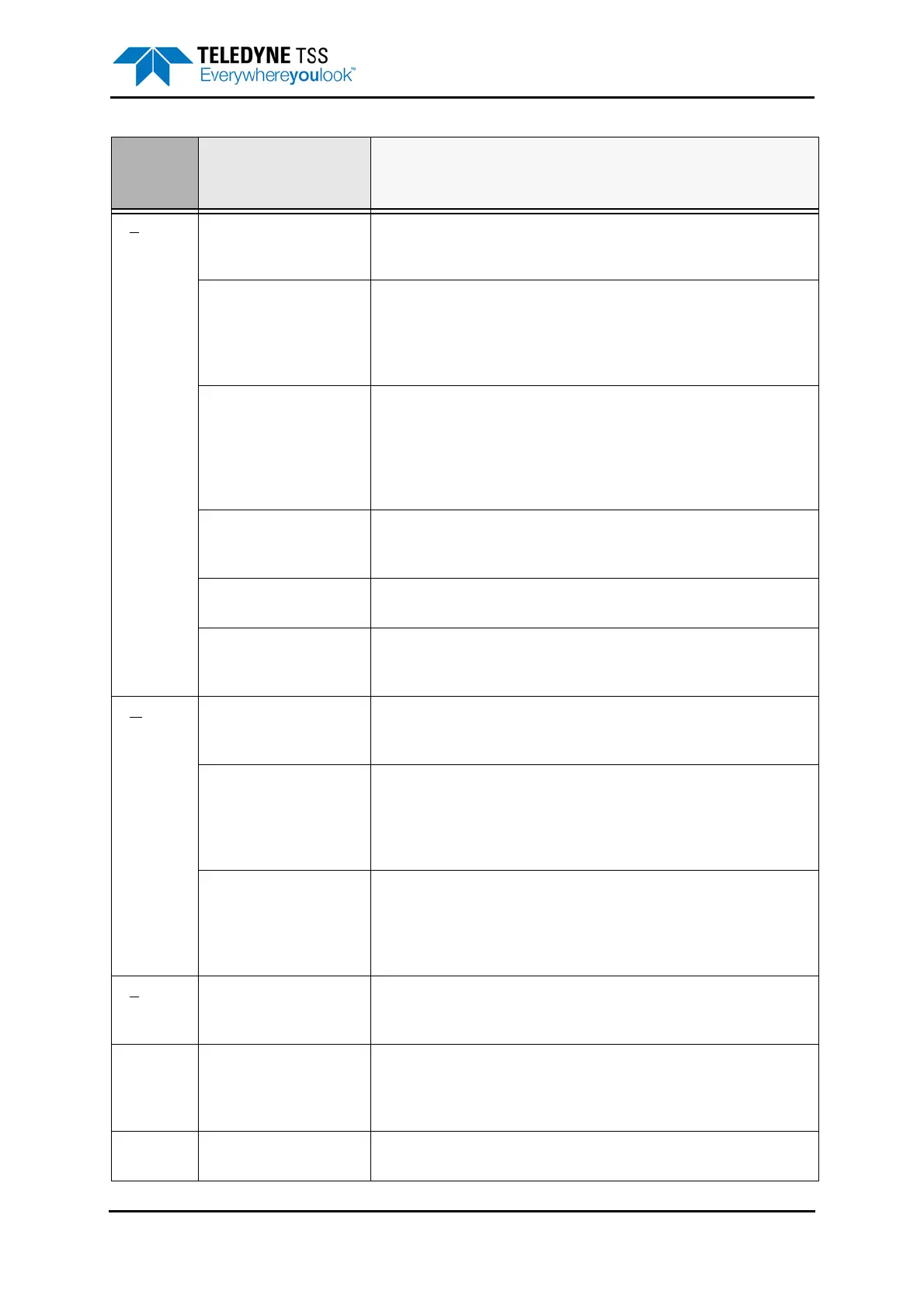
Config-
uration
System parameters
[Shift + F2]
This command displays a dialog panel that allows you to establish the
type of SEP and the serial communications parameters. Refer to the fol-
lowing sections for relevant details and instructions.
Altimeter
[Shift + F3]
This command displays a dialog panel that allows you to establish the
physical and serial communications parameters of an altimeter used with
the 440 System. See section 5.3.3.2 "Altimeter" on page 5-20 for
relevant details and instructions. The System Configuration Wizard also
displays a similar dialog panel.
External Output
[Shift + F5]
This command displays a dialog panel that allows you to configure the
SDC output to an external data logger. Set the type of data packet and its
update rate, and the serial port communication parameters.
Note that you must establish appropriate parameters for the external out-
put if you wish to use the video overlay option, even if you do not intend to
use the external data logging features.
Load factory Defaults
[Shift + F9]
This will prompt you with a caution box to confirm that you would like to
reset the software back to the original factory defaults. This will eliminate
any user parameters that have been previously configured.
Video Overlay Setup
[Shift + F10]
See section 5.3.3.5 "Video Overlay Setup" on page 5-25 for a
description of the video overlay feature.
System Configuration
Wizard [Ctrl + F10]
This selection will return you to the set-up options screen that you have
viewed when opening up the software. Use of this option will result in all
of the parameters being reset to default.
W
indow Cascade
[ALT][W][C]
Use this command to arrange the various operating windows so that they
overlap but with their title bars visible. This does not affect the Diagnos-
tics Window or the Target Tracking Window.
Tile Horizontally
[ALT][W][H]
Use this command to arrange the various operating windows so that they
are next to each other horizontally. This arrangement allows you to see
the entire area of each window, although DeepView might resize the win-
dows to fit the available area. This does not affect the Diagnostics Win-
dow or the Target Tracking Window.
Tile Vertically
[ALT][W][V]
Use this command to arrange the various operating windows so that they
are next to each other vertically. This arrangement allows you to see the
entire area of each window, although DeepView might resize the windows
to fit the available area. This does not affect the Diagnostics Window or
the Target Tracking Window.
H
elp DeepView
[ALT][H][D]
Use this command to open the on-line Help structure that explains the
features of DeepView. The Help structure also includes some simple fault
finding advice for the sub-sea components.
Pre-dive Checklist
[ALT][H][P]
Use this command to open the on-line Help structure that explains the
checks you should make on the 440 System before you start a survey.
See section 6.2 "Pre-dive Checks" on page 6-4. You may
access the checklist from within the DeepView Help structure.
About DeepView
[ALT][H][A]
This command displays the version number of DeepView.
Table 5-1: DeepView Menu Commands (Continued)
Menu
item
Sub-menu,
[hot key access]
and Function key
Description




 To Next Page