- 27 -
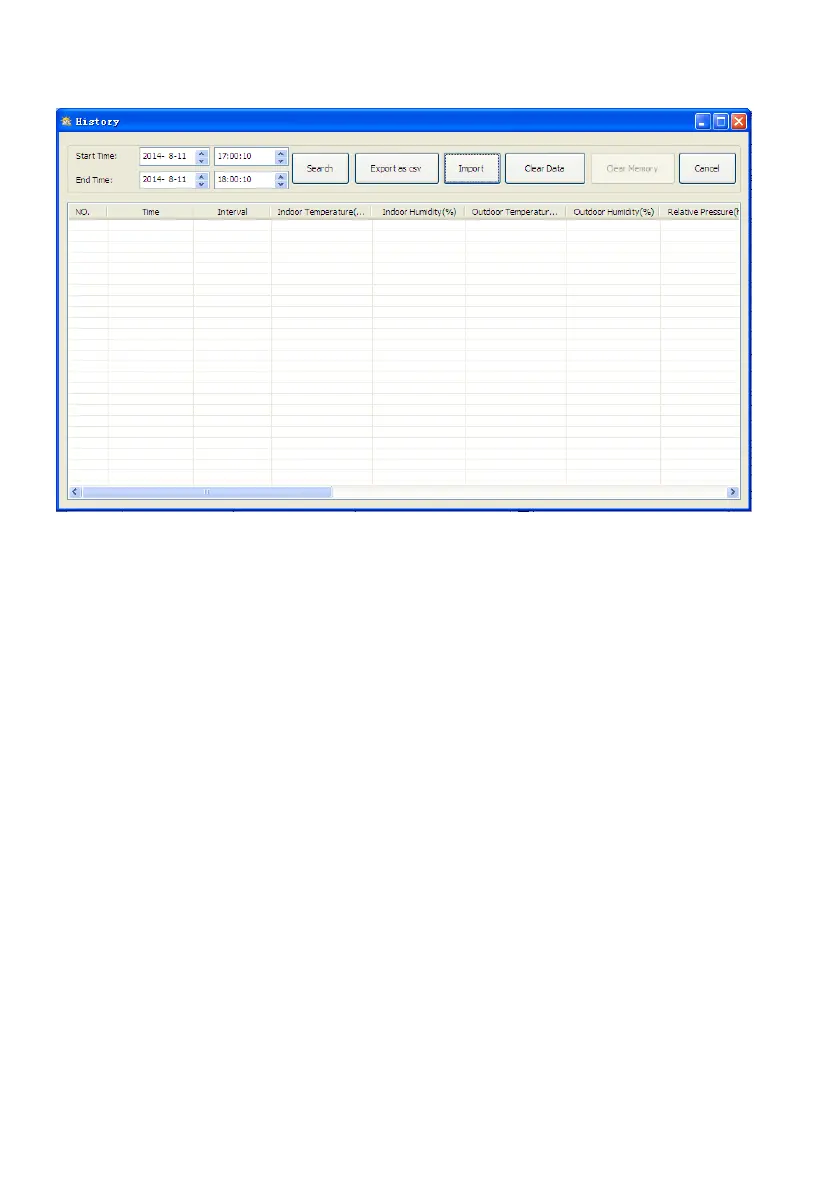
4.2.1 Click History button, enters the History menu
This section is used to display recorded history data in a spread sheet. If you
want to see all the historical data in a desired time period, choose the time
duration and press Search to load the history data. With the Export button, you
can export the selected history data into excel format file.
The software version 6.2 uses .dat file format, the software version above 6.2
uses .mdb format. You can import the old version data to the new version data to
migrate the two different data base data, by press the Import button.
When memory on the base station is full, press the “Clear Memory” button to
refresh the memory space on the base station (remember to upload all data
before pressing this button).
If you want to start a new weather history record, press “Clear Data” button to
clear up the data base, all historical weather data will be deleted (if you would
like to keep a backup history file before deleting all weather data, you can make
a copy of the “EasyWeather.mdb” file into another folder or just rename the
“EasyWeather.mdb” file, such as “Jan-07.dat”, for future reference.)


 To Next Page