EasyManua.ls Logo

TESA WS2980C-PRO - User Manual

TESA WS2980C-PRO
67 pages
Print Icon
To Next Page IconTo Next Page
Loading...
1
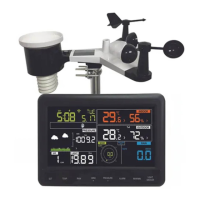
PROFESSIONAL WEATHER STATION
WS2980C-PRO
Operation Manual
Table of Contents
1. Introduction ....................................................................................... 3
2. Warnings and Cautions .................................................................... 3
3. Quick Start Guide ............................................................................. 3
4. Pre-Installation Checkout and Site Survey ...................................... 4
4.1 Pre Installation Checkout ............................................................. 4
4.2 Site Survey ................................................................................... 4
5. Setting Started.................................................................................. 5
5.1 Contents ....................................................................................... 5
5.2 Sensor Set Up .............................................................................. 5
5.2.1 Install U-bolts and mounting pole .......................................... 6
5.2.2 Install wind vane .................................................................... 7
5.2.3 Install wind speed .................................................................. 7
5.2.4 Install Rain Gauge ................................................................. 8
5.2.5 Install Batteries ...................................................................... 8
5.2.6 Mount assembled outdoor sensor package .......................... 9
5.2.6.1 Before you mount .............................................. 9
5.2.6.2 Mounting ............................................................ 9
5.2.7 Reset Button and Transmitter LED ...................................... 10
5.3 Best Practices for Wireless Communication ............................... 11
5.4 Display console .......................................................................... 12
5.4.1 Vertical Desk Stand.............................................................. 15
6. Display Console Operation ............................................................ 16
6.1 Screen Display............................................................................ 16
6.2 Initial Display Console Set Up .................................................... 17
6.3 Key function ................................................................................ 18
6.4 Setting mode............................................................................... 19

Questions and Answers

  • A
    Andrew MuellerAug 5, 2025
    Why TESA Weather Station not reporting data to Wunderground.com?
    • K
      Kendra KeithAug 5, 2025
      There are several reasons why your TESA Weather Station might not be reporting data to Wunderground.com: 1. Double-check that the password you entered is correct and matches the one you registered with on Wunderground.com. Note that Wunderground.com passwords cannot begin with a non-alphanumeric character. 2. Verify that your station ID is correct, paying special attention to the capitalization and avoiding common substitutions like 'O' for '0'. 3. Ensure the date, time, and time zone are correctly set on the console, as incorrect settings can lead to the reporting of outdated data. 4. Examine your router's firewall settings to confirm that data transmission via Port 80 is allowed.
  • T
    Timothy MurrayAug 9, 2025
    How to fix no WiFi connection on TESA WS2980C-PRO?
    • H
      hughesmichaelAug 9, 2025
      To troubleshoot a missing WiFi connection on your TESA Weather Station, consider the following: 1. Check the display for the WiFi symbol, which indicates a successful wireless connection. 2. Verify that your modem's WiFi settings (network name and password) are accurate. 3. Ensure the console is connected to AC power, as it will not connect to WiFi on battery power alone. 4. Confirm that your router is broadcasting a 2.4 GHz signal, as the console does not support 5 GHz networks. If you have a dual-band router, you may need to disable the 5 GHz band and enable the 2.4 GHz band. 5. The console does not support guest networks.
  • C
    Christine SimmonsAug 20, 2025
    Why does TESA WS2980C-PRO Weather Station temperature sensor read too high during the day?
    • J
      Jesse FosterAug 20, 2025
      If your TESA Weather Station's temperature sensor is reading too high during the day, it might be due to the sensor array being located near heat sources such as buildings, pavement, walls, or air conditioning units. Relocate the sensor array away from these heat-generating structures. You can also use the calibration feature to offset any installation issues related to radiant heat sources.
  • J
    James WashingtonAug 25, 2025
    What to do if relative pressure on TESA WS2980C-PRO does not agree with official reporting station?
    • A
      Alicia DavisAug 26, 2025
      If the relative pressure on your TESA Weather Station doesn't match an official reporting station, first check that you are viewing the relative pressure and not the absolute pressure. If you are viewing the absolute pressure, select the relative pressure. Then, calibrate the sensor to an official local weather station.
  • J
    Jeremy WoodAug 29, 2025
    Why does TESA WS2980C-PRO rain gauge report rain when it is not raining?
    • J
      John JamesAug 29, 2025
      If your TESA Weather Station's rain gauge is reporting rain when it's not actually raining, the issue might be an unstable mounting. Ensure you have a stable and level mounting solution to prevent false readings caused by sway in the mounting pole.
  • M
    Margaret ThompsonNov 14, 2025
    What to do if outdoor sensor array does not communicate with TESA Weather Station console?
    • R
      Robert SpearsNov 14, 2025
      If the outdoor sensor array isn't communicating with the TESA Weather Station console, try these steps: * Reset the console by pressing the reset button for 3 seconds (using an open-ended paperclip) to discharge the voltage. Then, remove the batteries and cover the solar panel for one minute to fully drain the voltage. Reinsert the batteries and resync the console with the sensor array, keeping them about 10 feet apart. The LED next to the battery compartment should flash every 16 seconds. * If the LED doesn't flash every 16 seconds, replace the batteries in the sensor array, ensuring correct polarity. * If the sensor flashes every 16 seconds, the issue might be temporary reception loss due to interference or other factors. Try powering down and up the console by removing AC power a...

Summary

Introduction

Warnings and Cautions

Quick Start Guide

Pre-Installation Checkout and Site Survey

Pre Installation Checkout

Performing initial checks and operation in a temporary location before permanent installation.

Site Survey

Evaluating the installation location for optimal wireless range and environmental factors.

Setting Started

Contents

Lists all items included in the weather station package.

Sensor Set Up

Detailed instructions for installing the outdoor sensor components.

Install U-bolts and Mounting Pole

Attaching the mounting plate and U-bolts to the sensor package for pole installation.

Install Wind Vane

Steps for installing the wind vane onto the sensor unit.

Install Wind Speed Sensor

Steps for installing the wind speed sensor onto the sensor unit.

Install Rain Gauge

Instructions for correctly aligning and installing the rain gauge component.

Install Batteries

Guide on inserting the correct batteries into the transmitter and console.

Mount Assembled Outdoor Sensor Package

Procedures for physically mounting the complete outdoor sensor unit in its location.

Reset Button and Transmitter LED

How to use the reset button and interpret the transmitter's LED indicator.

Best Practices for Wireless Communication

Recommendations for ensuring reliable wireless signal transmission and avoiding interference.

Display Console Setup

Steps for connecting the power adapter, batteries, and initial synchronization.

Vertical Desk Stand

Instructions for setting up the console using the integrated desk stand for optimal viewing.

Display Console Operation

Screen Display Overview

Explanation of all the icons, numbers, and indicators shown on the console's LCD screen.

Initial Console Set Up

Steps for powering up and configuring the console for the first time.

Key Function Overview

Overview of the function of each button on the display console.

Setting Mode

Beep and MAX;MIN Settings

Configuring audible beeps and daily reset of max/min values.

Time and Date Configuration

Setting the console's time format, date format, and current time/date.

Pressure Settings and Display

Setting pressure units and understanding absolute vs. relative pressure readings.

Temperature and Wind Speed Units

Selecting units for temperature and wind speed measurements.

Rain Unit Selection

Selecting units for rainfall measurement (inch or mm).

Moon Phase Configuration

Selecting the hemisphere for accurate moon phase display.

Alarm Mode

Displaying Alarm Values

How to view high and low alarm values on the console.

Alarm Mode Setting

Procedures for arming/disarming alerts and adjusting alarm thresholds.

Alarm Setting Order

The sequence for configuring various alarm thresholds (temp, humidity, wind, rain).

Max;Min Mode

Displaying Max and Min Data

How to view the maximum and minimum recorded values for various weather parameters.

Calibration Mode

Calibration Order and Adjustments

Step-by-step guide for calibrating sensors like temperature, humidity, pressure, and wind.

Other Features

Factory Reset and Memory Clear

Restoring the console to its default factory settings.

Register New Transmitter

Procedure to re-register the wireless sensor with the console.

Backlight Operation

How to adjust the console's backlight brightness and behavior.

Tendency Indicators

Understanding the arrows that show trends in temperature, humidity, and pressure.

Wireless Signal Strength and Weather Forecast

Wireless Signal Strength Indicator

Interpreting the icons that show the quality of the wireless connection.

Weather Forecast Icons

Explanation of the icons used to predict weather conditions for the next 6 hours.

Snooze and MAC Address Display

Snooze Function

How to silence an active alarm for a limited time.

MAC Address Display

How to view the console's unique MAC address for registration.

Specifications

Outdoor Data Specifications

Technical details for temperature, humidity, rain, wind, and light measurements.

Indoor Data Specifications

Technical details for indoor temperature, humidity, and air pressure.

Power Consumption

Information on power usage for the base station and remote sensor.

Live Internet Publishing

Supported Hosting Services

List of internet services (Ecowitt, Wunderground, etc.) for uploading weather data.

Connecting to Wi-Fi

Steps to connect the weather station console to a Wi-Fi network.

Download Mobile Application

Instructions to download the "WS View" app for Wi-Fi configuration.

Connect Console to Wi-Fi (Android)

Step-by-step guide for Android users to connect the console to Wi-Fi.

Connect Console to Wi-Fi (iOS)

Step-by-step guide for iOS users to connect the console to Wi-Fi.

Upload Weather Data

Upload to Ecowitt Website

Guide for uploading sensor data to the Ecowitt server for monitoring.

Upload to Wunderground.com

Steps to register and upload weather data to Weather Underground.

Upload to Weathercloud.net

Guide for registering and uploading data to the Weathercloud service.

Upload to WeatherObservationWebsite (WOW)

Instructions to register and upload data to the WOW website.

Upload to Customized Website

How to upload data to a custom website using specific protocols.

Mobile Application Usage

Device List Management

Navigating the app to view and manage registered weather stations.

Check WU Weather Data and Graph

Viewing current conditions, historical data, and graphs within the WU dashboard.

Remove or Add WU ID

Managing station IDs for viewing data within the mobile application.

Set Units in Mobile App

Changing the units of measurement for sensor readings within the app.

Registering WeatherUnderground.com (PC;Mac)

Sign Up and Add Weather Station

Creating an account and registering the station on Wunderground.com via PC or Mac.

Verify Location and Enter WU Info

Verifying location and inputting station ID/key into weather station software.

Viewing Data on Wunderground.com

Accessing Weather Data Online

Using a URL to view station data and historical information on the Wunderground website.

Mobile Apps for Weather Data

Information on various mobile applications for viewing weather data.

Maintenance

Rain Gauge Cleaning

Instructions for cleaning the rain gauge funnel and mechanism.

Sensor and Panel Cleaning

Cleaning the solar radiation sensor and solar panel.

Battery Replacement and Care

Guidelines for replacing batteries, preventing corrosion, and handling in harsh environments.

Troubleshooting Guide

Sensor Communication Issues

Solutions for when the outdoor sensor array does not communicate with the display console.

Temperature Sensor Accuracy

Addressing issues where the temperature sensor reads too high due to environmental factors.

Pressure Discrepancies

Resolving differences between console pressure readings and official reporting stations.

Rain Gauge Reporting Issues

Troubleshooting when the rain gauge reports rain when it is not raining.

Data Not Reporting to Wunderground

Solutions for when data is not being uploaded to Wunderground.com.

No WiFi Connection

Steps to troubleshoot and resolve issues with the console's WiFi connection.

TESA WS2980C-PRO Specifications

General IconGeneral
BrandTESA
ModelWS2980C-PRO
CategoryWeather Station
LanguageEnglish

Related product manuals