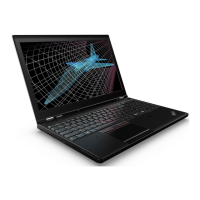
9Trackpad10Media-cardslot
11Speakers
1Microphones
Themicrophonescapturesoundandvoicewhenusedwithaprogramcapableofhandlingaudio.
22Dcamera
Usethecameratotakepicturesorholdavideoconference.Formoreinformation,see“Usingthecamera”
onpage40.
ThinkPadpointingdevice
3TrackPointpointingstick
8TrackPointbuttons(availableonsomemodels)
9Trackpad
ThekeyboardcontainstheLenovouniqueThinkPad
®
pointingdevice.Pointing,selecting,anddraggingare
allpartofasingleprocessthatyoucanperformwithoutmovingyourfingersfromatypingposition.For
moreinformation,see“UsingthethinkPadpointingdevice”onpage23
.
4Powerbutton
Pressthepowerbuttontoturnonthecomputerorputthecomputerintosleepmode.Forhowtoturnoffthe
computer,see“Frequentlyaskedquestions”onpage19.
Ifyourcomputeriscompletelyunresponsive,youcanturnoffthecomputerbypressingandholdingthe
powerbuttonforfourormoreseconds.Ifthecomputercannotbeturnedoff,see“Computerstops
responding”onpage85
formoreinformation.
Youalsocandefinewhatthepowerbuttondoes.Forexample,bypressingthepowerbutton,youcanturn
offthecomputerorputthecomputerintosleeporhibernationmode.Tochangewhatthepowerbutton
does,dothefollowing:
1.Fromthedesktop,clickthebattery-statusiconintheWindows
®
notificationareaonthetaskbar.
2.ClickMorepoweroptions➙Choosewhatthepowerbuttonsdo.
3.Followtheinstructionsonthescreen.
Note:UseLenovoprogramsforadvancedpowersettings.
•ForWindows7:UsethePowerManagerprogram.
•ForWindows8.1:UsetheLenovoSettingsprogram.
Formoreinformation,see“Lenovoprograms”onpage14
.
5Numerickeypad
Usethenumerickeypadtoinputnumbersquickly.
6System-statusindicator
TheilluminateddotontheThinkPadlogofunctionsasasystem-statusindicator.Formoreinformation,see
“Statusindicators”onpage8
.
7Fingerprintreader(availableonsomemodels)
Fingerprintauthenticationprovidessimpleandsecureuseraccessbyassociatingyourfingerprintwitha
password.Formoreinformation,see“Usingthefingerprintreader”onpage58.
2UserGuide



 To Next Page