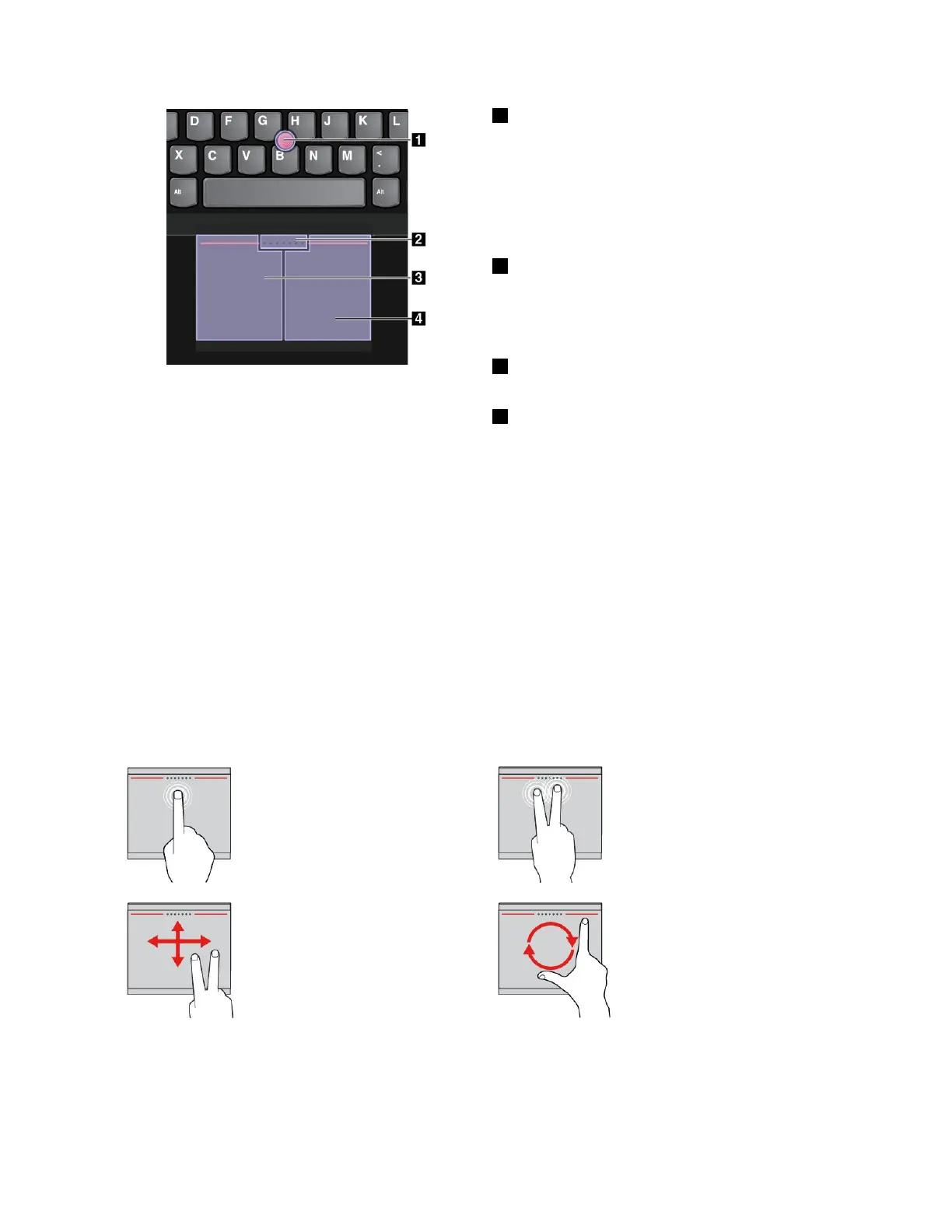
1Point
Usethepointingsticktomovethepointer.Tousethe
pointingstick,applypressuretothenonslipcaponthe
pointingstickinanydirectionparalleltothekeyboard.
Thepointermovesaccordinglybutthepointingstickitself
doesnotmove.Thespeedatwhichthepointermoves
dependsontheamountofpressureyouapplytothe
pointingstick.
2Scroll
Pressandholdthedottedscrollingbarwhileapplying
pressuretothepointingstickintheverticalorhorizontal
direction.Thenyoucanscrollthroughthedocument,
Website,orapps.
3Left-click
Presstheleft-clickzonetoselectoropenanitem.
4Right-click
Presstheright-clickzonetodisplayashortcutmenu.
Usingthetrackpadtouchgestures
Theentiretrackpadsurfaceissensitivetofingertouchandmovement.Youcanusethetrackpadtoperform
thesamepointandclickactionsasyouwoulduseatraditionalmouse.Youalsocanusethetrackpad
toperformavarietyoftouchgestures.
Thistopicintroducesthefrequentlyusedtouchgesturessuchastapping,dragging,scrolling,androtating.
Formoregestures,seethehelpinformationsystemoftheThinkPadpointingdevice.
Notes:
•Whenusingtwoormorefingers,ensurethatyoupositionyourfingersslightlyapart.
•SomegesturesarenotavailableifthelastactionwasdonefromtheTrackPointpointingdevice.
•Somegesturesareonlyavailablewhenyouareusingcertainapps.
•Dependingonthemodel,thetrackpadonyourcomputermightlookdifferentfromtheillustrationsin
thistopic.
Tapping
Tapanywhereonthetrackpad
withonefingertoselectoropen
anitem.
Two-fingertapping
Tapanywhereonthetrackpadwith
twofingerstodisplayashortcut
menu.
Two-fingerscrolling
Puttwofingersonthetrackpad
andmovethemintheverticalor
horizontaldirection.Thenyou
canscrollthroughthedocument,
Website,orapps.
Two-fingerrotating
Puttwofingersonthetrackpad
androtatethemclockwiseor
counterclockwisetorotateanitem.
Chapter2.Usingyourcomputer29



 To Next Page