Usingaudiofeatures
Yourcomputerisequippedwiththefollowingitems:
•Speakers
•Microphones
•Comboaudioconnector,3.5mm(0.14inch)indiameter
Yourcomputeralsohasanaudiochipthatenablesyoutoenjoyvariousmultimediaaudiofeatures,such
asthefollowing:
•CompliantwithIntel
®
HighDefinitionAudio
•PlaybackofMusicalInstrumentDigitalInterface(MIDI)andMovingPictureExpertsGroupAudioLayer-3
(MP3)files
•Recordingandplaybackofpulse-codemodulation(PCM)andWaveformAudioFileFormat(WAV)files
•Recordingfromvarioussoundsources,suchasaheadsetattached
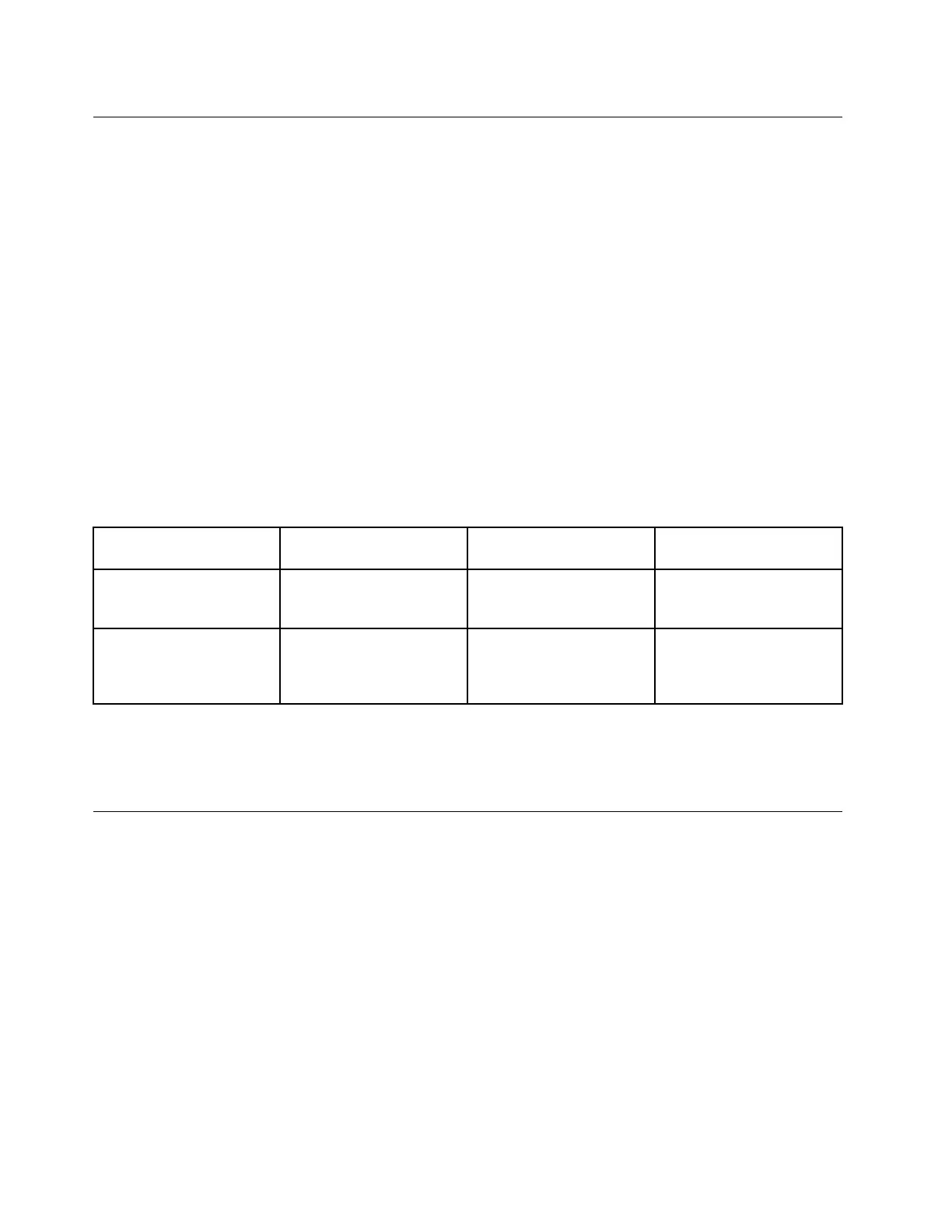
Thefollowingtableshowswhichfunctionsoftheaudiodevicesattachedtotheconnectorsonyour
computer,theThinkPadOneLinkDock,ortheThinkPadOneLinkProDockaresupported.
Table2.Audiofeaturelist
Connector
Headsetwitha3.5–mm,
4-poleplug
ConventionalheadphoneConventionalmicrophone
Comboaudioconnector
Headphoneand
microphonefunctions
supported
Headphonefunction
supported
Notsupported
Comboaudioconnector
ontheThinkPadOneLink
DockorThinkPadOneLink
ProDock
Headphoneand
microphonefunctions
supported
Headphonefunction
supported
Notsupported
Configuringforsoundrecording
Toconfigurethemicrophoneforoptimalsoundrecording,usetheSmartAudioprogram.Tostartthe
program,gotoControlPanelandclickHardwareandSound➙SmartAudio.
Usingthecamera
Dependingonthemodel,yourcomputercomeswitha2Dcameraora3Dcamera.The3Dcameraworks
withcertainthird-partyapps,suchasappsprovidedbyIntel.Theperformanceparametersofthe3Dcamera
varydependingontheappyouuse.Tolearnhowtousethe3Dcamerawithaspecificappandtoviewthe
performanceparameters,searchfortherelatedinformationfromtheIntelWebsite.
Tostartthecameraandconfigurethecamerasettings,dothefollowing:
•ForWindows8.1:ClickCamerafromtheStartscreen.
•ForWindows7:OpentheCommunicationsUtilityprogram.
Whenthecamerastarts,thegreencamera-in-useindicatorturnson.
Youalsocanusetheintegratedcamerawithotherprogramsthatprovidefeaturessuchasphotographing,
videocapturing,andvideoconferencing.Tousethecamerawithotherprograms,openoneoftheprograms
andstartthephotographing,videocapturing,orvideoconferencingfunction.Then,thecamerastarts
40UserGuide



 To Next Page