32
Manage bookmarks
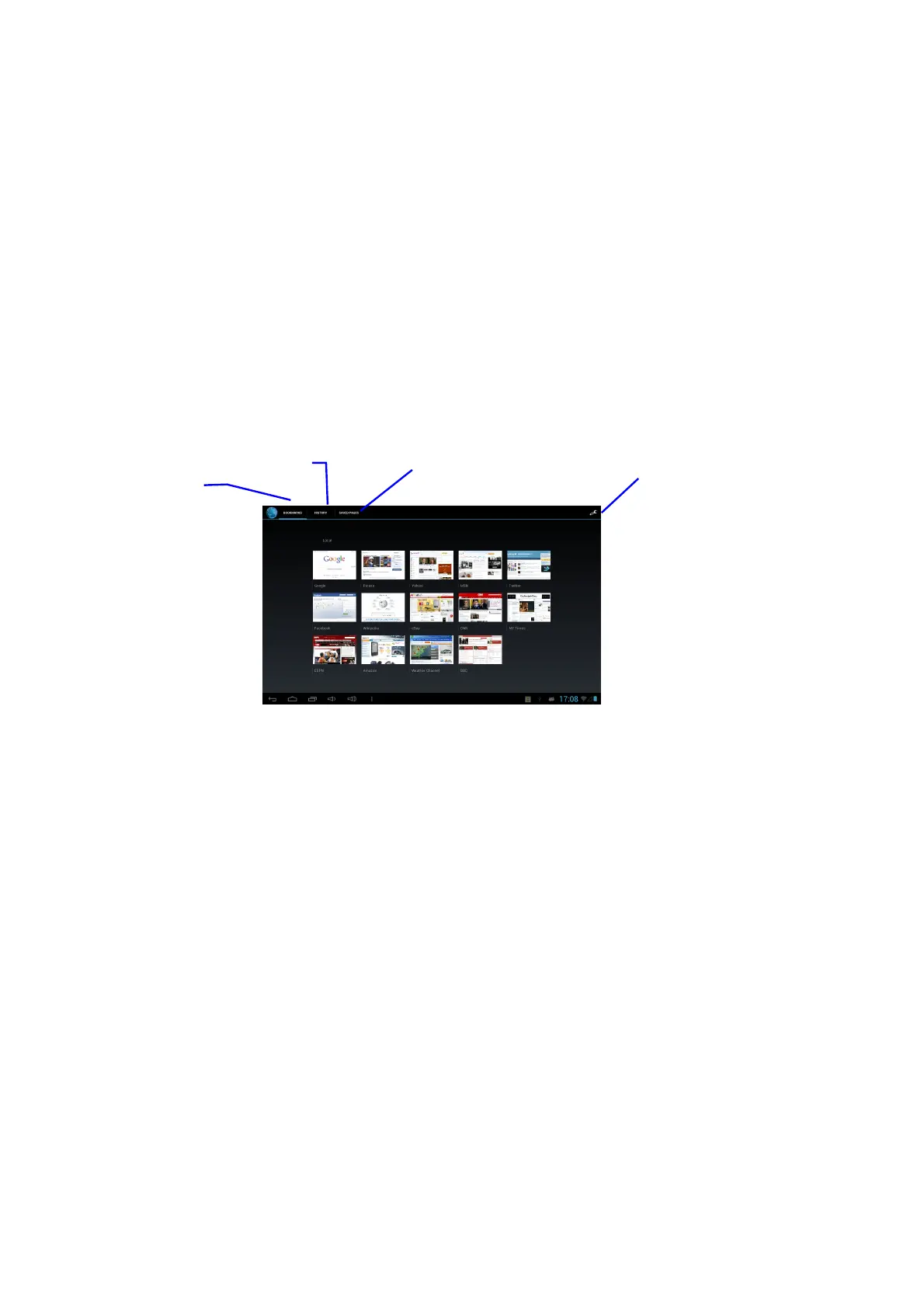
l Set web page bookmark
1. Go to a certain web page in the browser interface.
2. Click the icon ‘Click here to add a web page as bookmark’, and a
Bookmark this page window pops up, click OK to set the page you want as
the bookmark.
l Open bookmark
1. Enter the interface by clicking the icon ‘Click here to edit your browser’ in the
browser interface.
2. Click the bookmark that you want to open the web page.
l Edit bookmark
1. Enter the interface just like opening the bookmark in the browser interface.
2. Click the bookmark you want to open or edit.
3. Click the STAR icon to Edit bookmark and click OK.
Using browser windows
l Open a new browser window
1. In the browser window, press the Menu key in the top right hand corner of
the screen and click New tab or simply click the + at the top of the address
bar to open a new window.
l Switch browser window
1. In the browser window, the pages you have visited appear above the
address bar.
2. Click the window that you want to switch to the page you want.
l Set browser
In the browser interface, press the Menu key and click Settings to set the
browser.
Bookmarks
History
Saved
Enter setup menu


 To Next Page