28
5.3 Camera
Camera functions
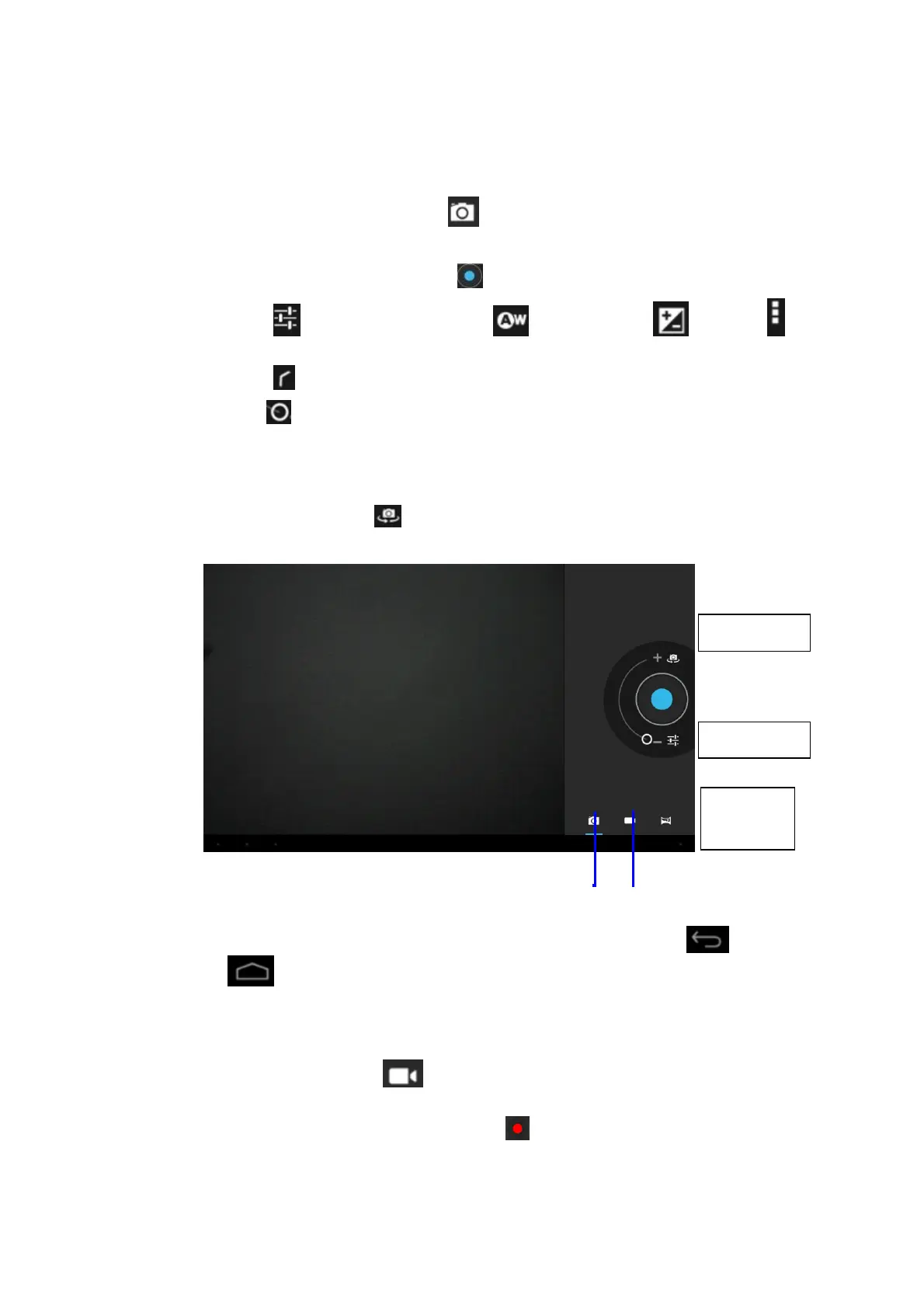
1. Click and select the camera icon in main menu.
2. The system enters into the camera interface;
3. Click and select the Photo button and easily take the photos;
4. Click the to set the White Balance and Exposure . Click the
to set the wether to Store Location information onto the file.
5. Click the to go back to Photo / Video taking mode.
6. Tap the icon to zoom in or zoom out of the picture you want to take.
7. After taking a photo, there is a preveiw display that will show your picture.
Note: On the main camera screen you can also select between the front or rear
camera by tapping the icon. The rear camera will have a higher resolution.
To exit the Camera function, click the bar at the bottom and select to exit
or to go to Home screen.
Videotape function
1. Click the videotape icon in camera mode and convert it to video recorder
mode;
2. Click and select the red videotape button to take video ;
Photo function
Videotape function
Front/rear
Camera menu
Panorama
function


 To Next Page