34
7.3 File Management
Browse files
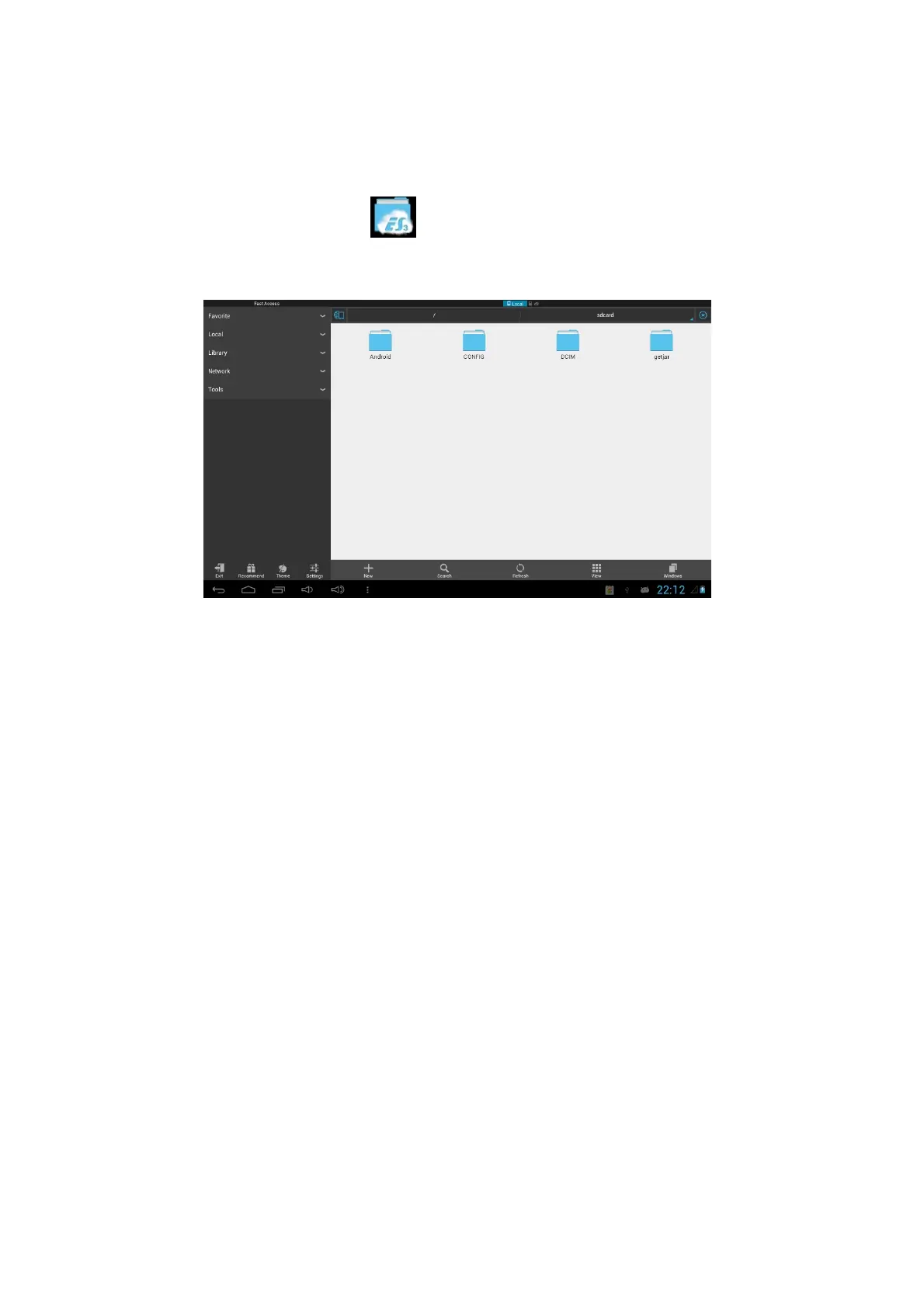
Click the ES File Explorer from the apps menu.
You can use the file browser to view, manage, edit and delete the files and folders.
Cut and copy files
1. In the file browser, press and select the file you want to operate.
2. Pop up operating menus, including Cut, Copy, Delete, Rename, Move to, Copy
to, Play music, Select all, Set home directory and Attributes, etc.
3. Click Cut or Copy file or folder.
4. Click into the folder you want to paste, and pop up menu by pressing the Menu
key.
5. Click Operate and then click Paste.
Delete files
1. In the file browser, press the file you want to delete.
2. Click Delete.
3. Click OK to delete file.
Folder setup
1. In the file browser, pop up menu by pressing the Menu key.
2. Click Create.
3. Click Folder.
4. Click pop-up window and input the name of the new folder in the text box.
5. Click OK to create the folder.
Quick search
1. In the toolbar of the file browser
2. Click Search icon.


 To Next Page