3 SpeedTouch™ Web Interface
E-SIT-CTC-20030306-0003 v3.0
57
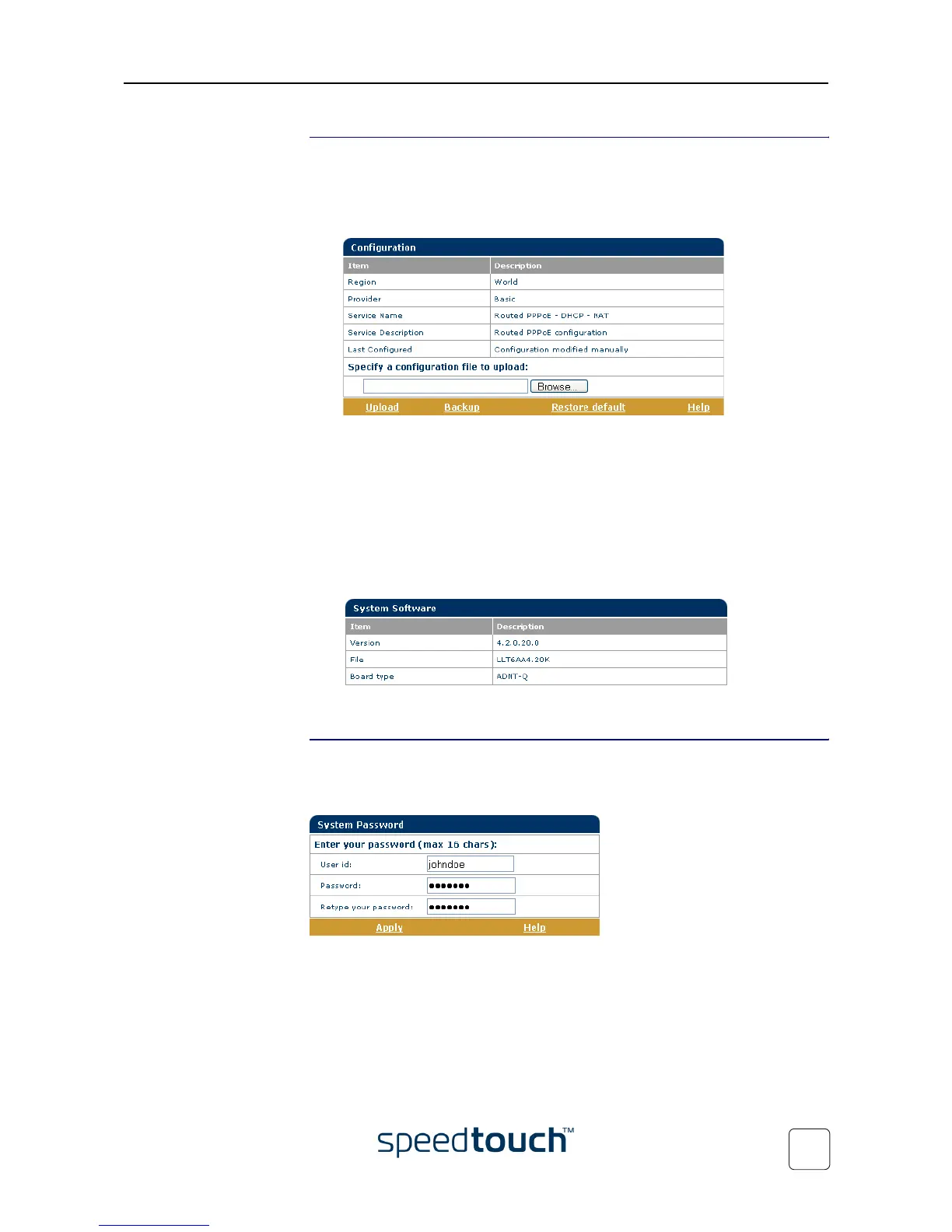
System Click this link to display the Configuration page.
This page allows you to:
• Back up the current SpeedTouch™ configuration, restore the SpeedTouch™
default configuration, or upload a saved configuration file:
To backup the current configuration, click Backup and follow the instructions.
To restore the SpeedTouch™ defaults, click Restore default to load the default
configuration.
To upload and apply a SpeedTouch™ configuration file you’ve previously backed
up, click Browse to go to the location where the SpeedTouch™ configuration file
resides. Select the configuration file and click Upload to upload and apply the new
configuration.
• View the current system software version, file name and the SpeedTouch™ board
type:
• Check for the latest SpeedTouch™ software upgrades.
System Password
Click this link to display the System Password page.
This page allows you to configure a system password to restrict access to the Speed-
Touch™:
It is highly recommended that you configure a system password. To protect the Speed-
Touch™ you should change the System password on a regular basis. However, never
use an obvious password such as your name, date of birth, etc.
Enter User id and System password of your choice and re-enter your password in the
appropriate field. Click Apply to apply the System password and Save all to save your
changes to persistent memory.





 To Next Page