2 SpeedTouch™ Internet Connectivity
E-DOC-CTC-20030814-0001 v1.0
26
The connected Internet
Gateway
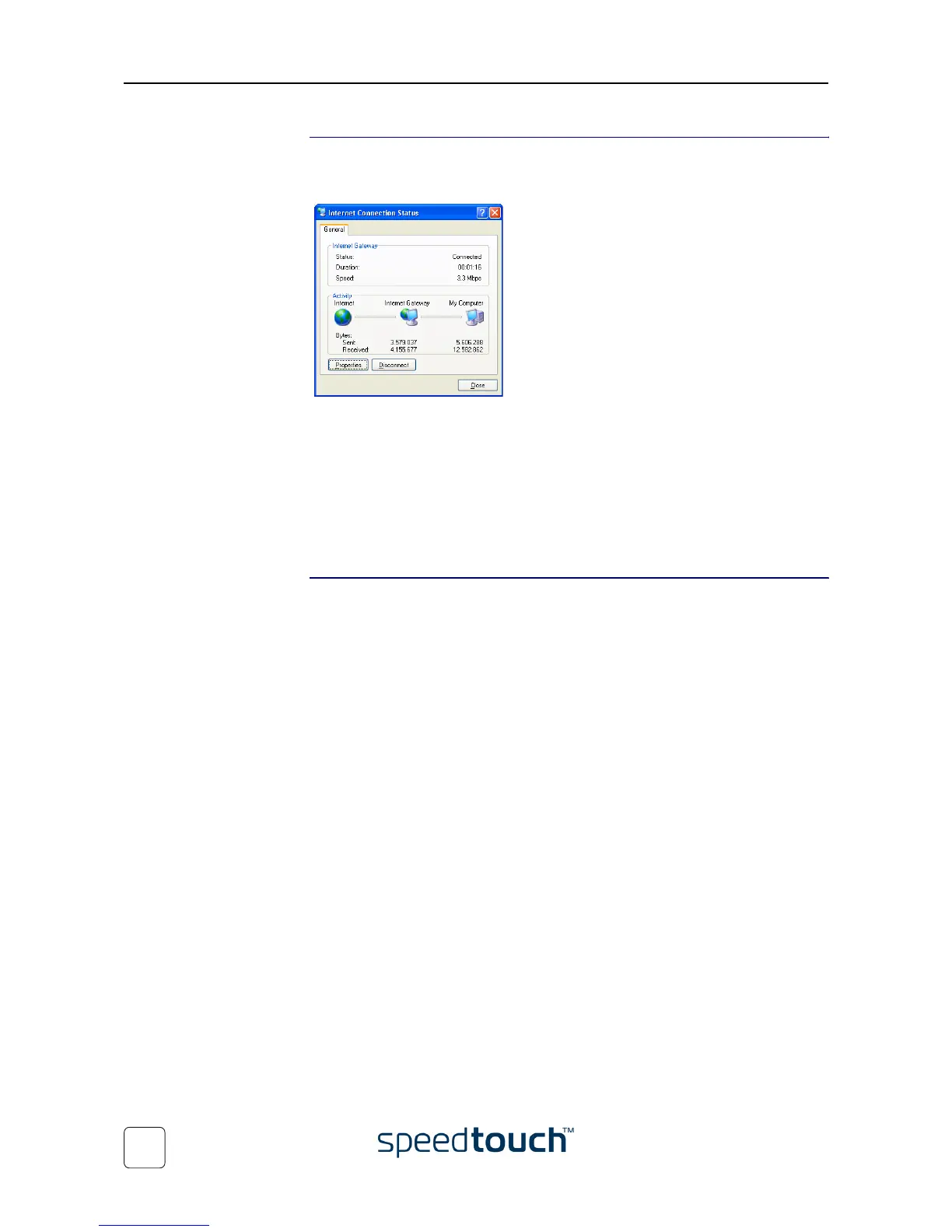
As long as the SpeedTouch™’s embedded PPP dial-in client is connected, you are able to
overview the connection status and some counters by double-clicking the Internet
Connection icon in your PC’s Network Connections window:
More detailed monitoring is provided via:
• Dr SpeedTouch™
See “3 Dr SpeedTouch™” on page 37.
• The SpeedTouch™ System Information page
See “ System Information” on page 50.
• The SpeedTouch™ Diagnostics page
See “ Diagnostics” on page 56.
Terminating an Internet
session
Proceed as follows:
1 Click (Settings >) Control Panel on the Start menu.
2 The Control Panel window appears. Go to (Network and Internet Connections >)
Network Connections.
3 The Network Connections window appears.
4 Right-click the Internet Connection icon and select Disconnect to close the session.
Note You can also double-click the icon. As a result the Internet Connection
Status window appears from which a Disconnect button is available to
close the session.
As a result SpeedTouch™’s embedded PPP dial-in client will close the Internet connec-
tion. The Internet Gateway icon displays disconnected and your PC is offline.






 To Next Page