3.5 Supporter Mode - Software
14
Modify
-Enablemodicationofsupports.
-SupportscanbemodiedwiththemouseorviatheSettingstab.
- Clicking and dragging the top or the middle of a support, will move the top of the support across the objects surface.
- While holding control + while dragging the joint of the support, the length of the joint will be altered.
- While holding control + while dragging the middle of the support, the loverall width of the support will be altered.
- Clicking and dragging the bottom of the support, this will move only the bottom of the support.
- While holding control + while dragging the bottom of the support, the overall thicknness of the support will be altered.
Supporter Settings
- The Supporter Setting was created to specify the size and shapes of the supports.
- If the user is using the “Add Support”, the interface will show the parameters that the support added will have.
- If the user is using the “Modify” and a support is selected, the interface is used to edit the parameters of the
selected support.
Supporter List (Continued)
Explore Endless Creativity with Tiger 3D
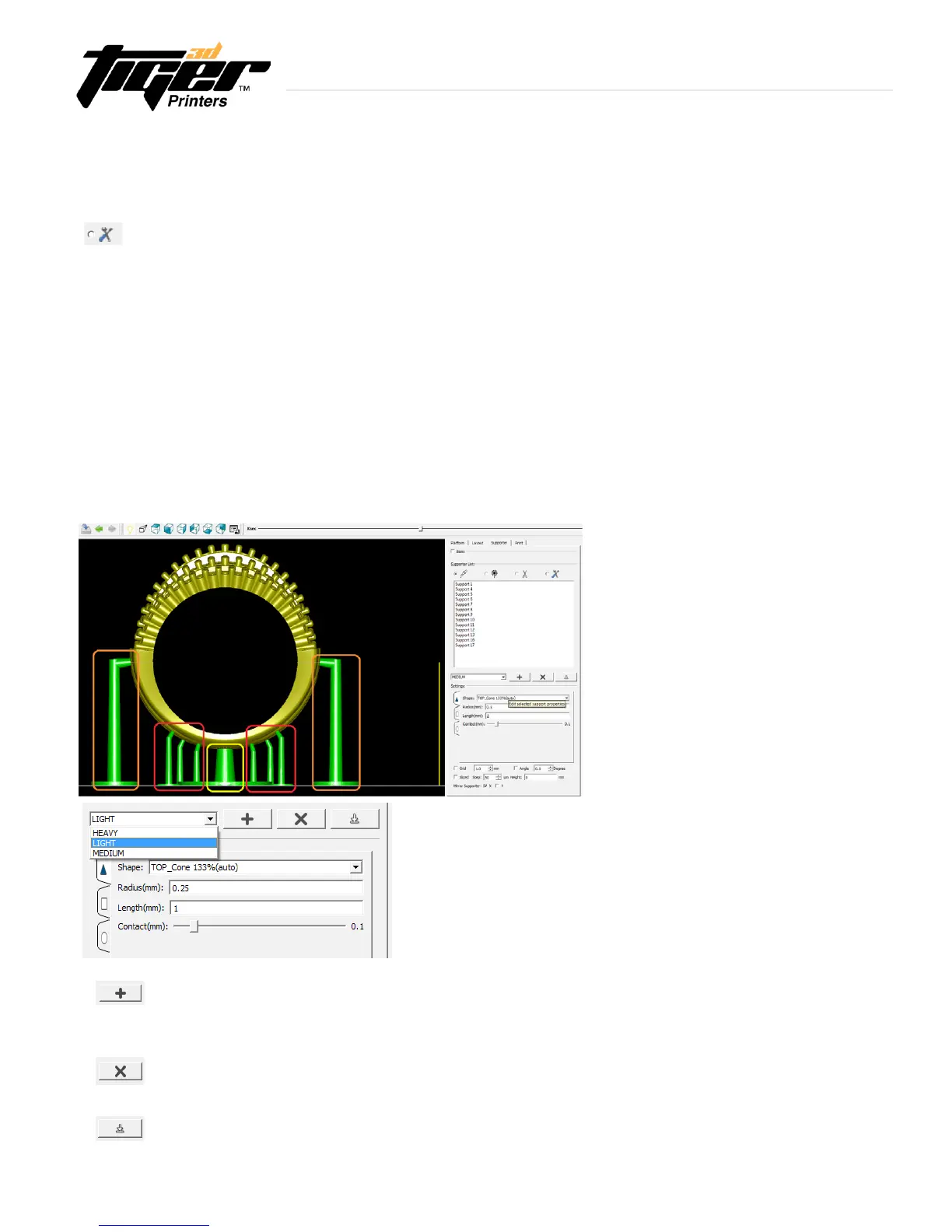
Heavy Support
- When selected, this brings a heavier
construction to support columns.
-Use"HEAVY"tosupporttheboneofthe
model and larger sections of the piece
(see example in yellow box).
Medium Support
- When selected, this brings a medium
construction to the support columns.
- Use "MEDIUM" to support the taller sections
of the piece (see example in orange box).
Light Support
- When selected, the support will be light
and delicate.
- Use "LIGHT" as the default structure
(see example in red box).
Adding Support Setting Parameters
- PrinterTool has 3 preset support modes. The user can edit and set custom supports
using this tool. PrinterTool will save the users settings for future reference.
Deleting Support Setting Parameters
- Deletes the users parameters previously saved.
Save Current Supporter Setting Parameters
- PrinterTool will save users settings for future reference.


 To Next Page