Intercom Operation
Naming Stations
To Name a Station in Your Epic
System:
At S
tation #1
1:
1 Press PROGRAM.
- The display will read “Program...”
2 Press the soft key under NEXT
repeatedly, until “Station Naming”
appears in the display, and then
press ENTER.
- The display will show the currently
stored name for station #11, or
indicate “No Name” if no name has
yet been given to station #11.
3 Press the soft key under CHANGE if
you wish to store a new name for
station #11, or press NEXT repeat-
edly until you see the station num-
ber that you want to name, and then
press CHANGE.
4 Use the dialpad numbers to enter
the name for the desired station.
5 Press the soft key under SAVE.
Repeat steps 1-5 for any additional sta-
tions you wish to name.
1
2
3
4
5
6
7
8
9
,
A
D
G
J
M
P
T
W
-
B
E
H
K
N
Q
U
X
‘
C
F
I
L
O
R
V
Y
&
a
d
g
j
m
S
t
Z
.
b
e
h
k
n
p
u
w
(
c
f
i
l
o
q
v
x
)
2
3
4
5
6
r
8
y
1
s
z
7
9
Guide for Entering Names
If you wish, you may give a name to each of your
Epic telephones, so that people can see the
names along with the station numbers when they
place intercom calls. For example, you might
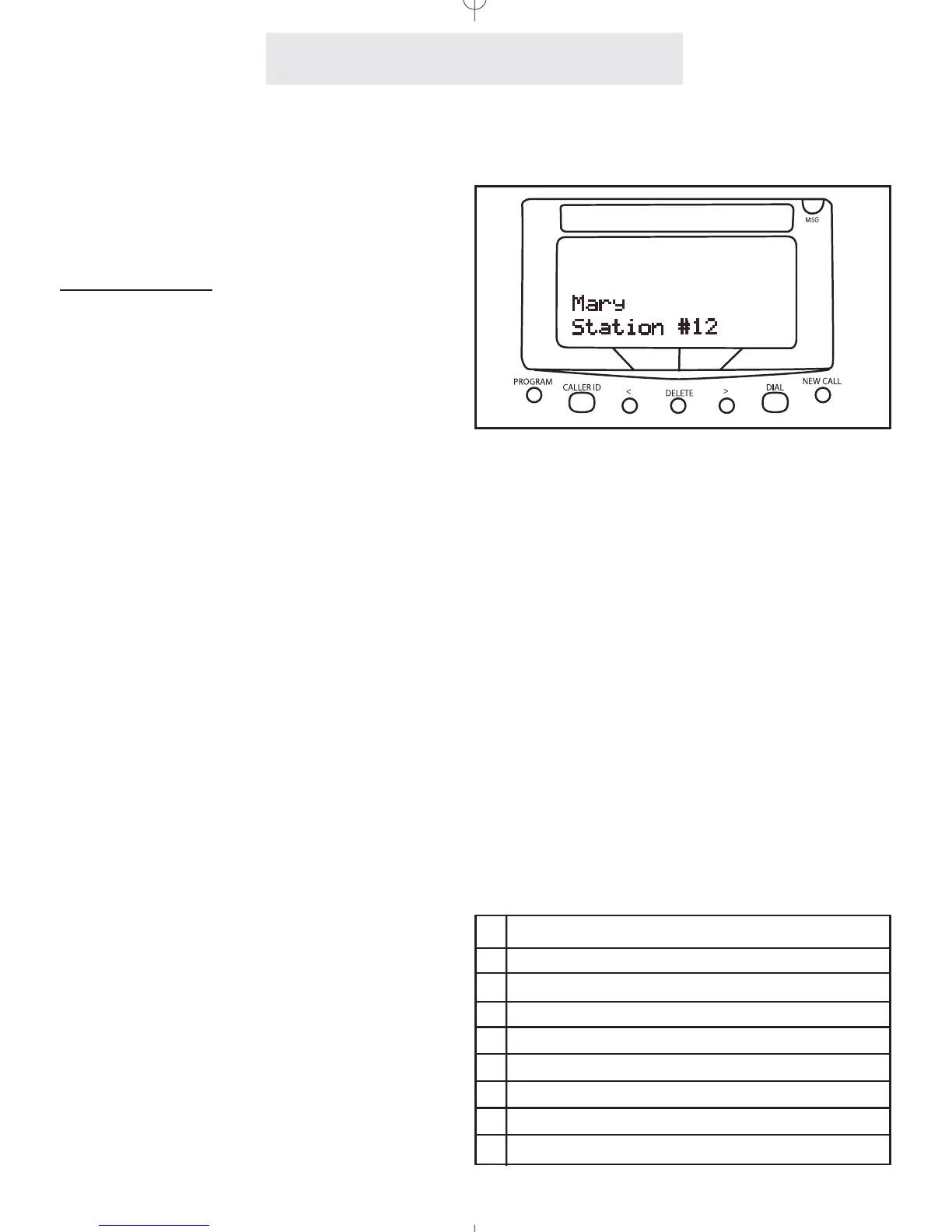
name station #12 “Mary” and station #15
“Conference Room.”
The table below shows which dialpad numbers
to press for all the different letters and special
characters. Note that you can press the 0, *, and
# buttons if you want those characters, and you
can press the right arrow button below the dis-
play to leave an empty space, and the DELETE
button any time to make corrections.



 To Next Page