43
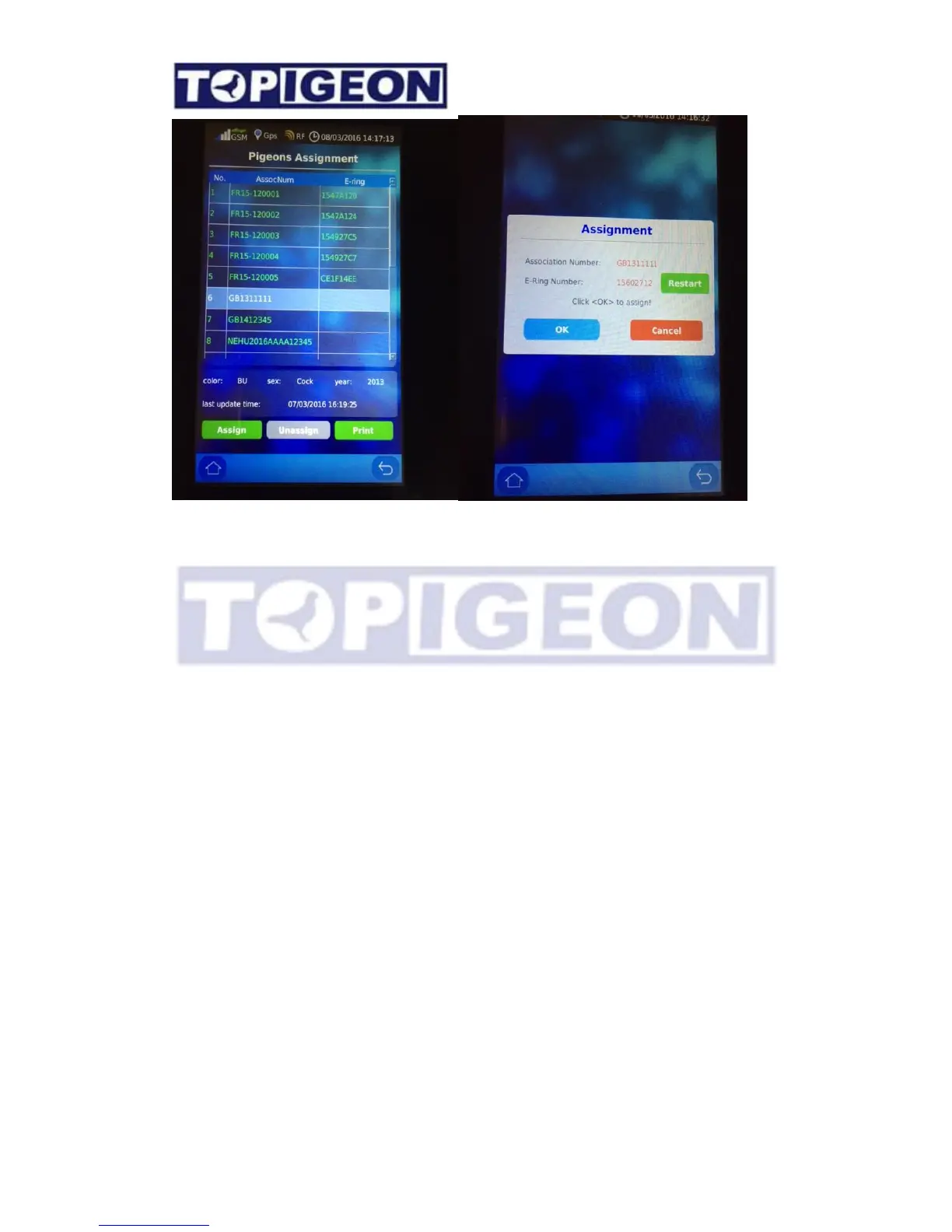
The Ring Assignment screen is similar to the Pigeon Manager where you can Add and
Search the specific bird that you want assigned. By selecting on the specific pigeon that
you want to assign the chip ring and the Assignment button will be activated. Press the
assignment button, a window will bring up “Scanning… “message. You can then swipe the
chip ring on the club antenna to assign the bird. If you assign to the wrong chip ring it can
Restart. Press OK to complete this ring assignment. You can also press Cancel to cancel
this assignment.
You can also Unassigned by pressing the “Unassign” button. After you Unassigned, you
can delete the unassigned bird.
Print Assignment Ring List
You can also print this assignment list for this operation for fancier or club to keep the record.
The assignment ring list will printed be in two rows. The color of the bird will be also printed
in the list for confirmation.


 To Next Page