3. Printing
Printing Guide — Printing from Macintosh 265
4) Paper Source
This selects the source for feeding paper. Please select a paper source that corre-
lates with the printing size.
- All pages from
— Select this to use the same paper source for all pages. Select
the paper source or paper type at the pop-up menu on the right.
- First page from — Select this to use the different paper source for the first page
from the remaining pages. Select the paper source or paper type for the first
page at the pop-up menu on the right.
- Remaining from — Select the paper source or paper type for the remaining
pages at the pop-up menu on the right when you select the First page from
option.
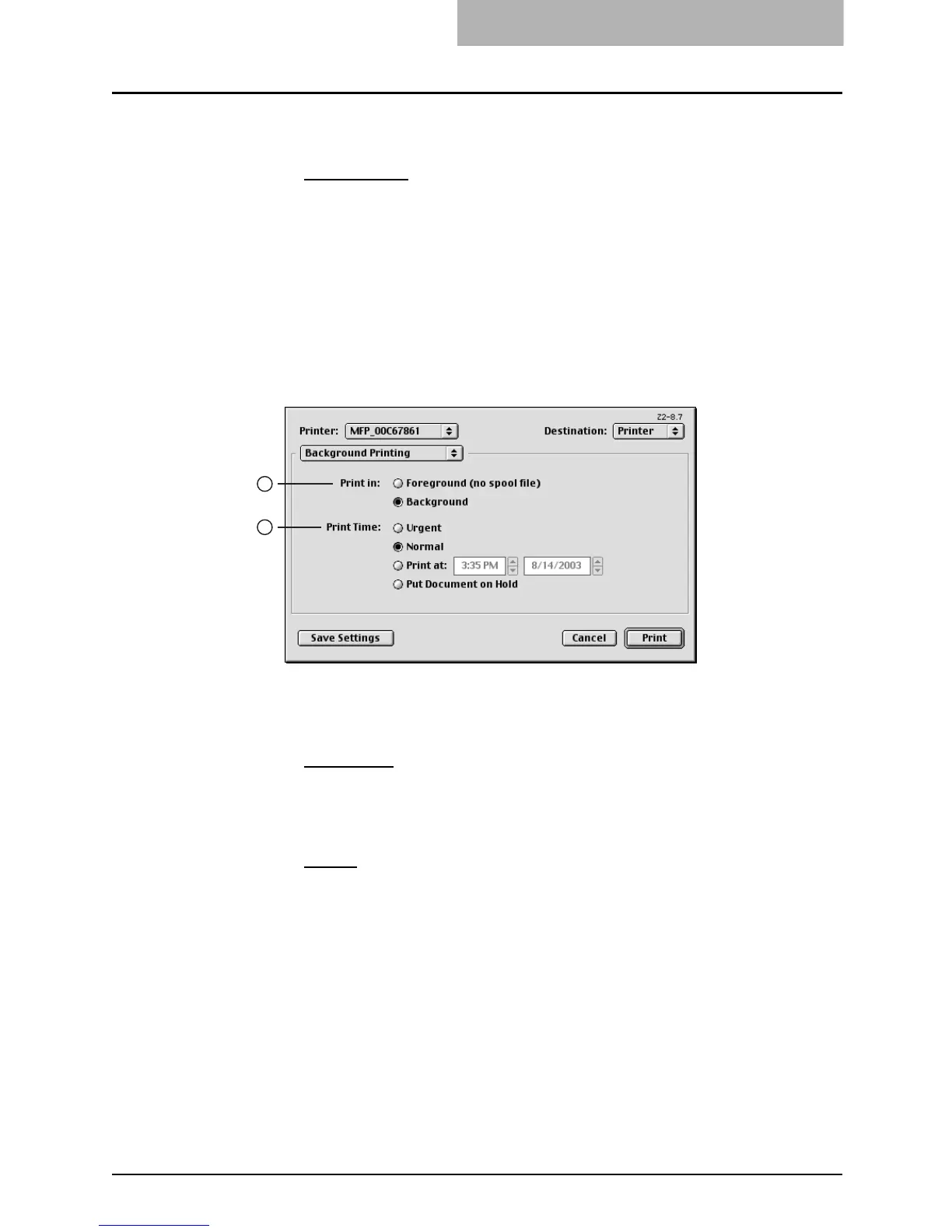
— Background Printing
In the Background Printing menu, you can set how the print job is spooled.
1) Print in
This sets how the print job is spooled.
- Foreground (no spool file) — Select this to disable any operation on the com-
puter until printing is completed.
- Background — Select this to enable any operation on the computer during
printing.
2) Print Time
This sets the schedule for printing.
- Urgent — Select this to print a job immediately.
- Normal
— Select this to print a job normally.
- Print at — Select this to specify the time that the print job is sent to this equip-
ment. Specify the time and date when this is selected.
- Put Document on Hold — Select this to hold the print job in the desktop print
queue. To send the print job held in the desktop print queue, double-click the
printer icon on the desktop and activate the print job.
1
2



 To Next Page
 Loading...







