70
Monitor the Radio Settings
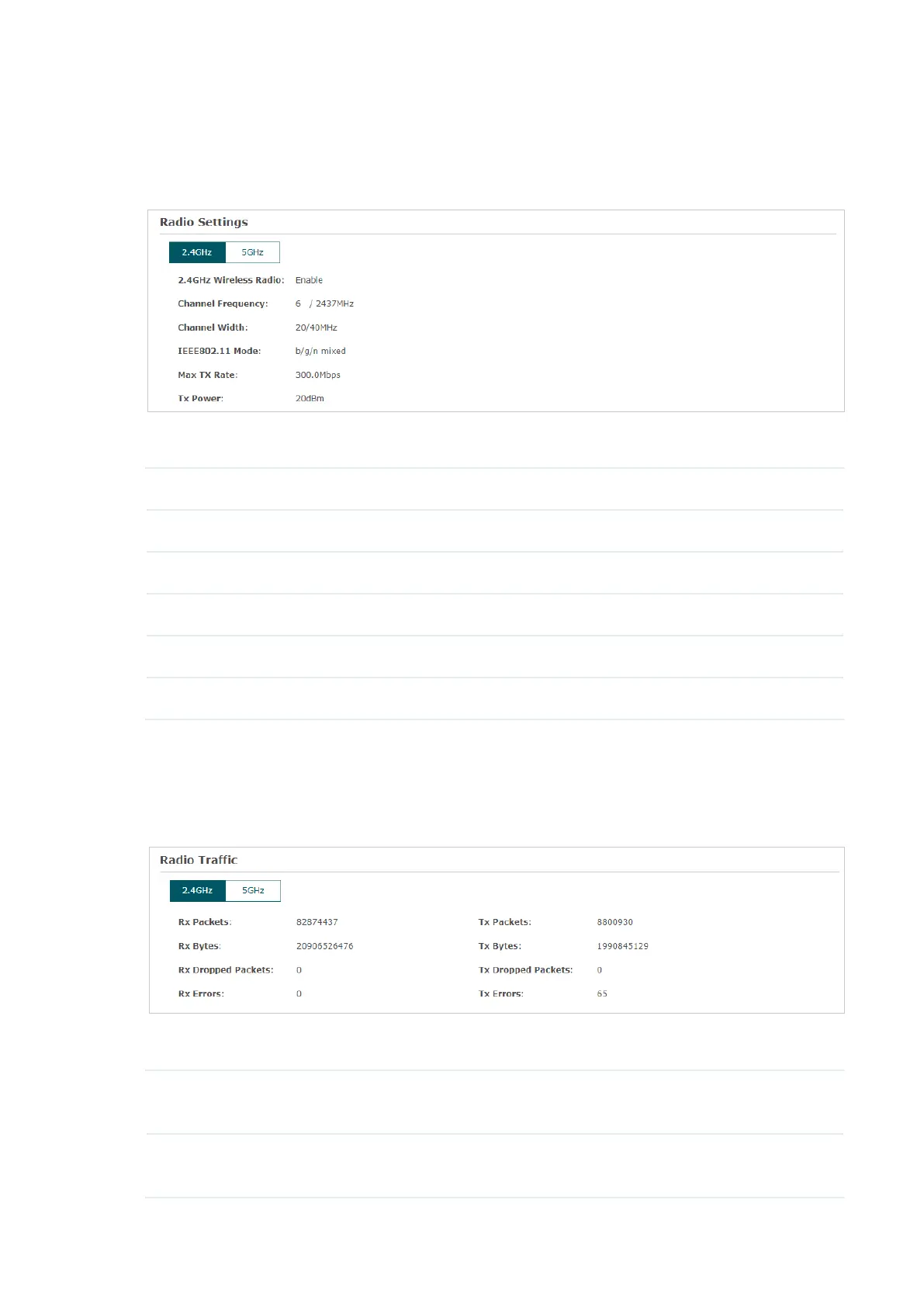
You can monitor the radio settings of the AP. The following figure posted in the
introduction takes 2.4GHz as an example.
The following table introduces the displayed information of the AP.
Wireless Radio Displays whether wireless function is enabled on the radio band.
Channel Frequency Displays the channel and frequency which are currently used by the AP.
Channel Width Displays the channel width which is currently used by the AP.
IEEE802.11 Mode Displays the IEEE802.11 protocol currently used by the AP.
Max TX Rate Displays the maximum physical rate of the AP.
Tx Power Displays the transmit power of the AP.
Monitor Radio Traffic
You can monitor the radio traffic of the AP. The following figure posted in the introduction
takes 2.4GHz as an example.
The following traffic information of the radio is displayed:
Rx Packets Displays the total number of the received packets on the 2.4GHz/5GHz
band since the AP starts up.
Tx Packets Displays the total number of the sent packets on the 2.4GHz/5GHz band
since the AP starts up.




 To Next Page