89
4.9 Configure SSH
If you want to remotely log in to the AP via SSH, you can deploy an SSH server on your
network and configure the SSH feature on the AP.
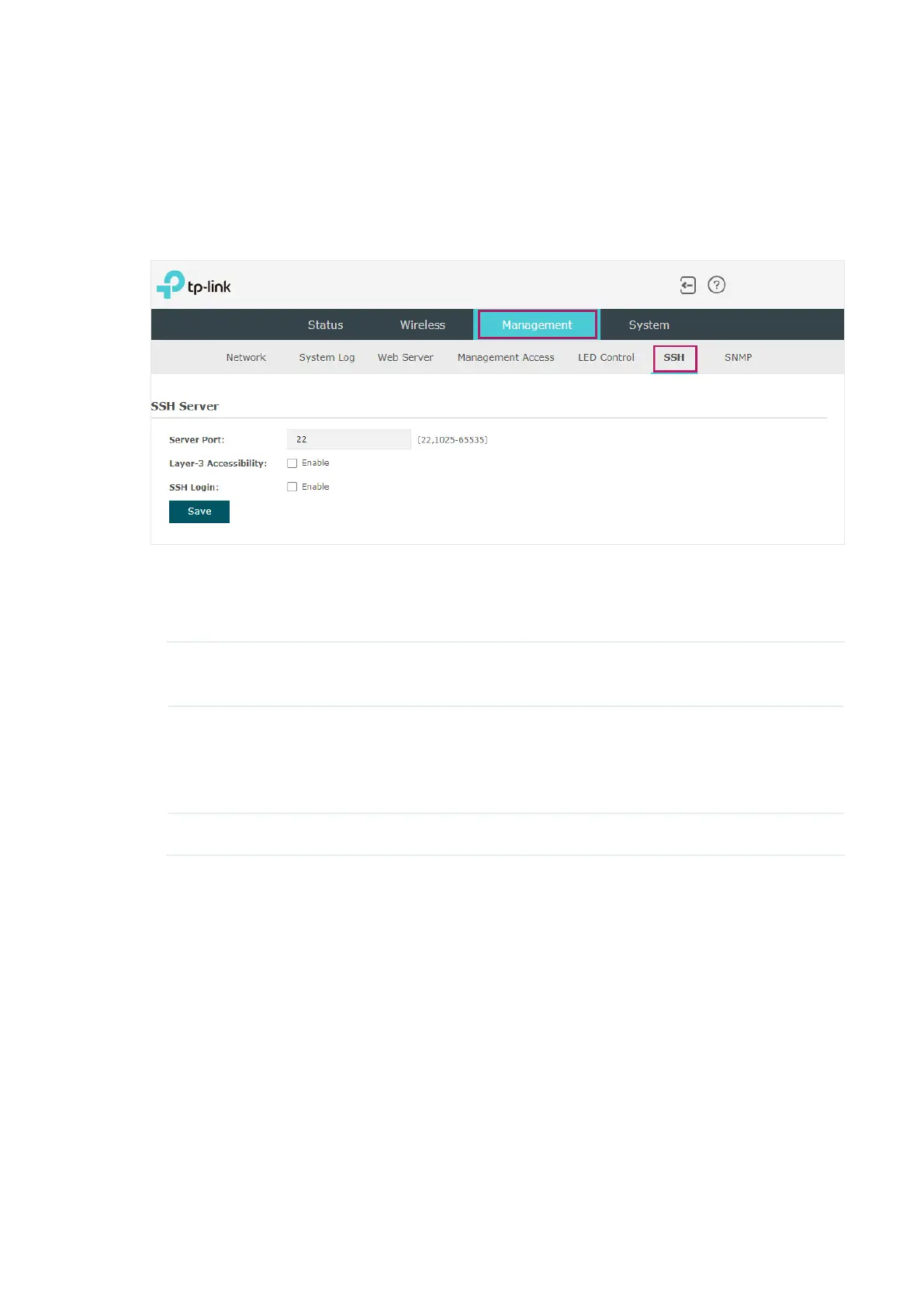
To configure SSH, go to the Management > SSH page.
Follow the steps below to configure SSH on this page:
1. Refer to the following table to configure the parameters:
Server Port Designate a server port for SSH. By default the port is 22.
Layer-3
Accessibility
With this feature enabled, devices from a different subnet can access
Omada managed devices via SSH. With this feature disabled, only the
devices in the same subnet can access Omada managed devices via
SSH.
SSH Login Enable or disable SSH Login globally.
2. Click Save.



 To Next Page