5
Chapter 1
Get to Know About Your Router
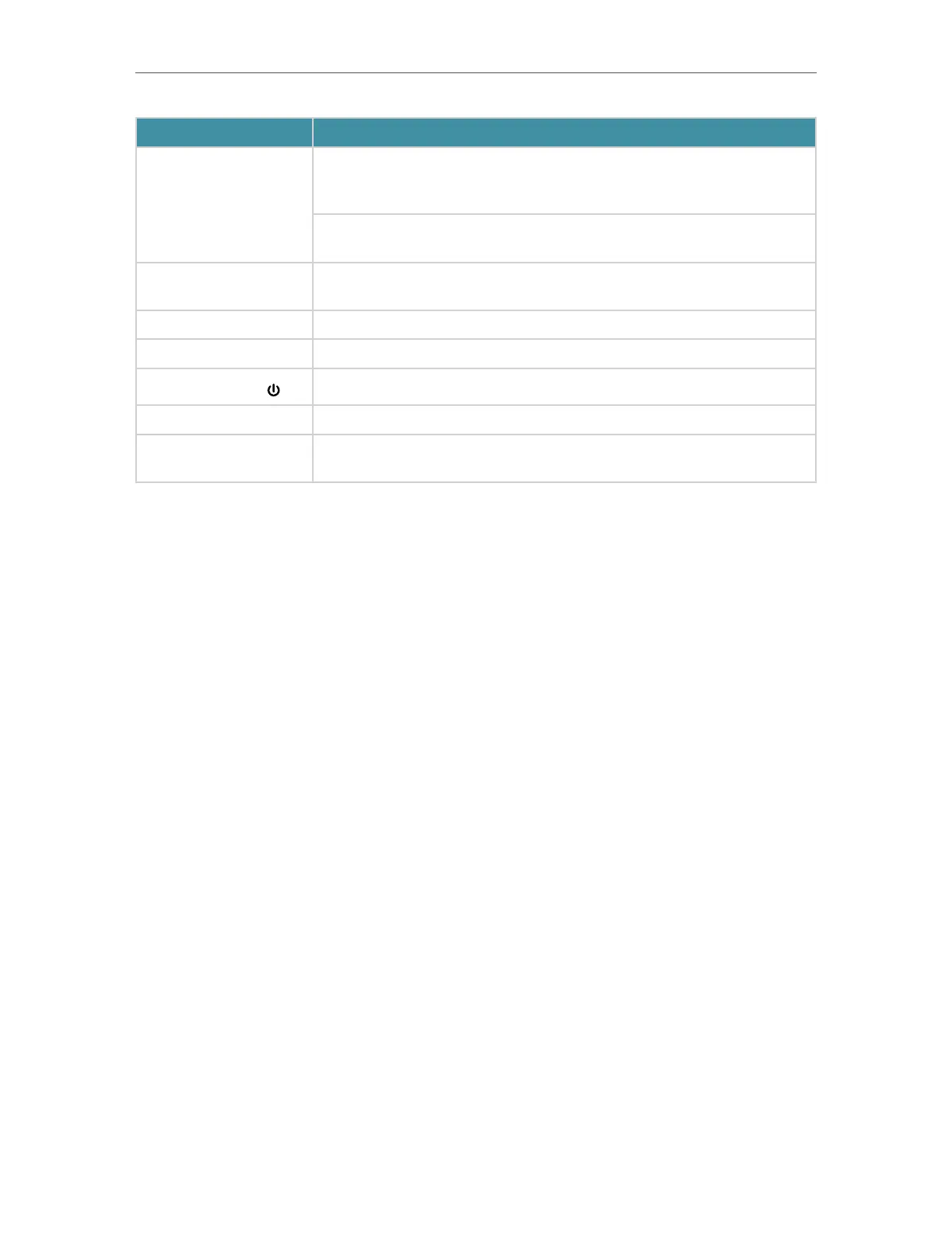
Item Description
Wi-Fi/WPS Button
Press this button for 1 second, and immediately press the WPS button on your
device. The Wi-Fi LED of the router should change from flashing to solid on, indicating
successful WPS connection.
Press and hold this button for about 3 seconds to turn on or off the wireless function
of your router.
Reset Button
Press and hold this button for 2 seconds until all LEDs turn off to reset the router to
its factory default settings.
WAN Port For connecting to a DSL/Cable modem, or an Ethernet port.
LAN Ports (1/2/3/4) For connecting your PCs or other wired network devices to the router.
Power On/Off Button
Press this button to power on or off the router.
Power Port For connecting the router to a power socket via the provided power adapter.
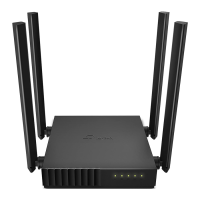
Antennas
Used for wireless operation and data transmitting. Upright them for the best Wi-Fi
performance.






 To Next Page