20
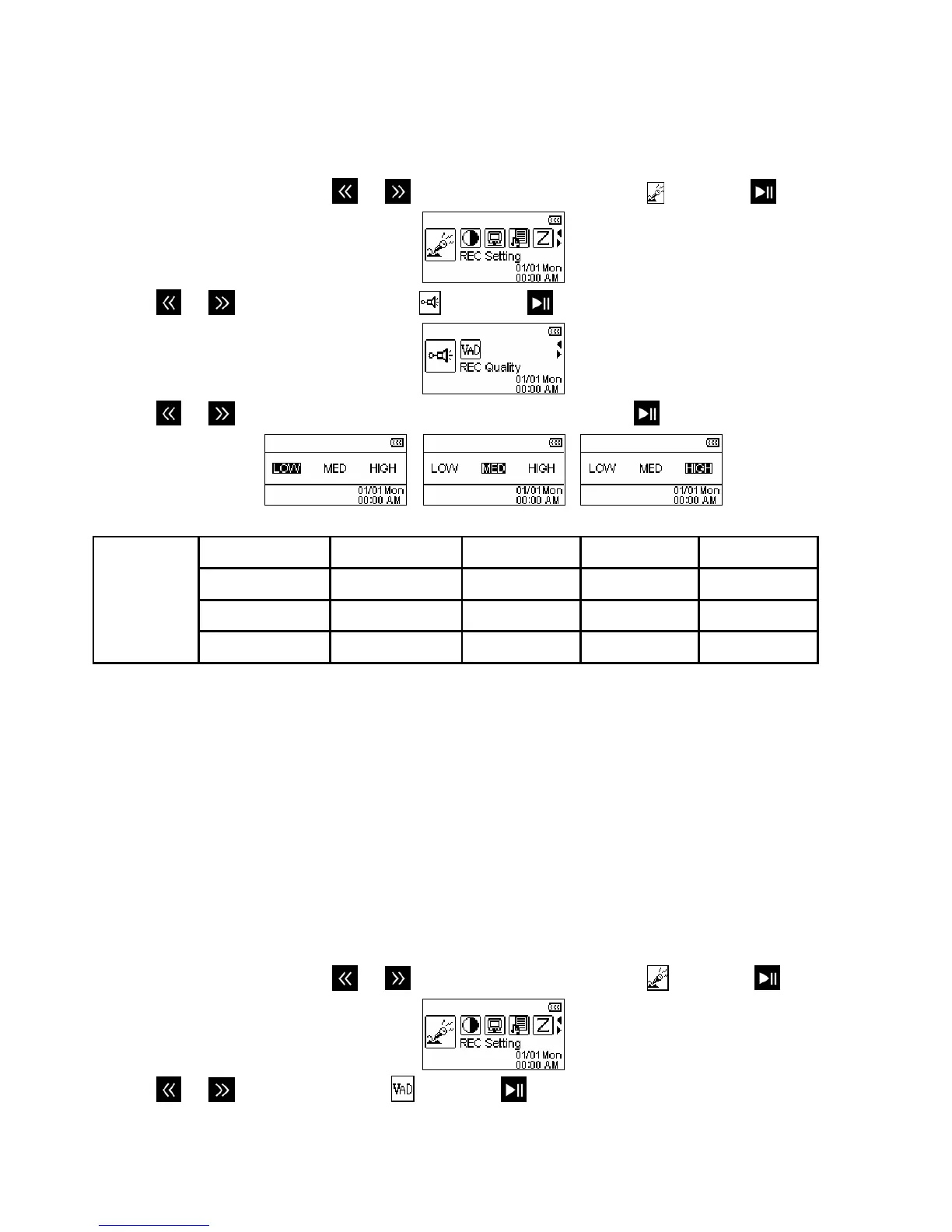
REC Setting
REC Quality
The quality of an audio recording can be set to Low (8,000Hz), Medium (16,000Hz), or High (32,000Hz). Higher
recording quality settings require more memory space to save the recorded WAV files.
1. In the SETTINGS menu, use
or to select the “REC setting” icon
and press
.
2. Use
or to select “REC Quality” and press .
3. Use
or to switch between “Low”, “Med”, or “High” and press to confirm.
Sample rate Channels* 2GB 4GB 8GB
Low (8KHz) 1 (stereo/mono) 64/128 hrs 128/256 hrs 256/512 hrs
Med (16KHz) 1 (stereo/mono) 32/64 hrs 64/128 hrs 128/256 hrs
Recording
Quality
High (32KHz) 1 (stereo/mono) 16/32 hrs 32/64 hrs 64/128 hrs
Figure 6: Recording Quality Table
¾ If there is not enough space available or the battery power is too low, the T.sonic 650 cannot
support the maximum recording capacity as outlined in the above table.
¾ For best results, try to position the T.sonic 650’s Microphone as close as possible to the source
of the sound or voice you are recording.
¾ RADIO recordings are recorded in Stereo. MIC recordings are recorded in Mono.
VAD (Voice Activity Detection)
VAD allows the T.sonic 650 to make gapless voice recordings. This means during voice recording with the
internal microphone, the player will only record when it detects voices. If the person(s) pauses or stops speaking,
the T.sonic 650 will temporarily stop recording until the person(s) starts speaking again. This allows for more
concise, easier to understand recordings and smaller recording files.
1. In the SETTINGS menu, use
or to select the “REC setting” icon
and press
.
2. Use
or to select “VAD” icon and press .


 To Next Page