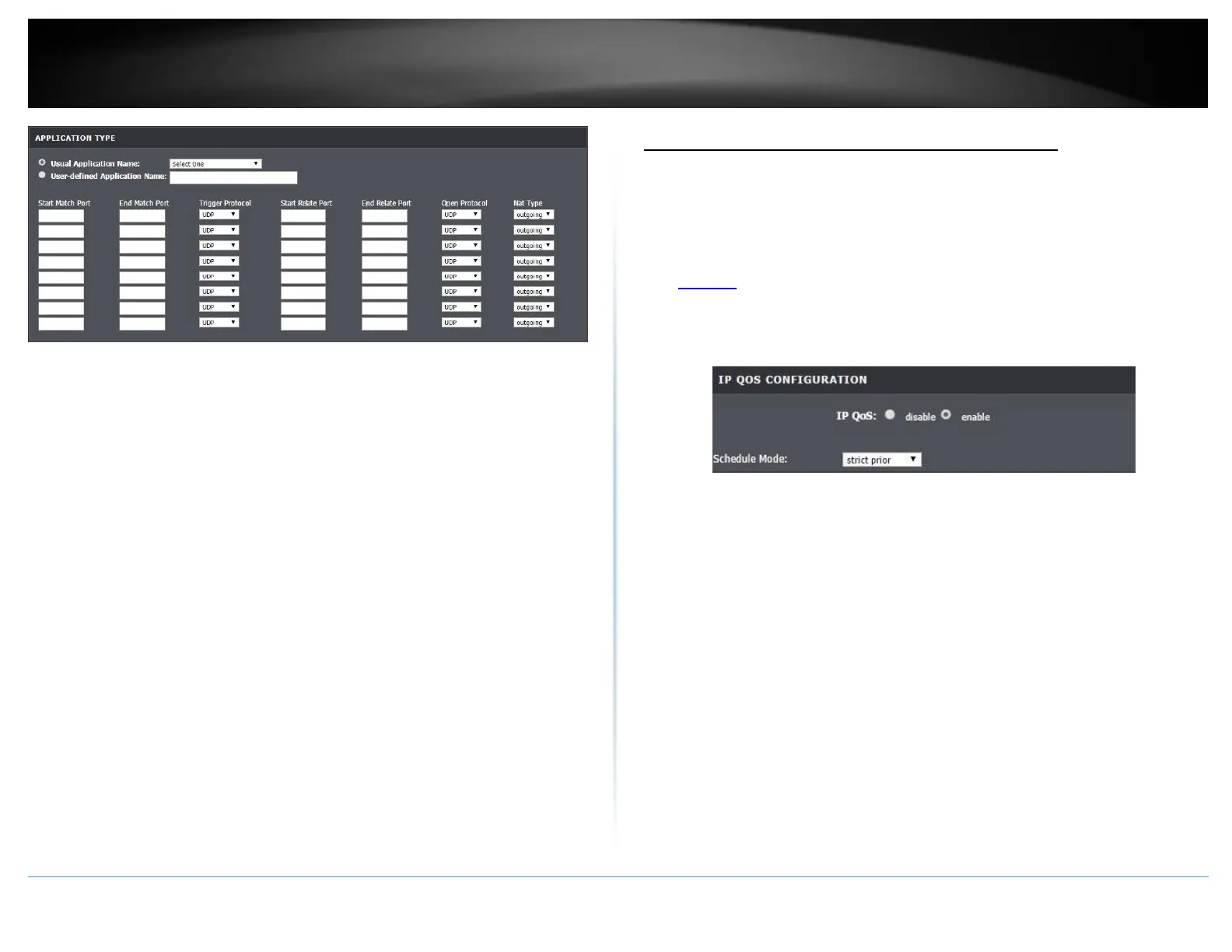
• User Application Name: Select from one of the pre-defined setups from the drop
down menu.
• User-defined Application Name: Enter the name to assign rule.
• Start / End Match Port: Port or port range requested by the device.(e.g. 2000-2001
or 2000)
Note: Please refer to the device documentation to determine which ports are
required.
• Trigger Protocol: Select protocol to apply on rule
• Start / End Relate Port: Enter the public port to assign on the rule
• Open Protocol: Select the public protocol to apply on rule.
• Nat Type: Select whether the Nat Type is for outgoing or incoming.
Note: Please refer to the device documentation to determine which ports are required.
Prioritize traffic using QoS (Quality of Service)
Advanced > Network Tools > IP QoS
You may want to prioritize outbound traffic for specific computers or devices on your
network to have higher priority.
1. Log into your router management page (see “Access your router management page”
on page 23).
2. Click on Advanced, then click on Network Tools and click on IP QoS.
3. Click enable and click on Apply to turn QoS on.
4. Select the type of schedule mode for the rule.
Queue Rule
This page allows you to configure a QoS queue entry and assign it to a specific network
interface. Each of the queues can be configured for a specific precedence. The queue
configuration will be used in Queue Classification to place ingress packets appropriately.
1. Click Add Rule to add and modify the QoS Queue.








 To Next Page