Truetness.com / 800.426.6570 / 636.272.7100 97 of 171
CHAPTER 4A: TRANSCEND OPERATION
Diagnostics Menu - Advanced:
e advanced screen contains multiple tools that are used in the production of the console and for demonstration
purposes. It is recommended to leave these settings in their default positions.
ADVANCED CONSOLE FUNCTIONS:
Diagnostics Menu - Fault Log:
Touching the Fault Log button in the Diagnostics Menu, will display a time stamped list of recent fault codes that
can be helpful in the troubleshooting process. e Error Log can be reset by touching the Clear button, but it is not
recommended.
Diagnostics Menu - Soware Update:
TRUE may periodically release soware updates to ensure users enjoy the best workout experience available. Due to the
complex nature of this procedure, it is recommended that any soware update be completed by a TRUE certied service
professional.
Diagnostics Menu - Touch Screen:
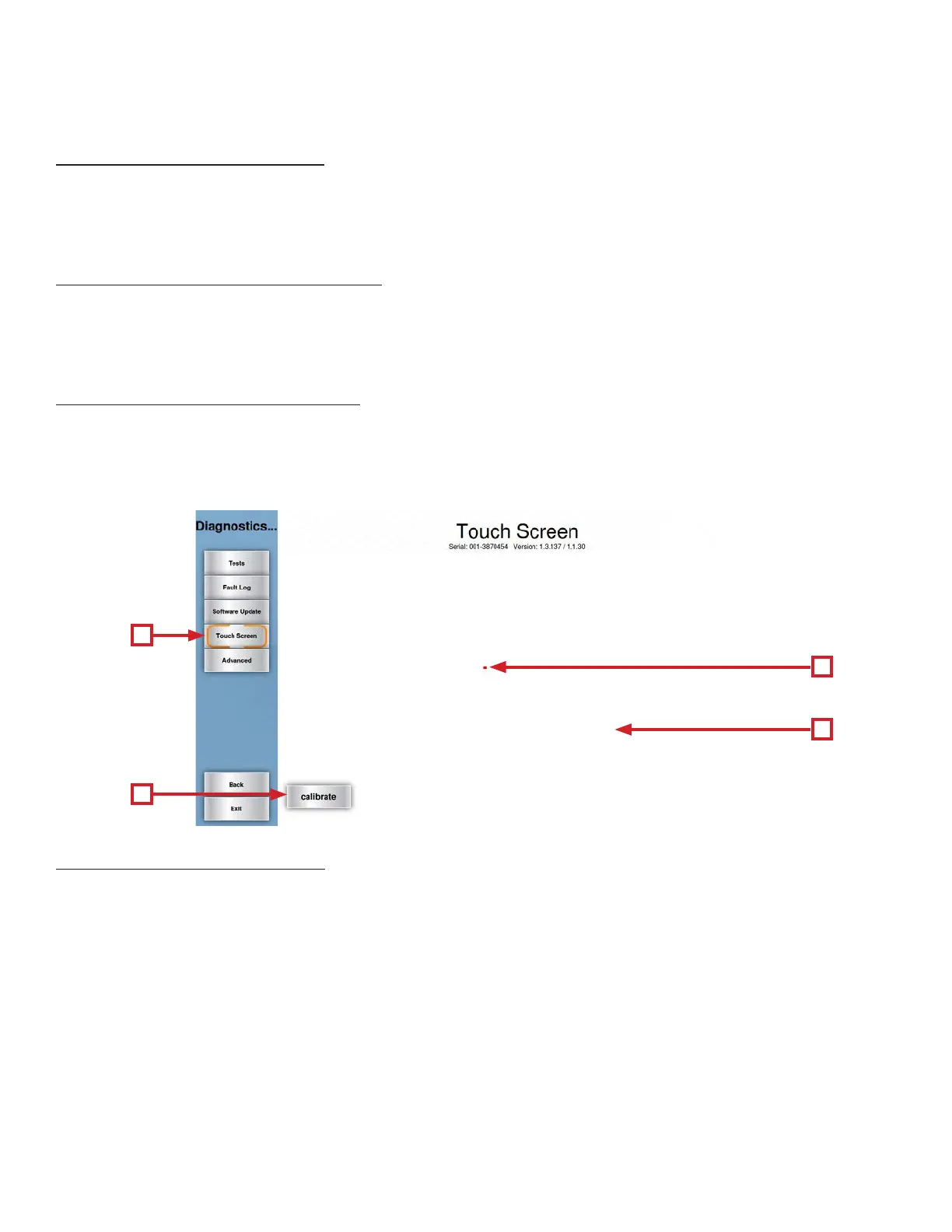
Touching the Touchscreen key (A) will open the touchscreen calibration tool. On the rst screen displayed, users can
touch anywhere in the white area (B) and a small red box (C) will appear to verify screen function. Touching the Calibrate
button (D) will begin a touchscreen calibration. During this process, targets will appear on the screen and the user must
press and hold each target until it turns red to complete the calibration.
A
D
B
C


 To Next Page