Record Menu
This allows the user to customise the system by recording voice tags for resident names, receivers and
door panels. The user can also record messages to be left for residents on their speech modules
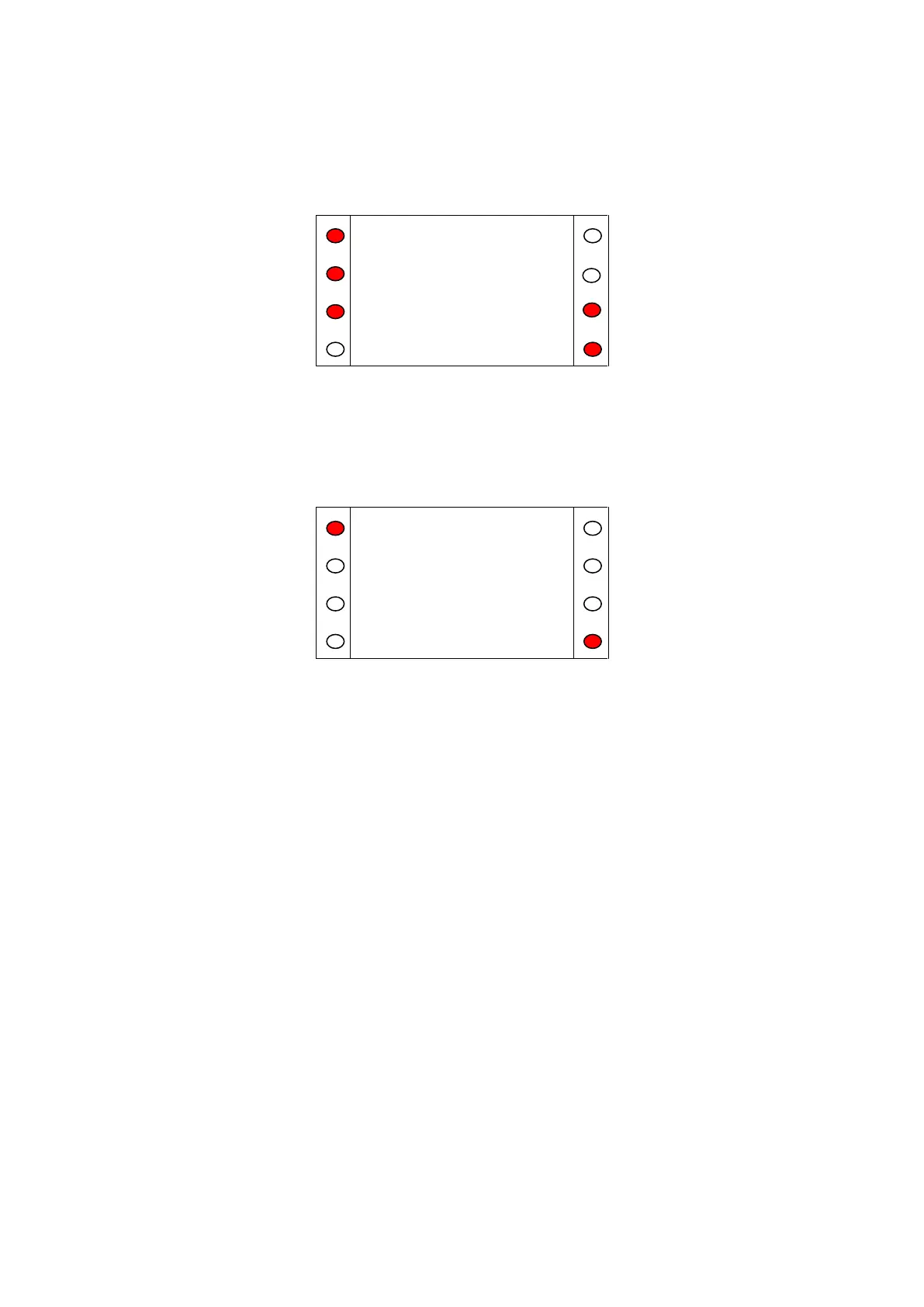
Figure A.30
Resident Name
After selecting resident name, the system will prompt the user to input a Resident ID or lookup a
resident. Once a resident is selected, the system will prompt the user to pick up the handset of the
phone attached to the SCP. The SCP will then display the Recording Screen (Figure A.31).
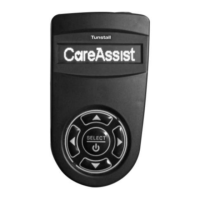
Figure A.31
To record the message, press ‘Start Recording’ then clearly speak the resident’s name into the
handset. The user can then listen to or delete the name. This speech tag will be used to personalise
the system and help scheme managers to become more familiar with residents by hearing their name
when a call is received from their speech module or registered trigger.
Resident Message
After selecting resident message, the system will prompt the user to input a Resident ID or lookup a
resident. Once a resident is selected, the system will prompt the user to pick up the handset of the
phone attached to the SCP. The SCP will then display the Recording Screen (Figure A.31).
Receivers
After selecting receivers, the system will prompt the user to input a receiver number. Once a receiver
is selected, the system will prompt the user to pick up the handset of the phone attached to the SCP.
The SCP will then display the Recording Screen (Figure A.31).
Door Panels
After selecting door panels, the system will prompt the user to input a door panel number. Once a
door panel is selected, the system will prompt the user to pick up the handset of the phone attached
to the SCP. The SCP will then display the Recording Screen (Figure A.31).


 To Next Page