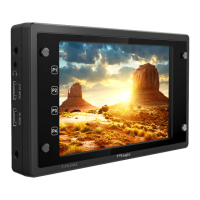
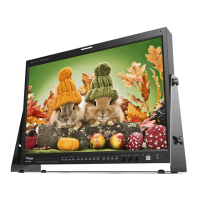
Field Production Monitor
18
05 MENU OPERATIONS
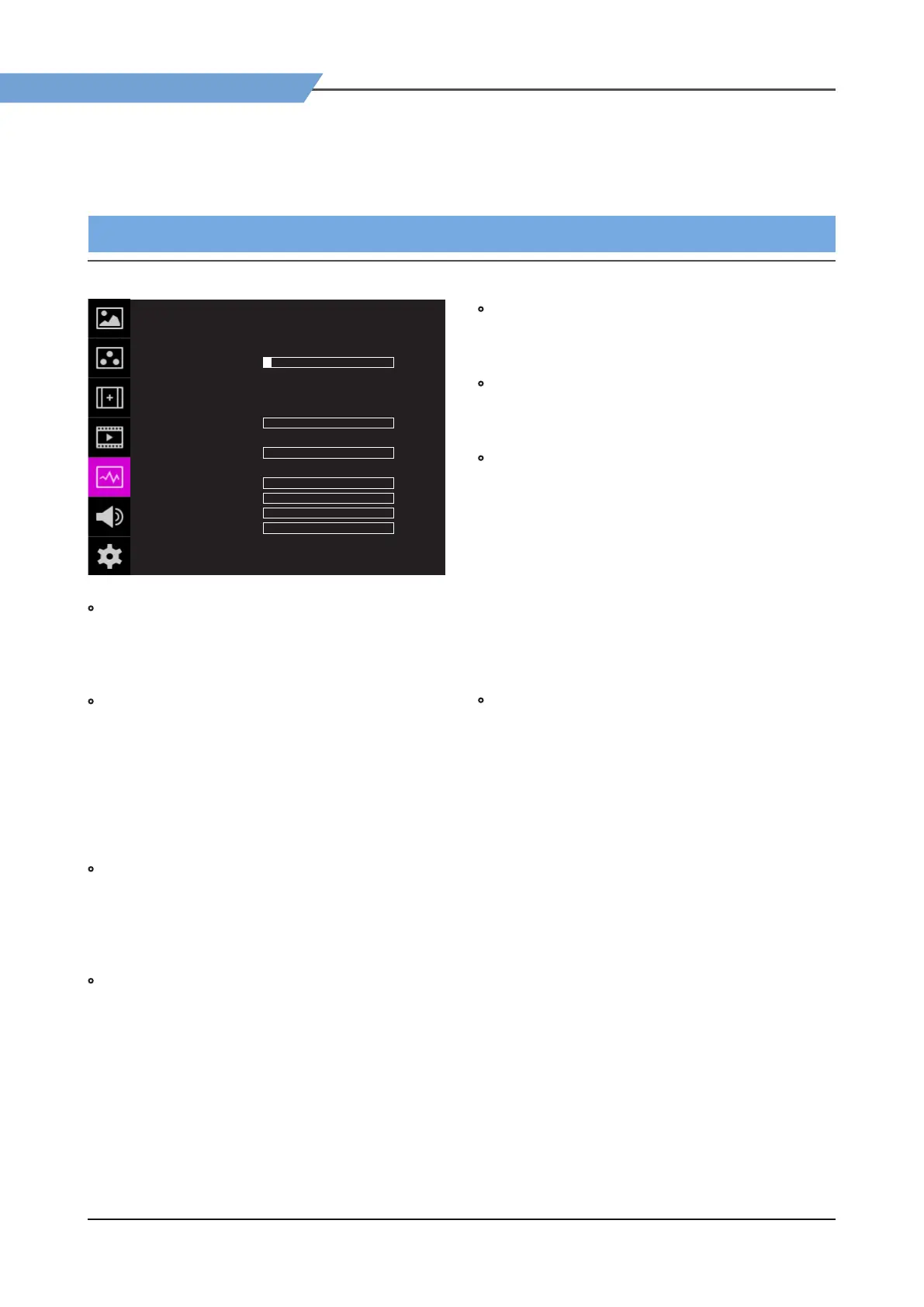
[5] WAVEFORM
WAVEFORM F-10A
ENABLE
TYPE
INTENSITY
TRANS
SIZE
LINE WAVEOFORM
SEL LINE POS
LUMA CHECK
LUMA ADJUST
RANGE ERROR
Y MAX
Y MIN
C MAX
C MIN
Y PICTURE BLINK
C PICTURE BLINK
OFF
OFF
OPAQUE
SAMLL
OFF
OFF
OFF
OFF
OFF
1
0
0
0
0
0
0
• ENABLE
- Used to activate/ deactivate the Waveform
which is selected in the Waveform/Vectorscope
Type menu.
• TYPE
- This function sets the Waveform and Vectorscope.
- Available options are dierent according to the
Input signal.
- Activates in the order: YCbCr: O - Waveform
- Vectorscope - Waveform Wide - Waveform
YCbCr - RGB(Conv.)-Wave_Vector - Vector_YCbCr
- Full Waveform(Y) - Full Vectorscope.
• INTENSITY
- Used to set the brightness level of the Waveform/
Vectorscope display from 1 to 63.
- The higher the number the brighter the
waveform will be.
• TRANS (Transparency)
- Used to select the transparency option of the
Waveform/ Vectorscope between Opaque and
Blend.
- Even if the option is set to [Opaque], it will
automatically turn to [Blend] when the main
OSD overlaps the waveform/vectorscope.
And turns back to [Opaque] when the main OSD
disappears.
• SIZE
- Adjust the size of the Waveform or Vectorscope.
- Can select among [NORMAL] and [LARGE].
• LINE WAVEFORM
- This item is utilized to display the entire data or
one line data on the Waveform.
• SEL LIN POS (Select Line Position)
- Used to select specic Vertical Line for Waveform/
Vectorscope.
- This is available when LINE Waveform is activated.
- Use the Knob to select a desired vertical line.
- Control range varies according to the resolution
of the input SDI signal.
* PAL : Min. 1, Max. 625
* NTSC : Min. 1, Max. 525
* 720p : Min. 1, Max. 750
* 1080i : Min. 1, Max. 1125
* 1080p : Min. 1, Max. 1125
• LUMA CHECK
- Displays the Luma(Y’) level of the input image
in colors.
- Can select between [Color Pattern] or [Zebra
Pattern].
- Each pixel’s Y’ analized and changed to a certain
color or zebra pattern according to the Index on
the right side of the screen.
- When a pixel’s Y’ level is under 0%(16), the color
/ diagonal line will be colored Green.
- When the pixel’s Y’ level is over 100%(235), the
color / diagonal line will be colored Red.
- When the Y’ level of a pixel is between 0~100%,
the pixel is displayed with Gray, except for
selected Luma Zone.
- In the [Color Pattern] mode, a 5% zone of the
selected Y’ level will be colored Pink(5%) and
±10% will be colored Yellow(-10% from Pink) and
Cyan(+10% from Pink).
- In the [Zebra Pattern] mode, ± 5% of the selected
Y’ Level will be displayed with diagonal lines.


 To Next Page