14
Using the cordless handset
6.8 Setting the volume
6.9 The R key (Flash)
Setting the Flash time
6.10 Selecting the ring tone and setting the volume
Handset ring tone
Handset ring tone volume
6.11 Key lock
When the key lock is on, pressing any key in standby mode has no effect (with the exception of
the key lock key).
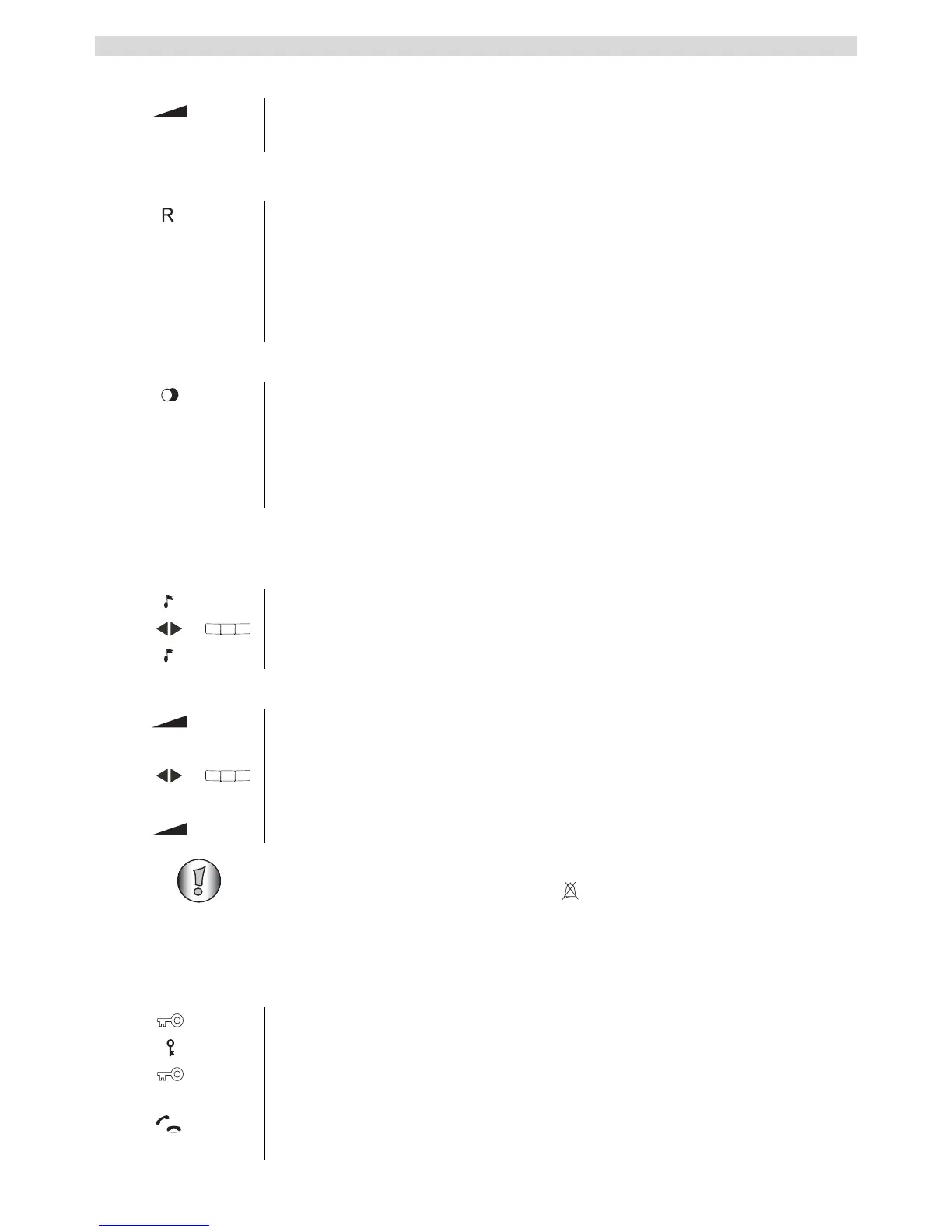
1 Press the volume key during a call.
You can set the volume from 1 to 5.
Press the Flash key (key 12 - figure 2E on page 8) to use particular services
on your external line such as "call waiting" (assuming your provider offers
this feature) or to forward a call when using a telephone system. The R key
(Flash) causes a brief interruption in the line. You can set this interruption
time to 100 ms or 300 ms. If your system requires an other flash time, you can
change this as follows.
1 Hold down the redial key for 3 seconds.
The following appears in the display:
"Short" for 100ms.
"Long" for 300ms.
The Flash time setting disappears from the display again after 2 seconds.
1 Hold down the ring tone key until you hear the set ring tone.
2 Select the ring tone you want (1-9) or enter a number (1-9).
3 Press the ring tone key again to confirm.
1 Press the volume key.
The handset rings at the set volume.
2 Select the volume you want (0-5).
Select "OFF" to deactivate the volume.
3 Press the volume key again to confirm.
You can switch the ring tone volume of any individual handset ON or OFF by
simply holding the ring tone ON/OFF key in standby mode.
1 Hold down the key lock key.
The symbol appears in the display and the key lock is activated.
2 Hold down the key lock key again to deactivate the key lock.
When the key lock is on, you can still answer incoming calls by pressing the
call key. The keypad functions as usual during the call. The key lock is
activated again after the call.


 To Next Page