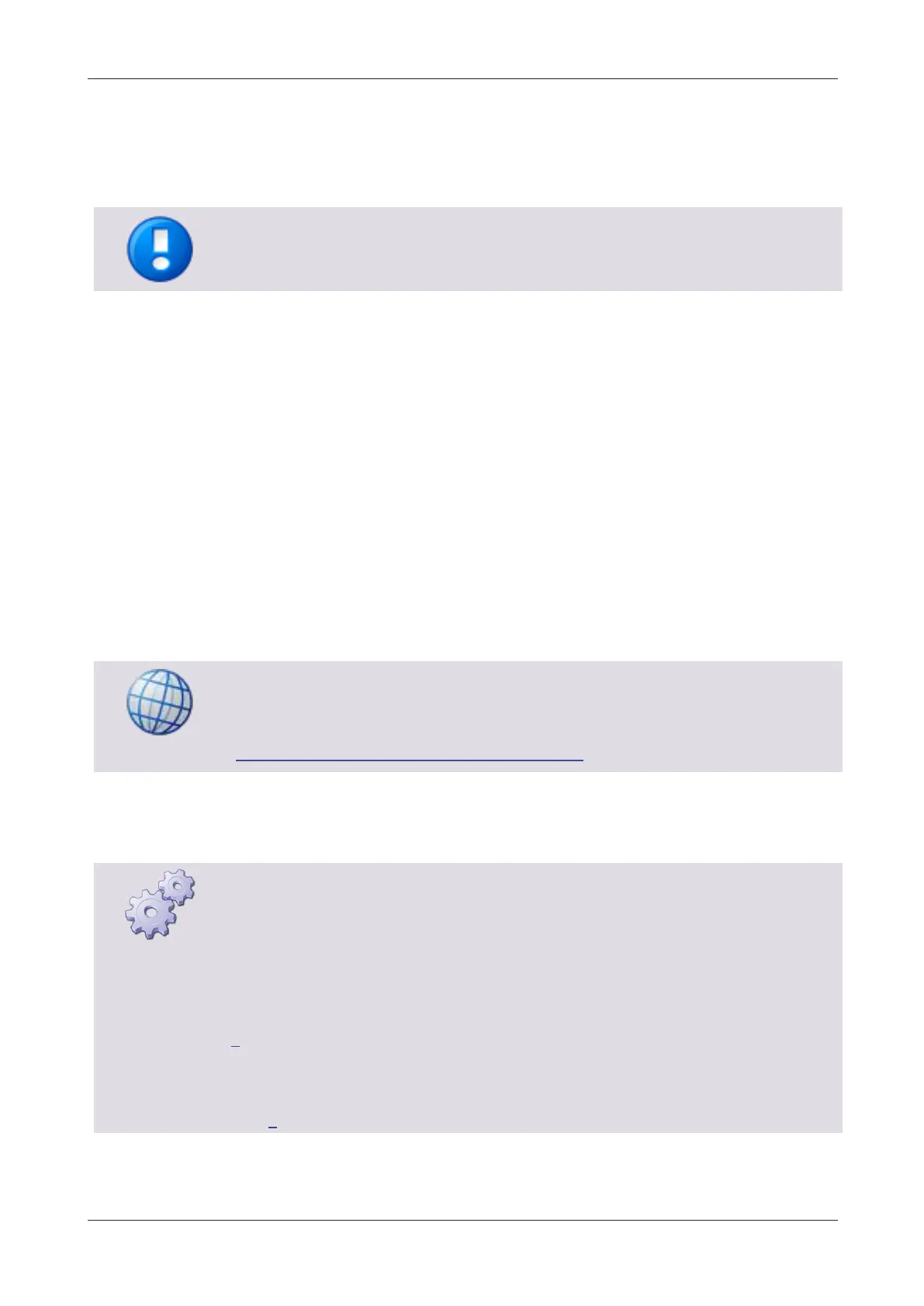
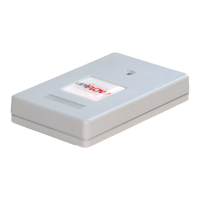
MiCard MultiTech4
3
uniFLOW Desktop Scan Client (requires uniFLOW 2018 LTS or higher)
uniFLOW Online
Universal Login Manager (ULM)
embedded Universal Login Manager (eULM)
Note that eULM devices utilize the keyboard protocol similar to Canon MEAP and
Canon SFP devices. Therefore, no CMFP/MiCard protocol is required.
5 MiCard MultiTech4 - AppBlaster (NT-ware
Edition)
The MiCard MultiTech4 can be configured with the MiCard MultiTech4 - AppBlaster
(NT-ware Edition) configuration utility.
A configuration via uniFLOW Server Configuration > Connections > Agents/Terminals
> MiCard is not possible.
The AppBlaster (NT-ware Edition) configuration utility must be copied to a Windows
computer first.
Software Download
MiCard MultiTech4 - AppBlaster (NT-ware Edition)
(https://web.nt-ware.net/its/browse/MOMKB-998)
When downloaded, unzip, and run the AppBlaster.exe file.
The AppBlaster (NT-ware Edition) is described in the following subchapters, based on
an example configuration.
The following readers are using the Core chipset:
MiCard MultiTech4-P
MiCard MultiTech4-PI
MiCard MultiTech4-P LEGIC
For Canon CMFP devices (not eULM), select Encrypted NT-ware Core CMFP V3.23, App
NT-ware CMFP V1.01 when configuring the app (see Configuration of the app (on page
7)).
For all other Canon devices, select Encrypted NT-ware Core Keyboard V3.23, App
NT-ware Standard V1.00 when configuring the app (see Configuration of the app (on
page 7)).


 To Next Page