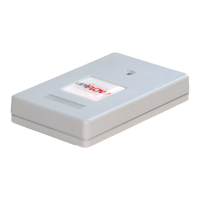
MiCard MultiTech4
4
5.1 Configuration example
The customer utilizes two different transponder-type cards:
MIFARE Classic
HID Prox
The customer would like to limit the access to the printers to the HID Prox transponder
type only. By default, the card reader would allow all transponder types.
The following chapters explain how to use the AppBlaster (NT-ware Edition) to
configure your specific cards. The topics are based on an example configuration for the
above mentioned MIFARE Classic and HID Prox.
5.1.1 Enabling Tracer Mode
To identify the transponder types utilized by the cards in use at the customer, you
need to set the MiCard MultiTech4 into the so-called "Tracer Mode".
This operating mode allows you to read out the transponder-type information with the
MiCard MultiTech4. The transponder-type information is required to configure the
device according to your needs.
Enabling the MiCard MultiTech4 "Tracer Mode"
1. Connect the MiCard MultiTech4 to your computer via USB.
2. Open the AppBlaster (NT-ware Edition).


 To Next Page