MiCard MultiTech4
7
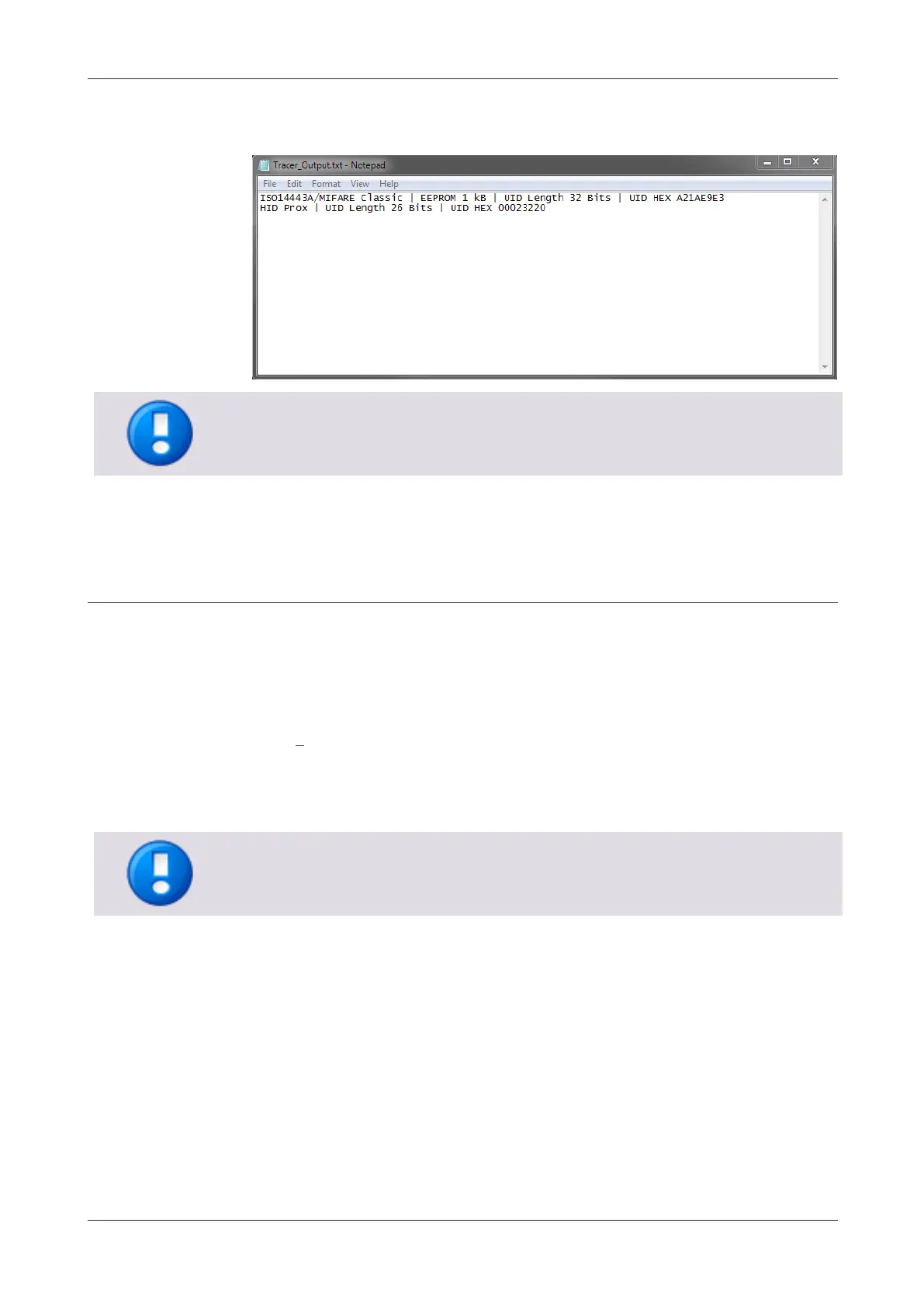
4. Since the card reader is acting as a keyboard, the result is displayed in the text
editor as shown in the following example screenshot:
If the MiCard MultiTech4 is configured in "Tracer Mode", the keyboard layout of the
Windows operating system must be set to QWERTY/QWERTZ. Otherwise, the read-out
card data is misinterpreted.
5.1.3 Configuration of the app
Now that we know which transponder types to configure, we have to configure the
App of the device utilizing the AppBlaster (NT-ware Edition). The firmware
configuration file is called App in the following chapters.
As can be seen in our example screenshot in topic Reading out the transponder type
(on page 6), the customer has MIFARE Classic and HID Prox cards in use.
The customer would like to limit the usage to HID Prox transponder types. As the card
number is stored in decimal output format in Active Directory, the output needs to be
changed.


 To Next Page