MiCard MultiTech4
22
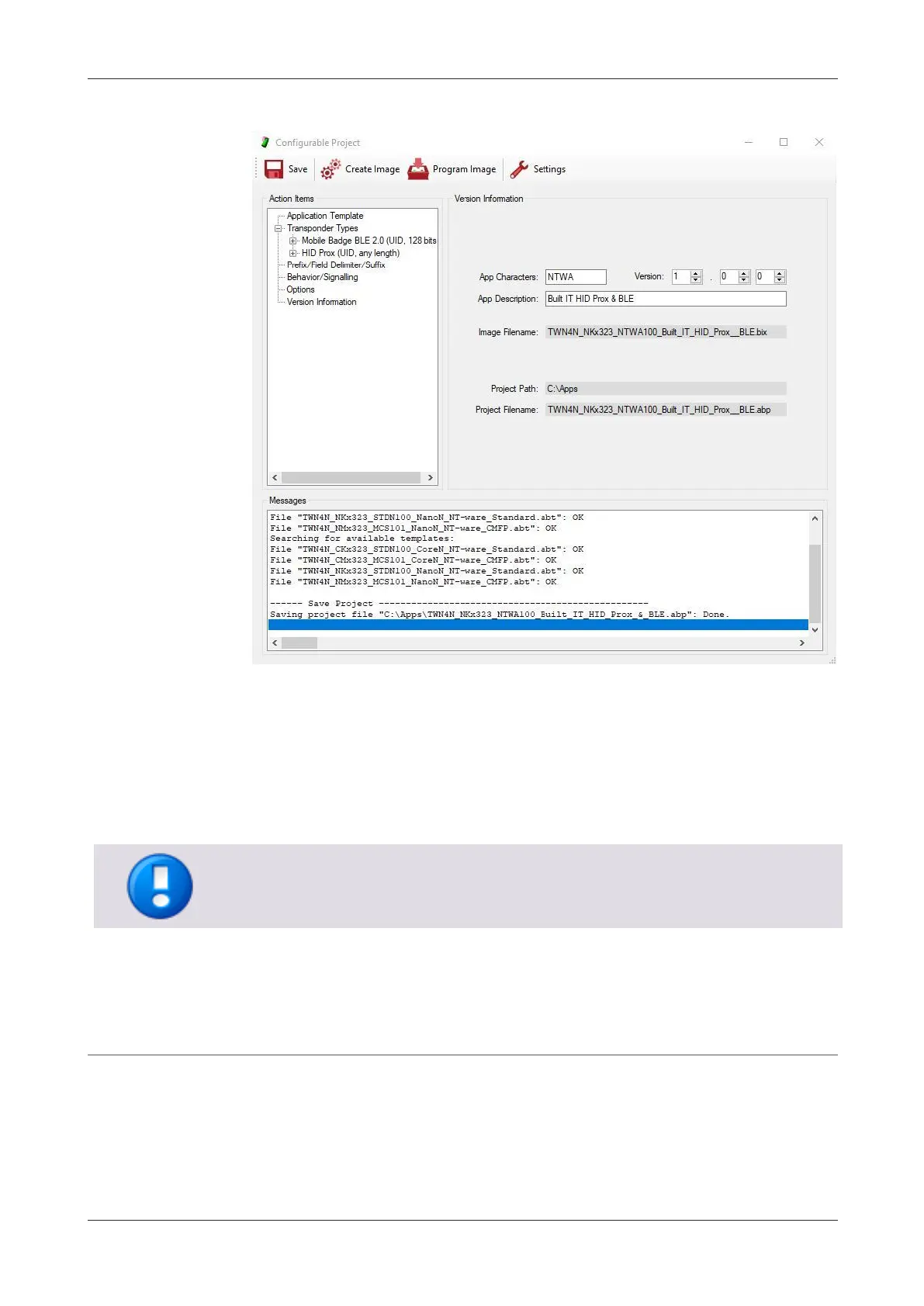
3. Enter an App Description.
4. Click Save.
The resulting .abp file is the AppBlaster (NT-ware Edition) project file which, can
be utilized to do further modifications on the App (e.g., to add additional
transponder types).
5. Click Create Image.
The resulting .bix file is the App (firmware file), which needs to be uploaded to the
MiCard MultiTech4.
Firmware and App cannot be read back from a reader. This allows storing secret keys
and other cryptographic functionality as part of an App. Furthermore, the possibility to
clone a device is avoided, and the intellectual property is protected.
6.2.3 Uploading the app to the card reader
1. Attach the card reader to your computer (USB).


 To Next Page