- 31 -
If the image imported is a raster image then a few more steps will need to be taken to get the file ready for
cutting.
Converting a Raster Image to Vector Image
The difficulty of converting a raster image to a vector image will vary greatly depending on the amount of contrast in
the image. The portion of the image to be cut should be darker than the background or surrounding area and should
have a significant amount of contrast and separation from the rest of the image. If possible, the image should be
completely separated from the background and be black in color (though the image we chose for this demonstration has a
background and is not completely darkened to demonstrate that the process is possible with a variety of images).
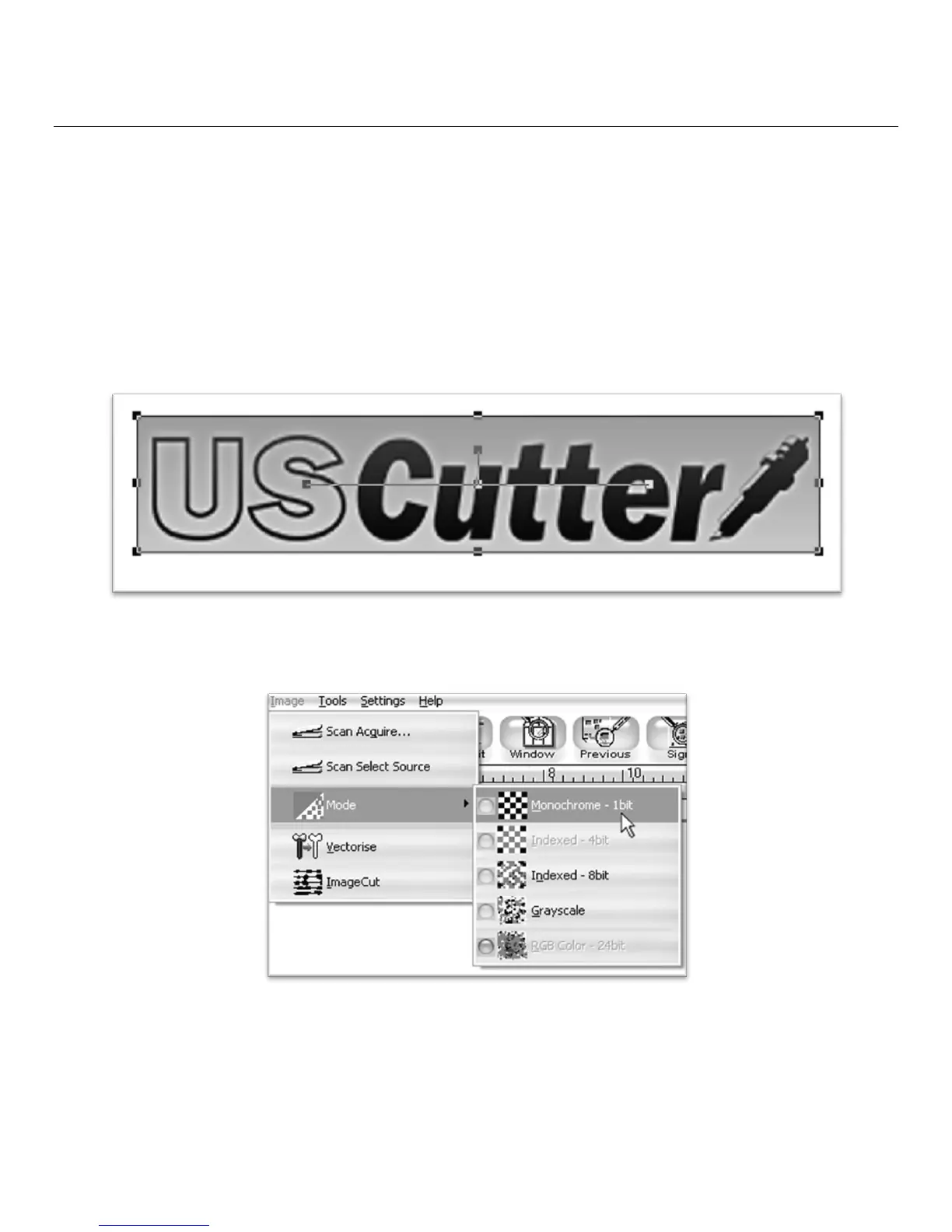
First make sure that the image has been properly imported into SignBlazer and that the image is selected.
You can tell an image is selected when it shows a border and square bounding boxes around its parameter.
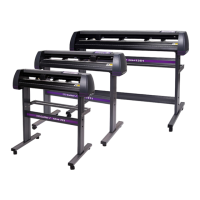
With the image selected, select “Monochrome – 1 bit” from the Mode section of the Image drop down
menu.
Sometimes an imported image will already be in monochrome but will still need to be vectorized before being cut. If the
image imported is monochrome than you can skip ahead to the "vectorise" section.


 To Next Page