- 28 -
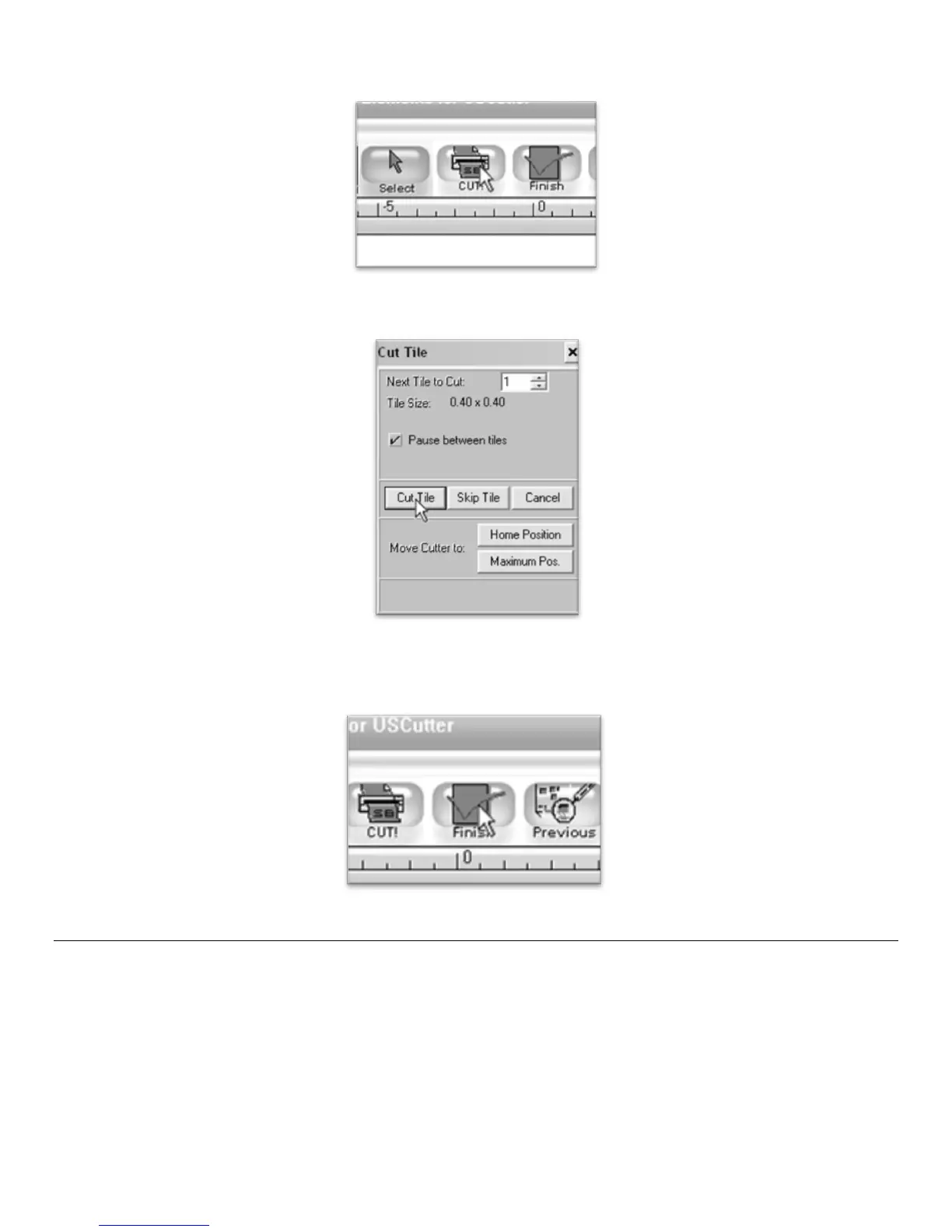
Since this is a simple cut, no adjustments need to be made here. We can tell the software we are ready to
cut by pressing the cut button in the top selection menu…
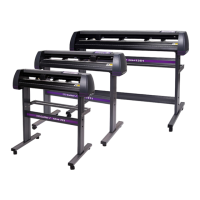
and then pressing “Cut Tile” in the Cut Tile window:
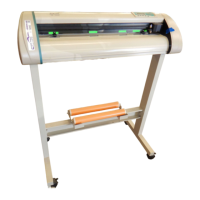
When you are finished, you can go back to the main SignBlazer screen by pressing the Finish button in the
top selection menu.
Importing
Drawing images from scratch in SignBlazer may prove to be somewhat different than imaging software that
you are more familiar with. If you would rather create the images to be cut in another software or you
already have designs finished that need to be cut, then you can just import the finished artwork into
SignBlazer and cut from there.
Most major raster and vector image files are supported in SignBlazer Elements including dxf, eps, ai, bmp, tif, gif, pcx,
tga, jpg, pcd, pct, psd, cmx, ps, and wmf.


 To Next Page