MUSIC
4. Select the return icon to the previous menu.
1.Press [ ] / [ ] to select MUSIC. Press [ENTER ] to enter.
3.Press [ ] to stop music playing and return to music list.
2.Press [ ] / [ ] / [ ] / [ ] to select the desired folder and press [ ENTER ] to open the folder;
playing.
or press [ ] / [ ] / [ ] / [ ] to select the desired music file and press [ ] to start
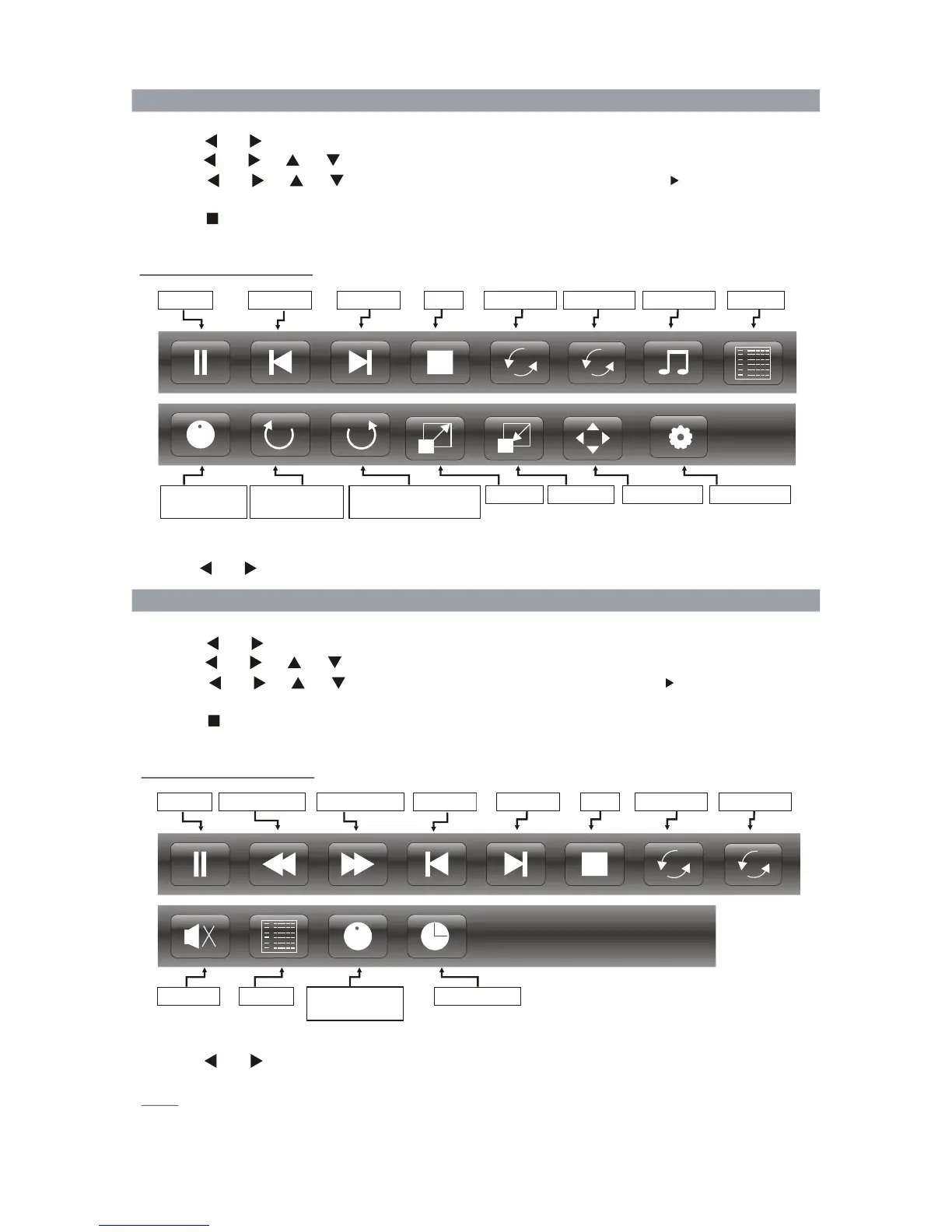
Music Control Bar
Pause Fast Reverse
Mute
Playlist
II
Fast Forward Previous Next
Stop
Repeat All
Info.: Current
Goto Time
Information
4. Select the return icon to the previous menu.
1.Press [ ] / [ ] to select PHOTO. Press [ENTER ] to enter.
3.Press [ ] to stop picture playing and return to picture list.
Photo Control Bar
- Press [ ENTER] to display Photo Control Bar during photo slide show.
- Press [ ] / [ ] to select the desired settings, press ENTER button to confirm.
2.Press [ ] / [ ] / [ ] / [ ] to select the desired folder and press [ ENTER ] to open the folder;
playing.
or press [ ] / [ ] / [ ] / [ ] to select the desired picture file and press [ ] to start
II
9090
++
9090
Pause Previous Next
Stop
Repeat All Playlist
Info.: Current
Information
Zoom In
Zoom Out
Move View
Rotate Clockwise
90 Degrees
Rotate Counterclockwise
90 Degrees
Music
--
-23-
- Press [ ENTER ] to display Music Control Bar while playing the music.
- Press [ ] / [ ] to select the desired settings, press ENTER button to confirm.
Note:
- This menu only show files with the support file extension.
- Files with other file extensions are not displayed, even if they are saved on the same USB storage device.
- An over-modulated support file may cause some sound distortion during playback.
PHOTO
42
Random off
Slide Show
Random off
R
R


 To Next Page