35
9 Setup with PC/notebook (Bluetooth)
VEGAPOINT 21 • Transistor (NPN/PNP)
56623-EN-210210
Youcanndthecodeontheoutsideofthedevicehousingandonthe
information sheet " PINs and Codes" in the device packaging.
Note:
If an incorrect code is entered, the code can only be entered again
after a delay time. This time gets longer after each incorrect entry.
The message " Waiting for authentication" is displayed on the PC/
notebook.
After connection, the device DTM appears.
If the connection is interrupted, e.g. due to a too large distance be-
tween device and adjustment tool, this is displayed on the adjustment
tool. The message disappears when the connection is restored.
Parameter adjustment of the device is only possible if the parameter
protection is deactivated. When delivered, parameter protection is
deactivated by default and can be activated at any time.
It is recommended to enter a personal 6-digit device code. To do this,
go to menu " Extended functions", " Access protection", menu item "
Protection of the parameter adjustment".
9.3 Sensor parameter adjustment
The sensor adjustment menu is divided into two halves:
Ontheleftyou'llndthenavigationsectionwiththemenus"Setup", "
Display", " Diagnosis" and others.
The selected menu item, recognisable by the colour change, is dis-
played in the right half.
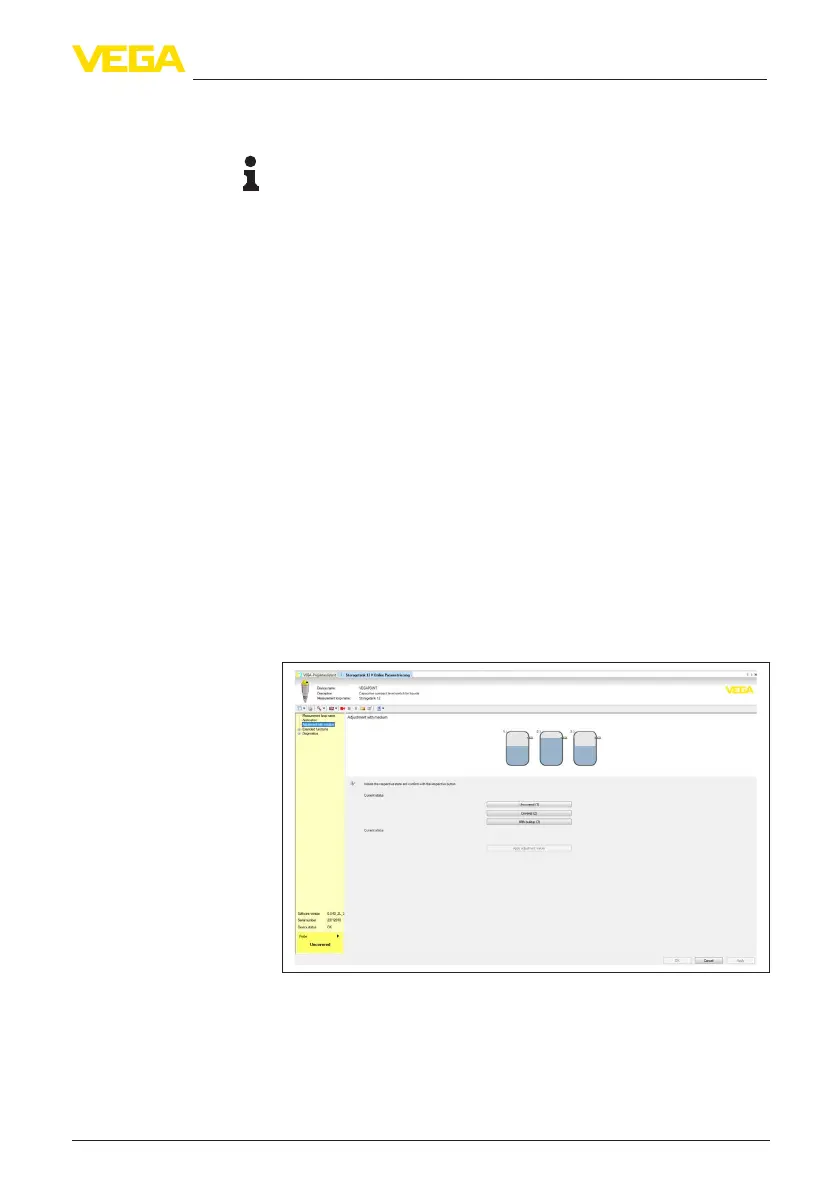
Fig. 18: Example of a DTM view - Setup
Connected
Change device code
Enter parameters


 To Next Page