10
Atminimummtherst3tasksbelowmustbecompletedtoaccessyour
thermostatremotelyfromabrowser.The4thstepisoptional(highly
recommended)andonlyisneededtoaccessyourthermostat(s)froma
mobiedevice.
These steps are:
1. SuccessfulconnectiontoalocalWi-FiAccessPointwithinternet
access.
2. ConrmreceiptofaSkyportgeneratedvericationemail(thisonly
occursonceduringtheSkyportaccountsetup).
3. A6-digitcodeobtainedfromthethermostatissuccessfullyentered
intoaSkyportaccount.
4. SuccessfullydownloadandinstalltheVenstarSkyportapponyour
mobiledevice(s).
Your thermostat operates on the 2.4 Ghz, Wi-Fi b/g/n band.
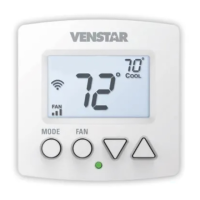
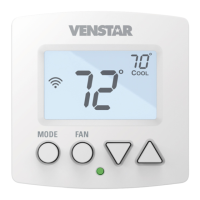
Wi-Fi Symbol Legend
Whentheonlythe‘dot’oftheWi-Fisymbolappears=not
connected to an access point.
WhenthefullWi-Fisymbolappears=connectedtoan
access point.
WhenthefullWi-Fisymbolappearsandthe‘dot’ofthesymbolis
ashing=connectedtoSkyport.
Connect to Wi-Fi Overview


 To Next Page