1. Press / button to select the option that you want to adjust in the SETUP menu.
OSD Language
Press the / button to select OSD Language, then press the OK button to enter sub-menu.Press
/ / / button to select OSD language, default setting is English.
2. Press / button to adjust.
3. After finishing your adjustment, press MENU button to save and return back to the previous menu.
TT Language(Teletext)
Press the / button to select TT Language, then press the OK button to enter sub-menu.Press
/ / / button to select TT Language.(Teletext is no longer available in New Zealand)
Audio Language
Press the / button to select Audio Language, then press the OK button to enter sub-menu.Press
/ / / button to select Audio Language.
Hearing Impaired
Press the / button to select Hearing Impaired,
then press the OK button to select ON/OFF.
Hearing Impaired
Press the / button to select Hearing Impaired,
then press the OK button to select ON/OFF.
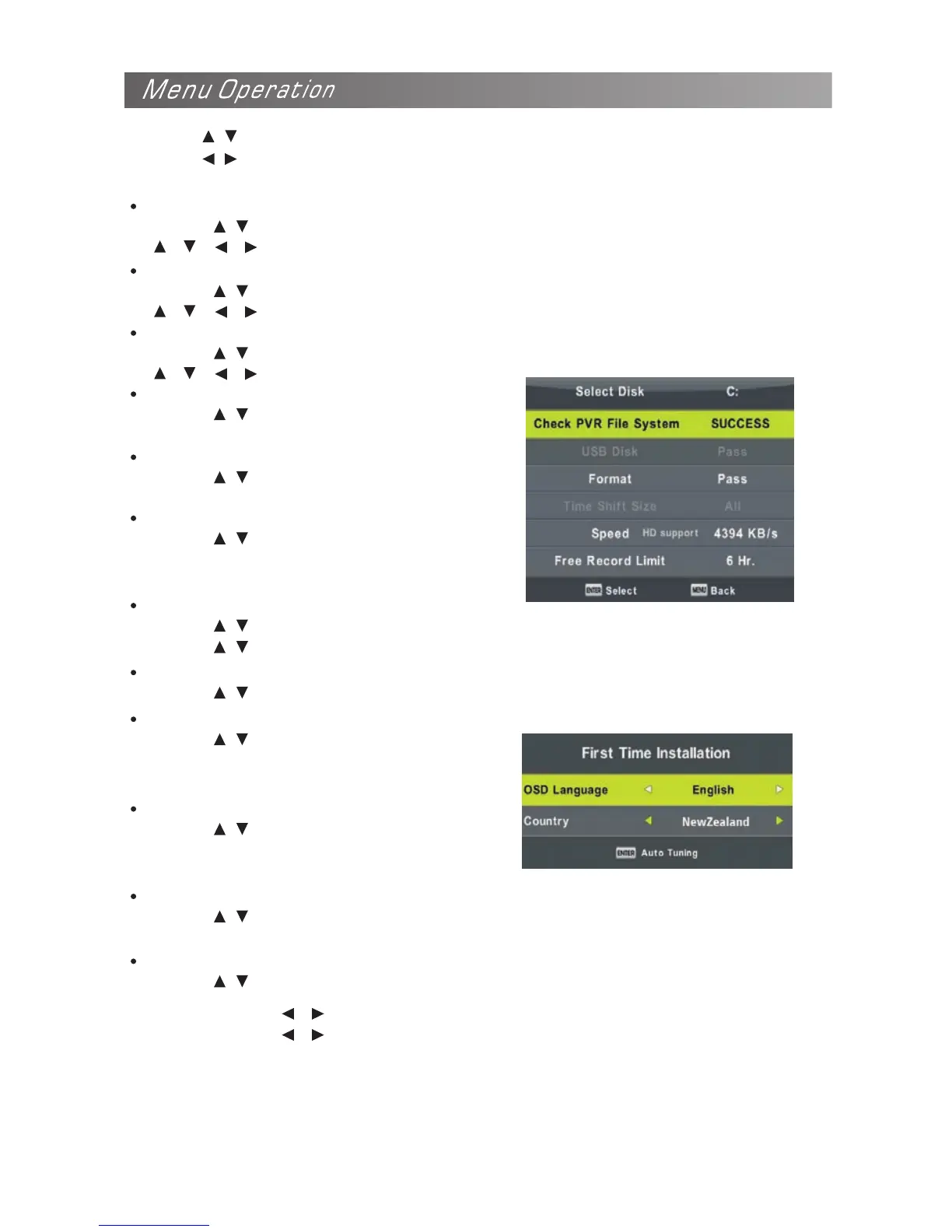
PVR File System
Press the / button to select PVR File System,
then press the OK button to enter sub menu(See
page18-19).
Aspect Ratio
Press the / button to select Aspect Ratio, then press the OK button to enter sub menu.
Press the / button to select Aspect Ratio.(Available options are: Auto, 4:3, 16:9, Zoom, Stretch)
Blue Screen
Press the / button to select Blue Screen, then press the OK button to select ON/OFF.
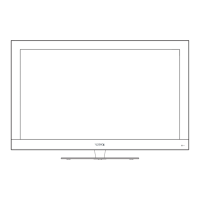
First Time Installation
Press the / button to select
First Time Installation, then press
the OK button to enter.
Reset
Press the / button to select
Reset, then press the OK button to
enter sub-menu.
Software Update(USB)
Press the / button to select Software Update(USB), plug your USB device in the USB slot,
then press OK button to update the right software.
HDMI CEC
Press the / button to select HDMI CEC, then press OK button to enter the sub-menu.
HDMI CEC press / button to turn the HDMI CEC on or off.
Auto Power press / button to turn the Auto Power on or off.
Device Menu Press OK button to open the main menu of device.


 To Next Page