Multimedia Operation
Basic Operation
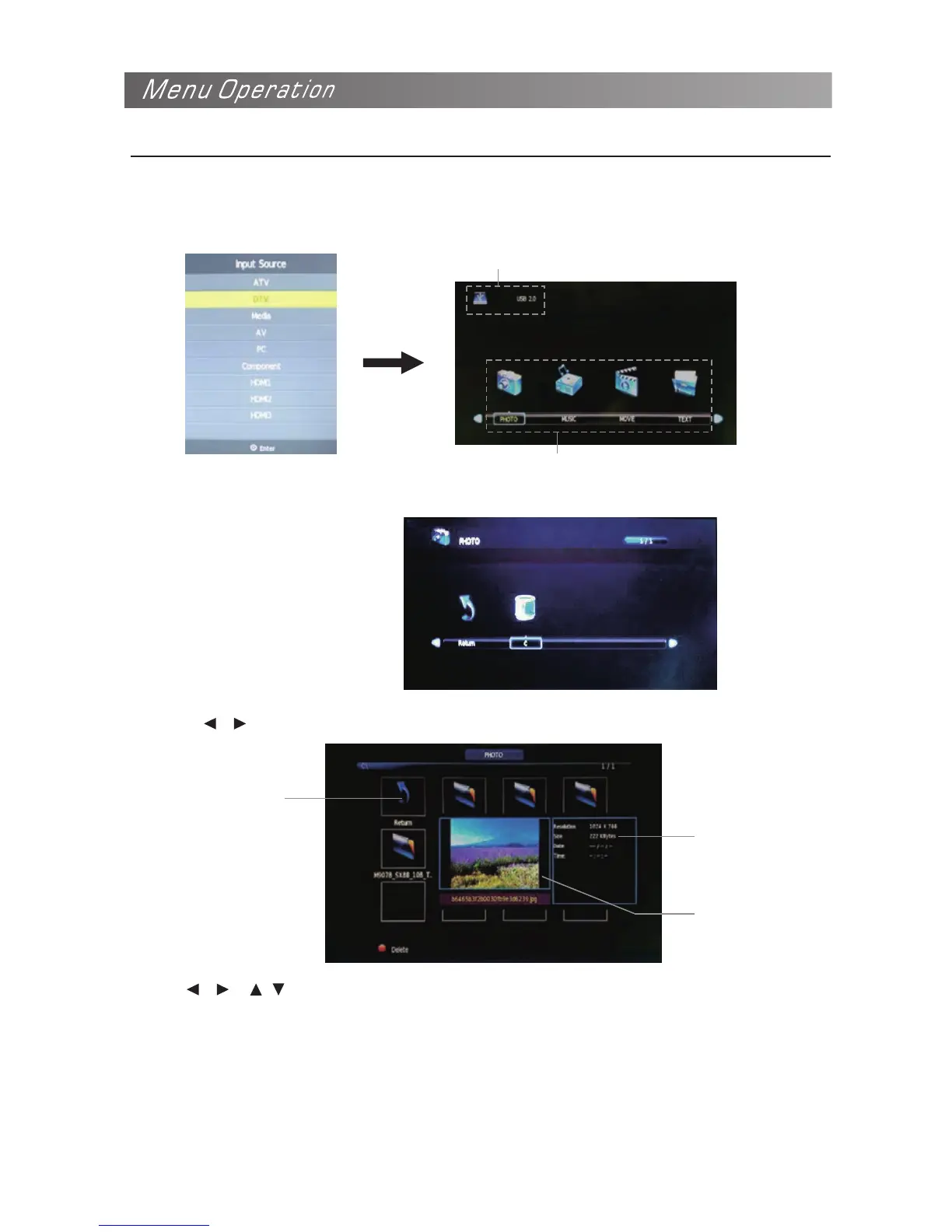
1) Press the SOURCE button on the remote control to display the input source menu, select Media
source, and press OK button to enter the Multimedia menu seen below.
2) Select the file type (mains menu) you want to view, and insert USB device, you will find the name
of the device display on the screen.
3) Press / button to select the USB device, and press OK button to enter.
Press / / / buttons to select and OK button to activate the file or open folder. Press
OK button to play the files in full screen mode. When in full screen mode press OK button to
show the option menu on the bottom of the screen or press STOP button to return to files.
NOTE: You can press RED button on the file to delete the file.
Hints and information of USB device
MAINS MENU: PHOTO MUSIC MOVIE TEXT
Return to
previous menu
Information
Preview


 To Next Page