LabQuest
®
2 – User Manual
35
c. Verify LabQuest is attempting to create a network. The network status should indicate
“Connecting.”
d. Verify LabQuest has successfully created a
network. The network status should change to a
numeric IP address.
When LabQuest has successfully created a
network, tap OK to return to the Connections
app.
TIP! Some Android implementations have trouble viewing and connecting to ad-hoc networks.
These devices require the use of an existing (infrastructure) network.
Enable Data Sharing on LabQuest
In addition to connecting to a Wi-Fi network, you will need to set up LabQuest as a Data Sharing
Source using the following instructions.
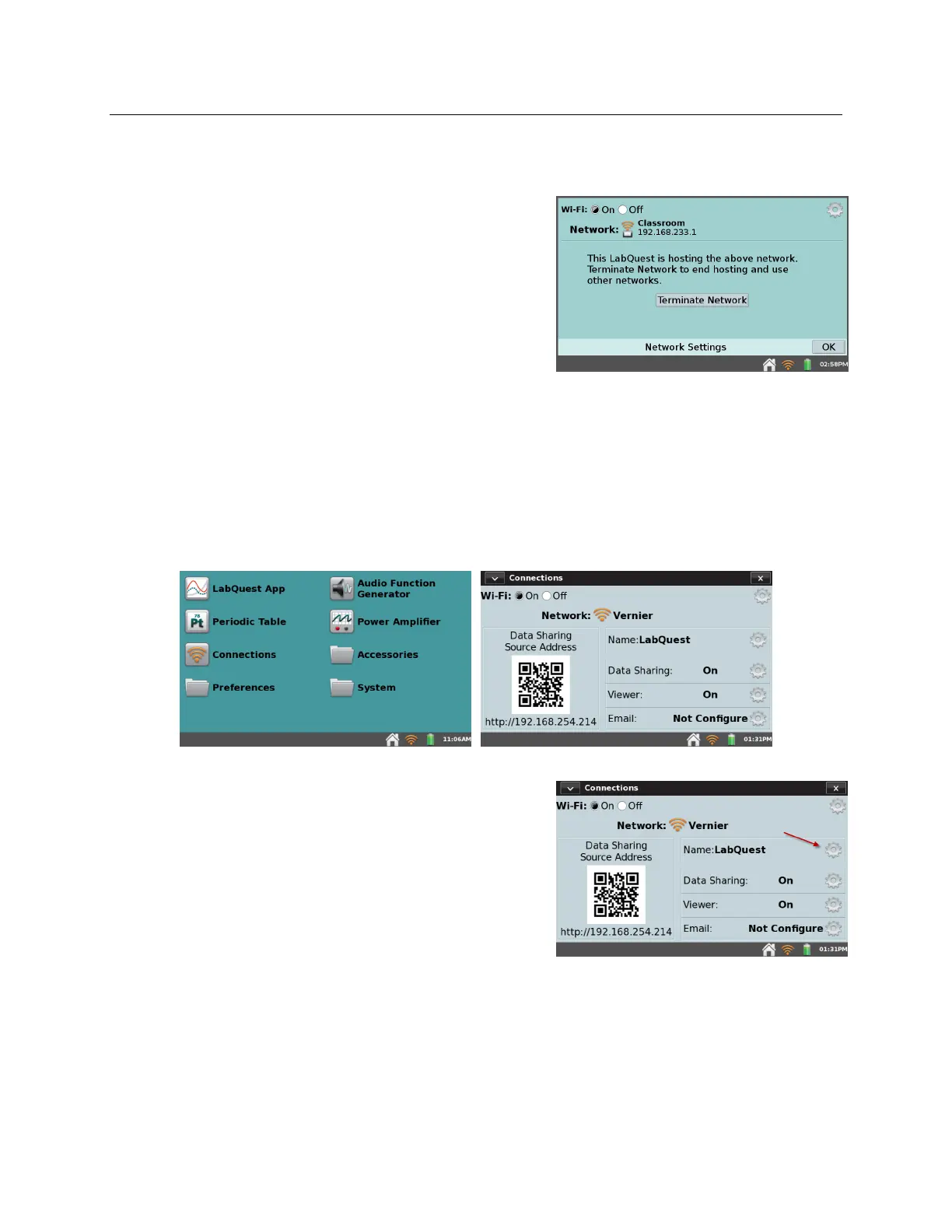
1. Launch the Connections app from the Home screen.
2. To easily identify this LabQuest unit, you can give
the unit a unique name. To do this, tap the Name
field gear.



 To Next Page