Data Sharing: Using LabQuest
®
2
36
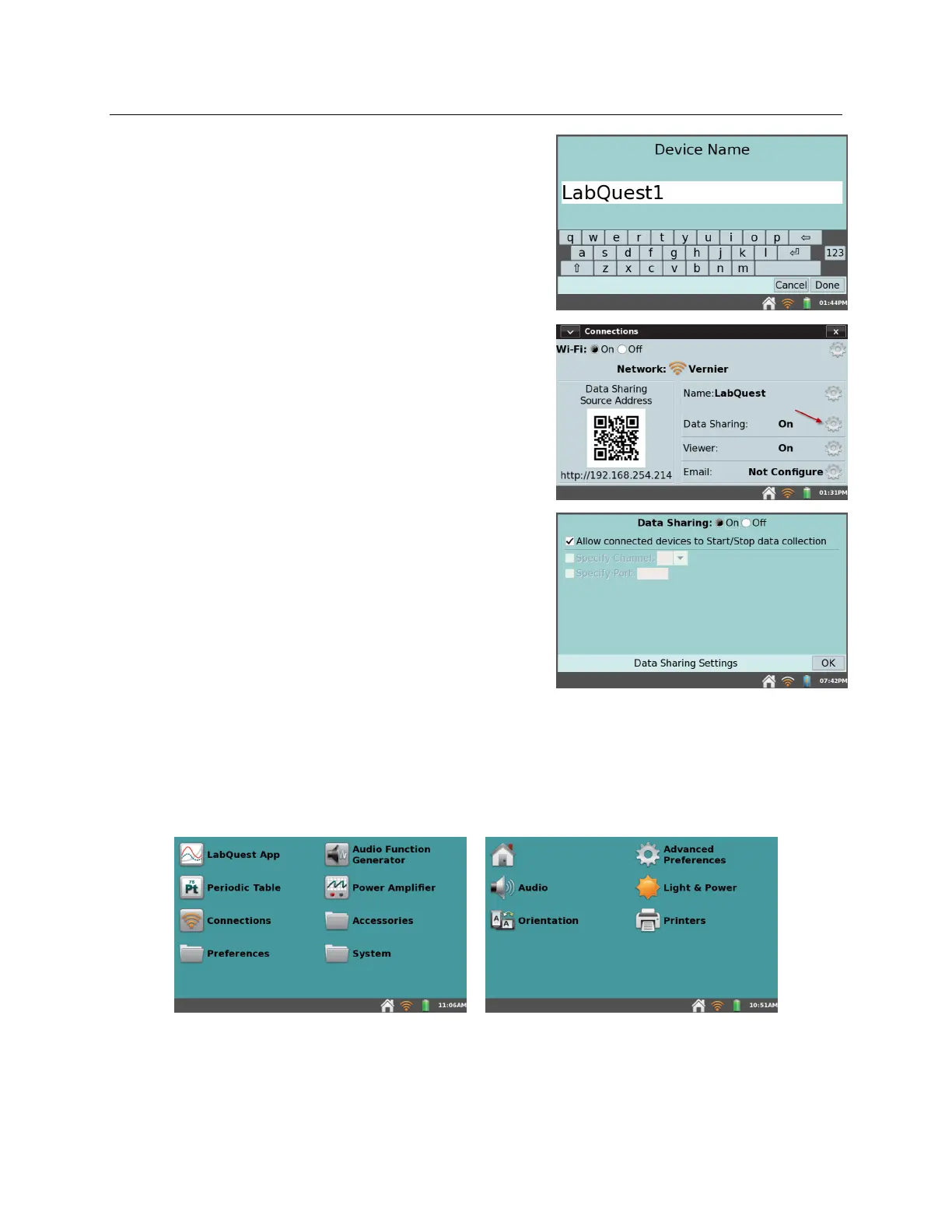
Tap the Name field to edit the LabQuest name (e.g.,
LabQuest1). Tap Done to save the name.
3. From the Connections app, tap the Data Sharing gear
to open the Data Sharing Settings dialog box.
4. Verify Data Sharing is enabled (On).
TIP! If you want to allow students to start and stop
data collection from their computing device, select
the check box to enable this feature.
Tap OK to save the setup.
Restricting Access to the Connections Setup
Once your LabQuest is configured as desired, you can set the preferences to restrict access to the
Connections setup information. This prevents students from inadvertently changing your
network and Data Sharing settings.
1. Tap Preferences from the home screen, then tap Advanced Preferences.



 To Next Page